 NexBrowser指纹浏览器-官方博客Blog
Window sync works in a straightforward way: the currently active environment is set as the master window, and the others as controlled windows. Mouse clicks, keyboard strokes, and scroll events from the master window are distributed to all controlled windows by coordinates and event order.
The key point is that it does not look at page content. It doesn't know whether the element at that coordinate in the controlled window is the same button, nor whether a window is still loading. Therefore, misoperations almost always stem from the same thing: the element you see in the master window and the element at the same coordinate in the controlled window are not the same.
Around this point, preventing misoperations comes down to four steps and one boundary:
- Alignment — unify window size, resolution, DPI scaling, and interface bars so coordinates match;
- Baseline — before starting, all windows must be on the same URL, same screen, and fully loaded so elements match;
- Add delay — smooth out network and rendering time differences across environments;
- Keep a circuit breaker — set up a hotkey to pause and remove abnormal windows for separate handling;
- For processes involving conditional logic, do not force sync; leave it to RPA or scripts.
The following expands in hands-on order.
First decide whether this batch should use sync
Sync saves repetitive labor, not judgment. Before starting, go through this:
Suitable for sync: each account performs exactly the same action, fixed path, consistent page structure, and identical content. For example, opening a settings page, toggling a switch, browsing and scrolling, or batch-filling the same content.
Not suitable for direct sync: each account needs different content; CAPTCHAs, secondary confirmations, or approvals may pop up; you need to wait for a network response before deciding the next step; and any irreversible action.
A handy criterion for irreversibility: can you undo it yourself within five minutes if something goes wrong? If yes, you can sync. If not (payments, publishing, deletion, unbinding, changing login methods), stop before the confirm button and click each window individually.
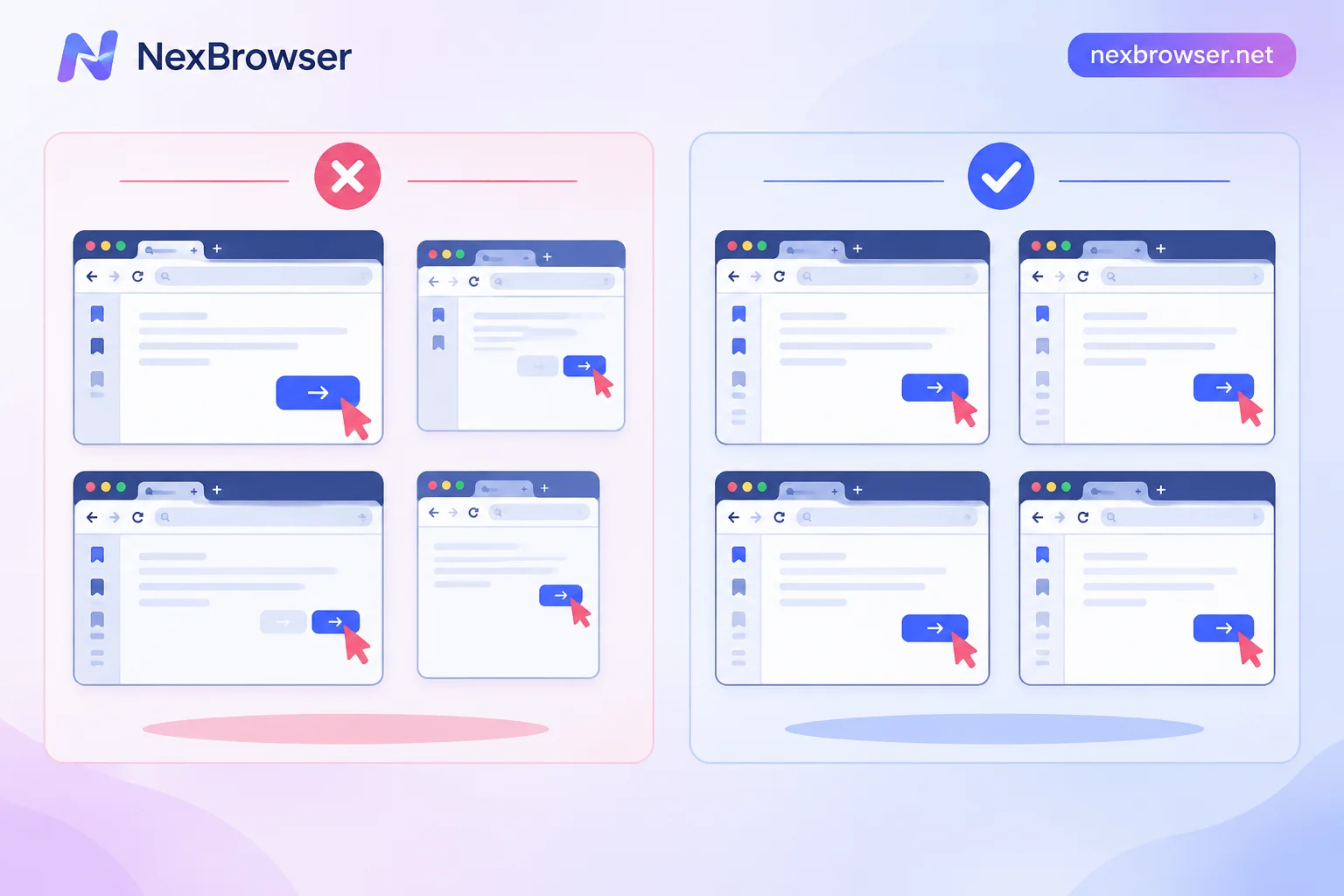
Gate 1: Alignment — make coordinates land on the same element
Coordinate misalignment is the most frequent failure, yet the simplest to troubleshoot because it's all static differences that can be eliminated in advance.
- Use the tool's grid arrangement for window size; don't drag manually. Manually dragged windows differ by a few pixels, which is enough to click the wrong row on a dense list page.
- Resolution and DPI scaling must be consistent. When spreading windows across multiple monitors, first confirm both screens have the same scaling ratio—same 1920 width, but elements at 100% and 125% scaling have completely different actual positions.
- Browser interface bars must be consistent. Whether the bookmarks bar is shown, how many extension icons there are, whether the sidebar is expanded, or whether one window has an extra tab open—all shift the starting position of the page area down or right.
- Reset page zoom. Before starting, press Ctrl+0 in each window to return zoom level to 100%.
- Watch for responsive layouts. When window width crosses a site's breakpoint, the same page switches to a different layout; element positions don't shift a few pixels but rearrange entirely. So windows must be the same width, and not so narrow as to trigger mobile layout.
How to confirm alignment works: with sync on, hover the mouse over a button in the master window and see if the same button shows a hover state in the controlled windows. This action has no side effects and is the most cost-effective check before starting work.
Gate 2: Baseline — before starting, all windows should be on the same screen
Alignment solves static differences; baseline solves state differences. Three conditions must be met simultaneously: all fully loaded, same URL path, and on the same operation interface.
In practice, these usually break the baseline:
- A window is still loading due to a slow proxy, you've already clicked, and it receives an empty click;
- Inconsistent redirects: some accounts are sent to onboarding pages, profile completion pages, or risk control prompts;
- One-time popups: first-login prompts, cookie consent bars, site announcements, new feature guides. These appear at different times on different accounts and are the most typical source of misalignment—what is "Next" in the master window might be "Confirm Delete" in a controlled window;
- Account state differences: unverified email, incomplete profile, rate limit prompts—these add an entire block of content to the page.
Approach: before starting sync, scan the first screen of all controlled windows. Remove any with inconsistent states from the sync group, individually dismiss popups and complete onboarding, confirm they return to the same interface as other windows, then add them back.
Gate 3: Delay — don't let all windows send requests in the same millisecond
Configure sync delay in the sync parameters, or enable simulated delayed clicks and delayed input. It serves two purposes: smoothing out time differences caused by proxy latency and rendering speed across environments, giving slow windows time to catch up; and preventing all windows from sending concurrent requests at the same instant, which can cause page unresponsiveness.
There is no universal value for delay; it depends on the slowest environment in your batch. First click once individually on the slowest window and see how long it takes for the page to respond; set the delay based on that order of magnitude. The farther the proxy exit and the more volatile the line, the wider the delay should be.
Gate 4: Differentiated data — the clipboard is where things go wrong most easily
In multi-account operations, as long as one field is "different per account", the global clipboard is a trap: you copy one piece of content and sync-paste, and all controlled windows receive the same text. Writing one account's nickname, notes, or payment info into all accounts is harder to clean up than clicking the wrong button because it doesn't throw an error.
Three approaches, ranked by reliability:
- Pause sync and fill each window manually. Slowest but least error-prone, suitable for critical fields like credentials and payment info.
- Use independent clipboard. Some tools support assigning separate clipboard content to each controlled window, so each pastes its own. Before using, test on two windows to confirm distribution matches.
- Use text simulation input or random number features to generate differentiated content, suitable for insensitive fields like notes and nicknames that don't require precise correspondence.
A principle to remember: sync only brings all windows to the input box; what goes into the box is decided by you one by one.
Gate 5: Circuit breaker — set up the hotkey before starting
Set up the global hotkey for start/pause sync before you begin, and actually press it once to confirm it works. Don't wait until something goes wrong to look for a button in the UI—under blind sync, from spotting an anomaly to clicking the button, several more events will be duplicated.
Pause immediately when you see any of the following:
- Any window shows a CAPTCHA or risk verification;
- Error prompts or secondary confirmation popups appear;
- Page goes blank or gets stuck loading;
- A window's URL differs from others.
After pausing, handle in this order: remove the abnormal window from the sync group → troubleshoot individually → confirm it returns to the same page and state as others → add back to sync group → resume.
Do not "finish clicking then fix later". Blind sync errors chain: the first step lands on the wrong element, and every subsequent step continues clicking on a wrong page, with cumulative losses.
When to stop and switch to RPA or scripts
Window sync lacks logical validation of actual page state. If any of these signals appear, the error probability of forcing sync will surge, and you should switch:
- Need to "wait for an element to appear before clicking" rather than a fixed few seconds;
- Conditional branches: account in state A follows one path, state B another;
- Need to read data from the page for backfilling or logging;
- Number of windows exceeds what fits on screen simultaneously—you can't visually inspect, so the circuit breaker fails.
If there are judgment and waiting steps but you don't want to code, use no-code RPA, configuring "wait for element" and "conditional judgment" as process nodes.
To connect to an existing automation stack, use Local API: Selenium, Puppeteer, Playwright, browser-use, Playwright MCP can all take over launched environments, and scripts can handle full waits and exception catching. For connection examples, see How to connect Puppeteer to an antidetect browser? 3 wsEndpoint methods.
Doing this in NexBrowser
Window sync is available in NexBrowser's Windows client, supporting master and controlled window alignment on a single screen or multiple screens. Specific settings depend on your client's current version (Window Sync). For processes requiring conditional judgment, you can smoothly switch to no-code RPA or Local API scripts. Local API is free with unlimited calls.
Two things are recommended before starting sync:
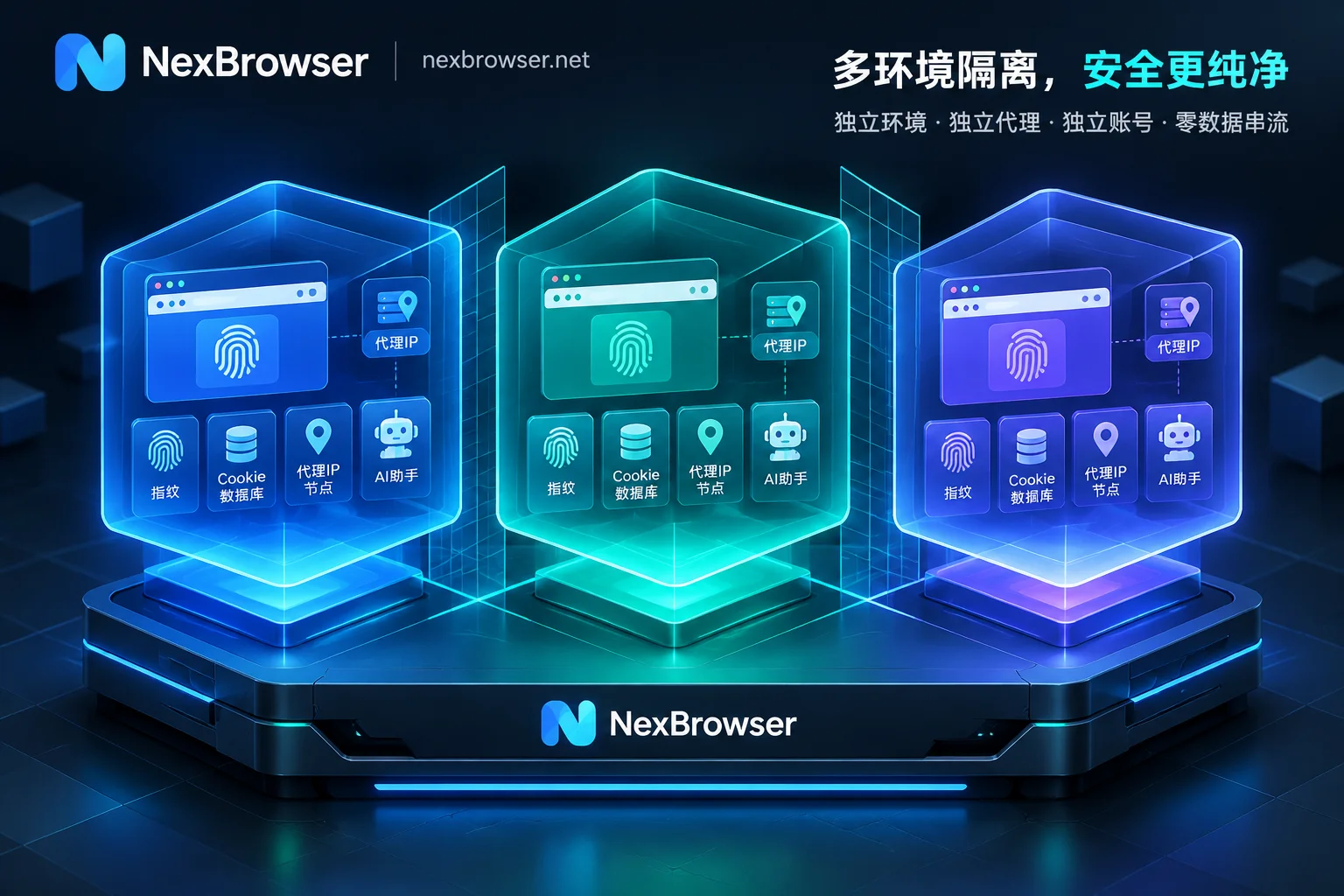
- Unify environment baseline. Sync only copies operations; it doesn't change isolation—each environment still has independent cookies, cache, local storage, and proxy. But if the environments themselves are unevenly configured, page behavior will be inconsistent and baseline hard to align. Batch environments are easier to create by copying from a template; see How to save browser environments as templates for batch copying.
- Verify proxy exit first. Environments with inconsistent exit location, timezone, or language may land on different regional versions of the same site, and the page layout will directly differ. For the order of verification, see How to confirm exit location and timezone/language consistency after binding proxies.
One final note: the above focuses on batch operation efficiency and misoperation prevention for your own accounts. No window or fingerprint configuration guarantees accounts won't be linked, and platform rules vary. Specific operations depend on your platform's current policy.



Comments(0)