NexBrowser指纹浏览器-官方博客Blog
The most common mistake when writing automation scripts is to directly puppeteer.launch() or chromium.launch(). This launches a clean Chromium process: without your configured fingerprint parameters, without the environment-bound proxy, without login sessions, and with the local machine's exit IP. The script appears to run successfully, but it's actually running in a browser you didn't intend.
The only correct approach is one main line: let the fingerprint browser client start the environment, and have the script connect via the CDP debug address (connect), rather than launching it itself (launch).
Most fingerprint browsers are based on the Chromium engine, and the environment window itself is a Chromium instance with remote debugging enabled. Puppeteer and Playwright both support connecting to an already-running instance, so the essence of takeover is obtaining that WebSocket debug address and attaching to it.
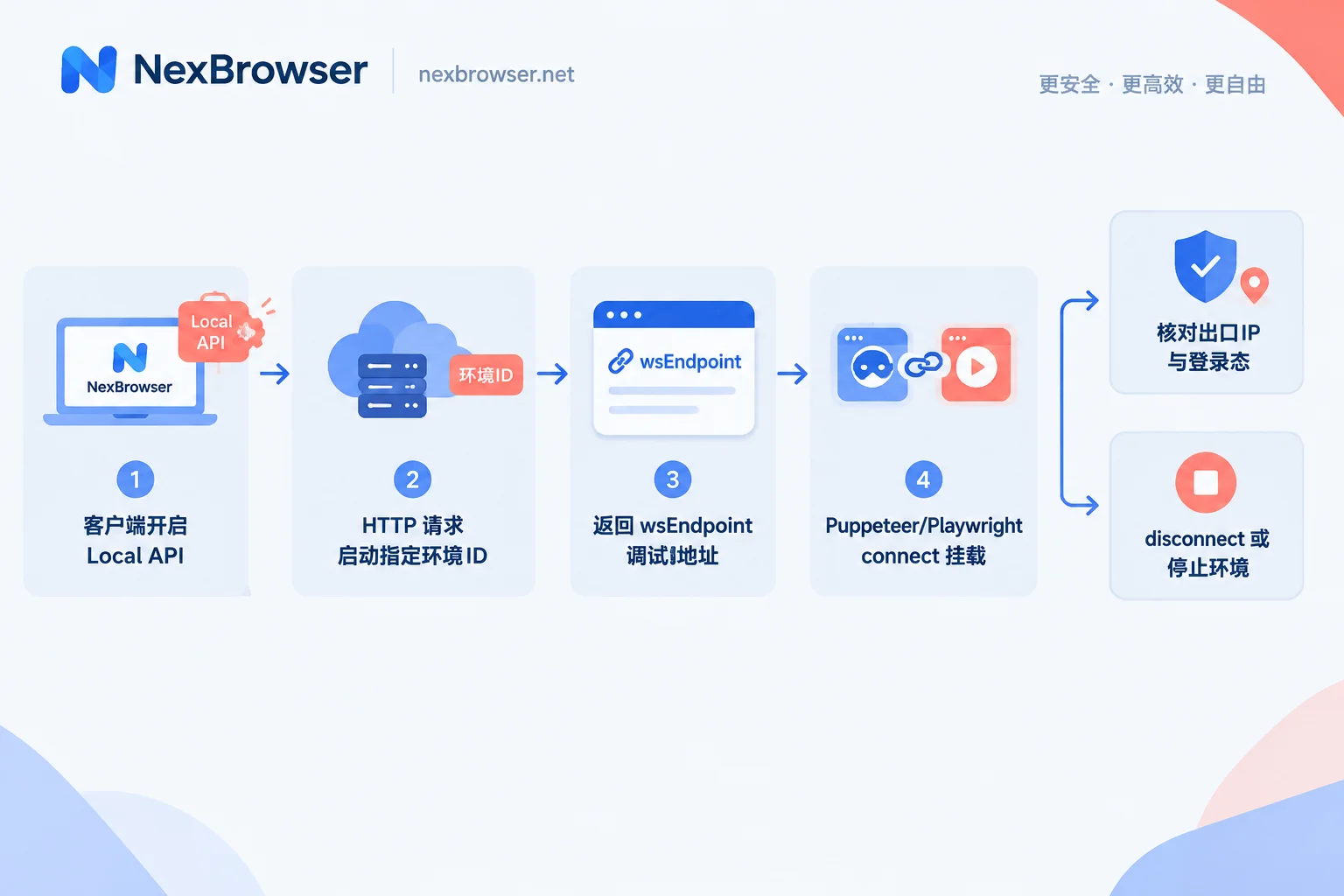
Three-Step Action Sequence
Step 1: Keep the Client Running, Enable the Local API Service
The prerequisite for takeover is a locally listening interface service. Fingerprint browser clients usually provide a Local API toggle and port in settings. Once enabled, it listens on a local port (typically 127.0.0.1) to receive commands like starting and stopping environments.
Two things to confirm at this step: the client is logged in; the port isn't occupied by another program. When the script can't connect, check these two first—it's faster than modifying code.
Step 2: Start the Target Environment via HTTP Request, Get the Debug Address from the Response
Don't let the framework launch the browser. Instead, first send an HTTP request to the local interface with the environment ID you want to run. The interface will launch the window for that environment and return the dedicated debug address in the response, typically under field names like ws, wsEndpoint, or webSocketDebuggerUrl, in the form ws://127.0.0.1:<port>/devtools/browser/<id>. Some clients also return an HTTP-form debug port address (http://127.0.0.1:<port>).
The specific request path, parameter names, and response structure vary by client. Refer to the API documentation built into your client—don't copy paths from someone else's blog. For troubleshooting ideas and field meanings at this step, see How to start an environment and get the debug port via Local API.
Key point: This address is generated per environment instance and may differ each time it starts. Don't hardcode it in your script. When running multiple accounts in batch, the correct approach is to loop through the start interface, collect a batch of addresses, then connect to each separately.
Step 3: Connect the Framework and Reuse Existing Contexts and Pages
Once you have the address, the two frameworks differ in syntax.
Playwright (Node):
const { chromium } = require('playwright');

const browser = await chromium.connectOverCDP(wsEndpoint);

// 关键:不要 newContext(),用环境自带的默认上下文
const context = browser.contexts()[0];
const page = context.pages()[0] || await context.newPage();

await page.goto('https://example.com');
// ...
Puppeteer (Node):
const puppeteer = require('puppeteer-core');

const browser = await puppeteer.connect({
  browserWSEndpoint: wsEndpoint,
  defaultViewport: null,   // 避免框架把视口改成默认尺寸
});

const pages = await browser.pages();
const page = pages[0] || await browser.newPage();

await page.goto('https://example.com');
There's one common pitfall in each approach:
- After attaching with Playwright using
connectOverCDP, you should usebrowser.contexts()[0]. CDP attach mode is not fully equivalent to Playwright's own browser launch mode; certain commands related to "creating an independent context" behave differently. If you create a new context, you effectively bypass the context that originally holds cookies and local storage for the environment, and the login session will appear to be "missing." Perform all operations within the default context. - Puppeteer's
connect()sets a default viewport size for pages. If you find that the page rendering dimensions don't match the window after takeover, setdefaultViewporttonullto let the page follow the actual window, ensuring consistency with the resolution configured in the environment.
Python side is similar: Playwright uses p.chromium.connect_over_cdp(ws), while the Puppeteer ecosystem mostly uses pyppeteer's connect. Selenium takes a different path (passing the debug address as debuggerAddress into ChromeOptions) and won't be covered here.
If you encounter discrepancies in ws address format or port notation on the Puppeteer side, Three wsEndpoint formats for connecting Puppeteer to fingerprint browsers provides a more detailed comparison.
How to Do This Step in NexBrowser
NexBrowser's Local API is free and unlimited, supporting Selenium, Puppeteer, Playwright, browser-use, and Playwright MCP takeover, so you don't need to worry about call quotas when debugging a script.
The integration sequence matches the above: enable Local API in the client → call the start interface with the environment ID → get the returned debug address → connect / connectOverCDP. Since each environment's cookies, cache, local storage, and proxy are independent by design, and fingerprint parameters are configured per environment and kept self-consistent, the script reuses this entire configuration directly after connecting—no need to set UA, timezone, or proxy in code. In fact, resetting these in code may conflict with the environment's own configuration.
For specific interface paths, port settings, and response fields, refer to the Local API documentation within the client. The client is currently available for Windows; macOS is still in development.
Another script-related detail: environment configurations support encrypted cloud sync, so environments can be restored after logging in on a different machine. However, the environment ID and the local debug port are two different things—after switching machines, the environment ID referenced in the script can remain the same, but the debug address must be obtained again via the interface. For the complete sequence after switching machines, see How to restore environment configurations after switching computers.
After Takeover, Perform Three Checks Before Running Business Logic
"Connected" does not equal "taken over correctly." Before the script executes actual business actions, it's advisable to add a fixed self-check segment, especially for batch tasks:
- Exit IP: Navigate to an IP lookup page and compare whether the current exit matches the proxy bound to that environment. If it shows the local IP, you're likely not connected to the target environment window, or the proxy isn't working. For the levels and order of verification, see How to confirm exit ownership and timezone/language consistency after binding a proxy.
- Fingerprint parameters: Read
navigator.userAgent, timezone, and language. If necessary, check WebRTC behavior to confirm they match the environment configuration, rather than being overridden by script or framework defaults. - Login session: Open a page of a logged-in platform and check if the session is still active. If logged out, it's likely a new context was created, or you connected to a different instance.
Only after all three pass can you be sure the script is indeed running in the environment you configured. When they fail, the troubleshooting direction is "wrong instance / new context created / proxy itself not working," not continuing to debug business code.
It should be noted that any configuration and verification only makes the environment self-consistent and does not guarantee against platform association; scripted operations must also comply with the rules of the platforms you use.
At the End of the Script: disconnect or close
This step is often overlooked, resulting in residual background processes or data not being written back. Choose based on your goal:
- Only want to release script control and keep the window for manual use: call
browser.disconnect()(on Playwright, close the connection rather than the browser). The window is unaffected. - Want to shut down the environment after the script finishes: don't kill the process directly. Call
browser.close()according to the client's specification, or call the "stop environment" interface provided by the Local API. Using the interface is more reliable because the client handles cleanup and configuration sync.
Also pay attention to concurrency in batch tasks. Launching too many environment windows simultaneously will exhaust local resources first, and the script timeout rate will skyrocket. Rather than adding retries in code, it's more practical to start in batches and stop as soon as each finishes.
A Few Common Situations
Connection refused / ECONNREFUSED: The client isn't running, not logged in, Local API not enabled, or the port doesn't match what's in the script. First access the local interface directly with a browser or curl to confirm the service is up.
Connected but the page is a blank new tab: pages() gets the initial tab from when the environment started—this is normal. Just goto on it; no need to open a new one.
Multiple environments getting mixed up: This means the wsEndpoint of one environment was reused for another task. Addresses correspond one-to-one with environment instances. In batch mode, manage with a mapping of "environment ID → address → browser instance" and don't cache addresses across rounds.
Just want to run a fixed workflow and don't want to maintain scripts: Repetitive actions like login, clicks, and form filling don't necessarily require coding. No-code RPA covers most cases; see How to build workflows with no-code RPA. If you need to operate multiple accounts at once, see How to avoid misoperations with window synchronization.
Remember the sequence and you won't go wrong: Open Local API → start by environment ID → get debug address → connect / connectOverCDP → use default context → three checks → disconnect or stop environment as needed. If you're ready to start, begin by downloading the client, installing it, and running your first environment, then connect your script.