 NexBrowser指纹浏览器-官方博客Blog
Yes. In scenarios where you need to stay logged in, this is very common. However, an IP change doesn't necessarily log you out—the result mainly depends on three factors:
- How often the proxy changes its exit;
- How far the change is—same-city node switch, or cross-city, cross-country;
- Whether the target website associates login status with IP.
If you use a per-request rotating proxy to log into an account, you're practically inviting logouts. Switching to sticky sessions (keeping the same exit for a period) or using a fixed exit will usually significantly reduce such issues. Below, we first explain the reasons, then how to diagnose and configure.
Why Changing IP Causes Account Logout
The following three mechanisms are common, though not every website uses all of them. For a specific platform, how much IP change it tolerates—e.g., whether drift within the same subnet is acceptable—is not publicly disclosed and can only be observed empirically.
1. Session and Login IP Are Bound Together
E-commerce, finance, and social sites with high security requirements often tie the session, token, or cookie issued after login to the source IP at login. If subsequent requests come from a different IP, the server-side validation fails, the request is deemed invalid, and you get a 401 or 403—what you see is being asked to log in again.
The cookie is still in the browser, but the server no longer recognizes it.
2. Risk Control Treats IP Jumps as Account Theft Signals
Security systems like Cloudflare, Okta, and AWS WAF continuously evaluate context throughout a session. Frequent IP changes in a short time, especially cross-city or cross-country jumps, resemble a cookie stolen by malware and used elsewhere. The system may then require multi-factor authentication, show a slider captcha, or log out the session.
So sometimes you're not immediately kicked offline, but captchas suddenly increase. This usually indicates that the exit change has been noticed.
3. IP Change Mid-Multi-Step Operation Causes Token Validation Failure
Some websites' CSRF tokens or checkout flows record the client IP when generated. If the exit changes during form filling, checkout, or profile editing, submission fails validation. Common symptoms: form errors, cart cleared, page redirect to login.
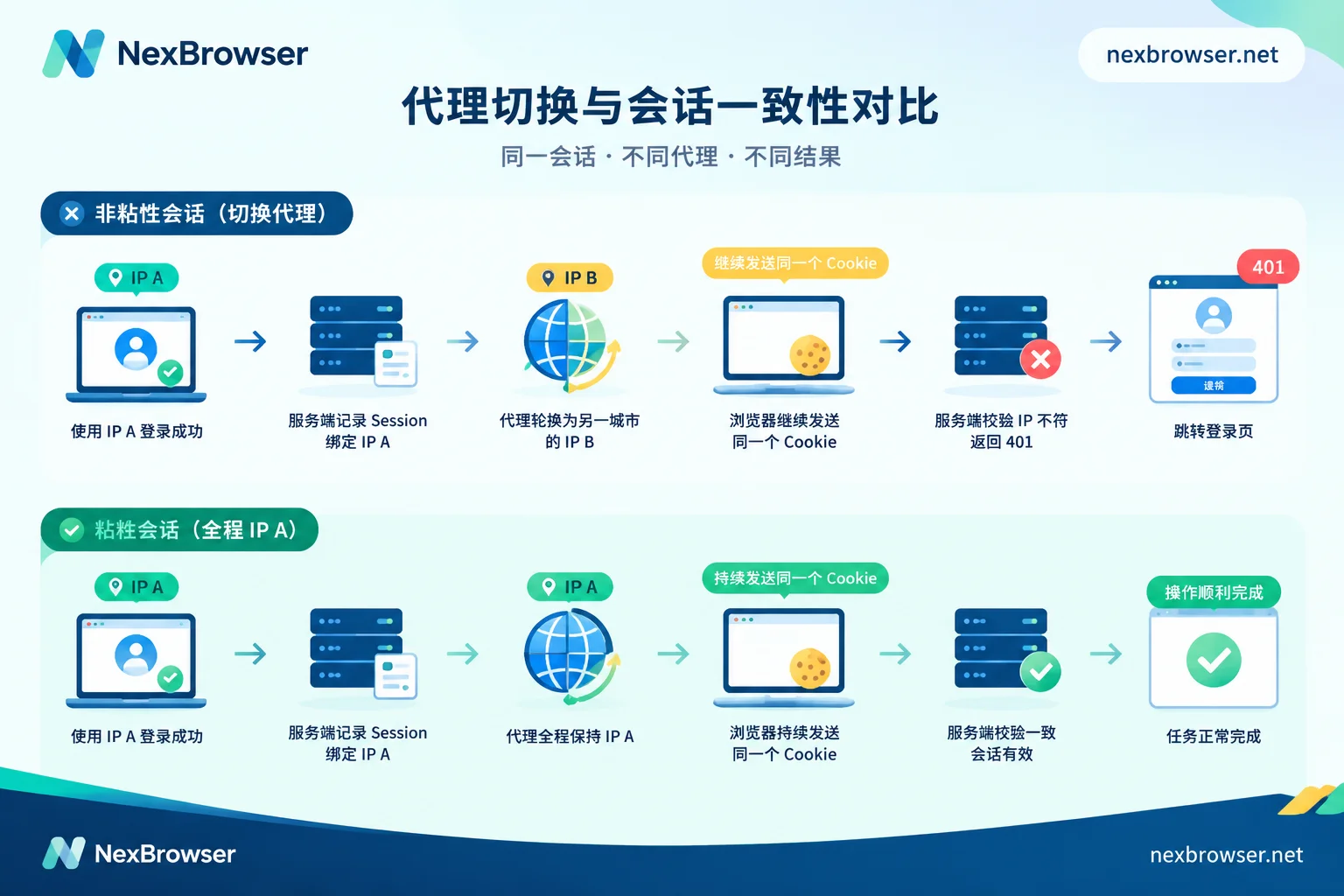
First Confirm Whether the Logout Is Caused by IP
Not all logouts are proxy-related. Check first to avoid changing proxies without solving the issue.
- Record the time when exit IP changes. At login, open an IP check page in the same browser environment and note the exit; when logged out or when verification appears, check again. If they differ and the change time matches the logout time, IP rotation is a strong suspect.
- See when the logout occurs. If it always happens mid-way through multi-step operations like form submission or checkout, it fits the token validation failure described above.
Rule out other common causes:
- Cookies not saved or cleared by cleanup tools;
- Multiple accounts sharing the same browser profile, overwriting each other's login state;
- Browser timezone, language, and IP location mismatch triggering extra verification; see IP and browser timezone/language mismatch triggers risk control;
- The platform's own session expiration.
If the exit IP never changes and the account still frequently logs out, investigate the above causes instead of switching proxies.
Choose Proxy Mode by Task
| Task | Suitable method | Reason |
|---|---|---|
| Scraping public pages without login, index checks | Per-request rotation | No login state to lose, rotation helps distribute requests |
| Tasks requiring login but limited operation time | Sticky session covering the whole operation | Ensures exit unchanged during one continuous operation |
| Accounts online long-term, repeatedly logged in, handed to colleagues | Static residential / ISP proxy, fixed exit | Sticky sessions naturally expire; fixed exit is better for long-term maintenance |
For the trade-off between the two methods, see Static residential IP vs dynamic IP for account nurturing.
What to Note When Using Sticky Sessions
Sticky sessions keep the same exit for a period—commonly 10 to 30 minutes or more, or until you manually switch. Enable it according to your proxy provider's instructions. Note the following:
- Duration should exceed the actual operation and leave margin. If you expect to finish in 20 minutes, don't choose a setting that rotates after 10 minutes.
- Confirm the exit before starting multi-step operations. Check the IP before checkout, submitting materials, or changing account settings; don't manually switch during the process.
- Sessions may expire early. Sticky sessions rely on residential nodes being online; if a node goes offline, the exit may change prematurely. If anomalies occur mid-way, recheck the IP before deciding to continue.
- Keep the same account in the same region as much as possible. Even if the exit must change, avoid cross-city or cross-country jumps, as risk control is most sensitive to these.
For how to integrate rotating proxies in browsers, see Do fingerprint browsers support dynamic rotating proxies.
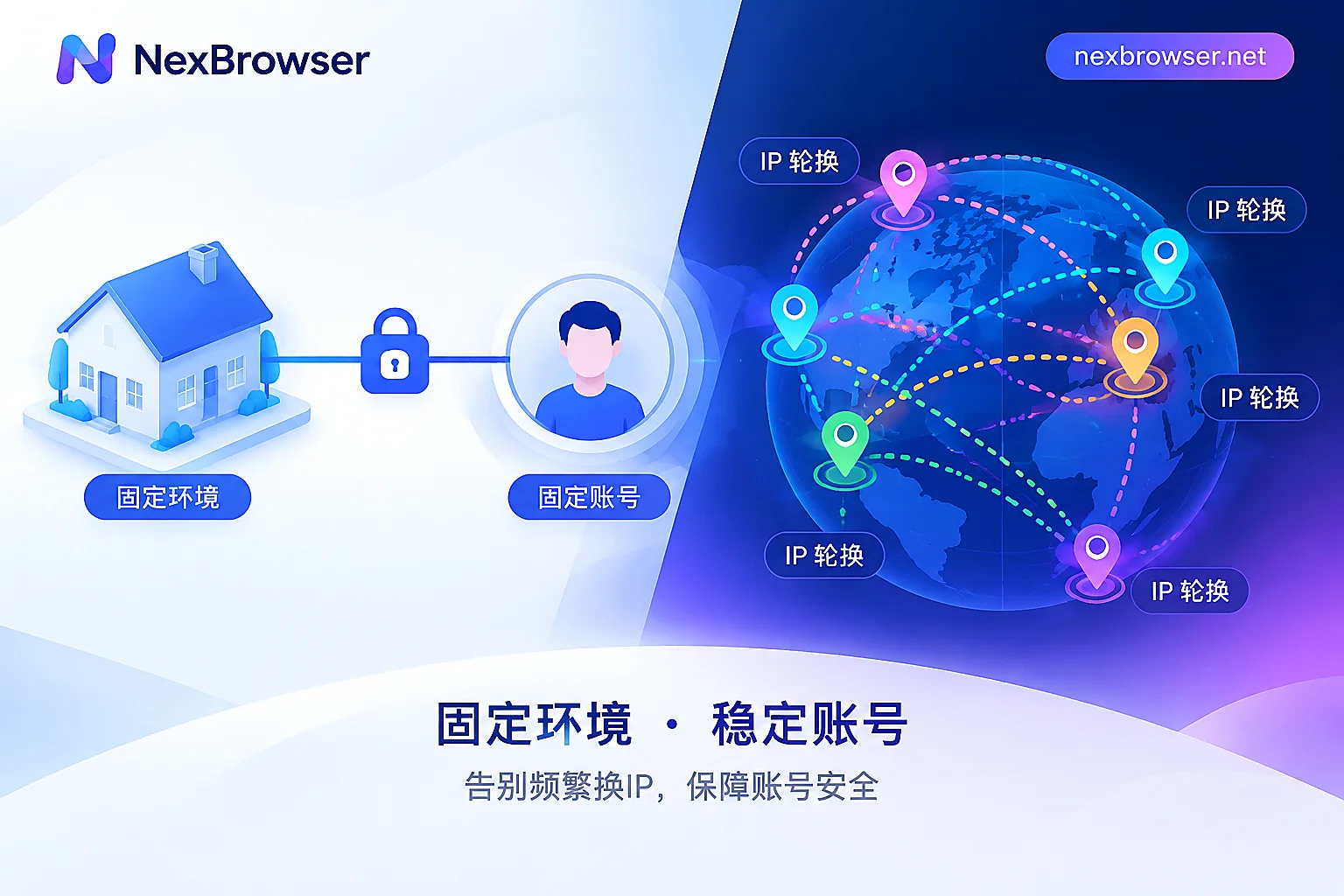
Long-Term Account Maintenance: One Environment, One Fixed Exit
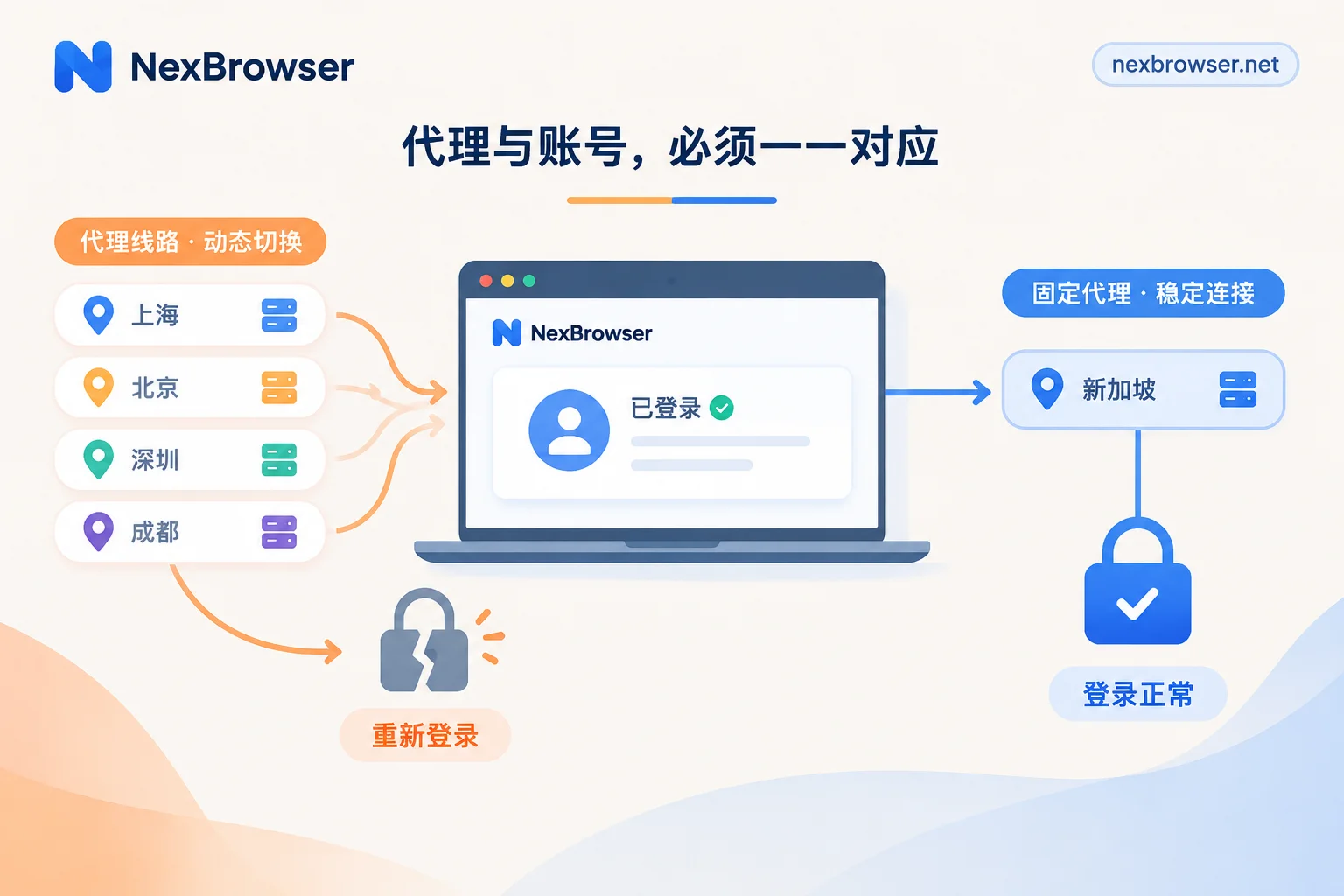
For accounts that need to stay logged in long-term, a safer approach is to create a separate browser environment for each account, bind a fixed exit, and confirm the proxy is active before login. In NexBrowser, you can do this:
- Create a separate environment for each account. Each environment has independent cookies, cache, local storage, and proxy settings, so login states don't overwrite each other.
- Bind a proxy to the environment. You can one-click bind NexIP residential IPs, or import your own proxy, supporting HTTP, HTTPS, SOCKS5, and batch import for multiple accounts.
- Run a check before login. Use the one-click check to confirm proxy connectivity, then open an IP check page in the environment to verify the exit IP and region match expectations. If the IP shown on the check page doesn't match the proxy, troubleshoot using Proxy connected but IP on check page differs before logging in.
- Recheck after some time post-login. Check the exit again after a while to confirm it hasn't changed mid-session. Before handing over to a colleague, it's also advisable to verify once more.
The entry for binding proxies and verifying exits is on the Residential IP and proxy binding page.
Finally, note: a fixed exit only eliminates the risk of "IP changing mid-session." Platform risk control also considers many other signals, and no proxy or environment configuration can guarantee that an account won't be challenged or linked. The practices here apply to managing accounts you legally own; please comply with each platform's rules.


Comments(0)