 NexBrowser指纹浏览器-官方博客Blog
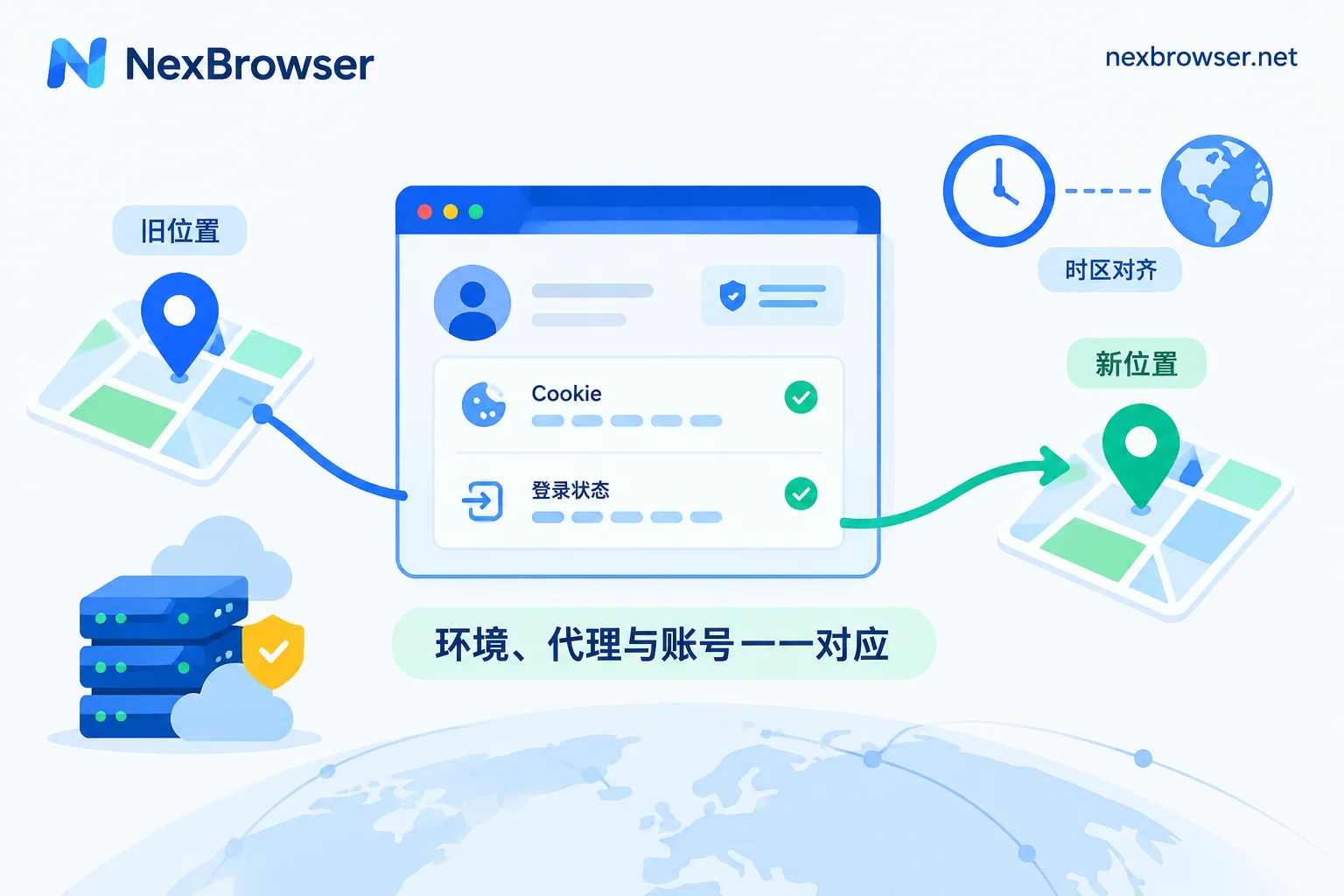
You can switch. In an antidetect browser, each environment has its own cookies, cache, and local storage. If you only change the proxy, these aren't cleared, the account's login session remains, and the platform won't treat it as a new unfamiliar device.
What you really need to control is something else: from the platform's perspective, does this IP change look like a normal network change for the same person? Home broadband IPs change when the ISP re-dials, so a single change usually won't directly cause a ban. The risks mainly come from four types of signals:
- Is the jump distance and timing reasonable? Being in New York in the morning and appearing in Tokyo an hour later is impossible in reality.
- IP type changed: Switching from a residential IP to a datacenter IP is visible to platforms via ASN.
- History of the new IP: If it's on a blacklist or has been abused, the problem lies with the IP itself.
- Fingerprint and IP mismatch: The IP is in location A, but the browser timezone, language, WebRTC, and geolocation are still set to location B.
Platforms don't publicly disclose specific thresholds. There's also no official word on how much new versus old accounts can tolerate. The practices below can reduce abnormal signals, but they can't guarantee you won't trigger verification.
First, Confirm: Is a Switch Necessary?
- Proxy expired or node completely dead: You need to switch; follow the steps below.
- Just slow or laggy: Check latency first, rule out local network issues or temporary node fluctuations. If the original IP recovers, sticking with it is the safest.
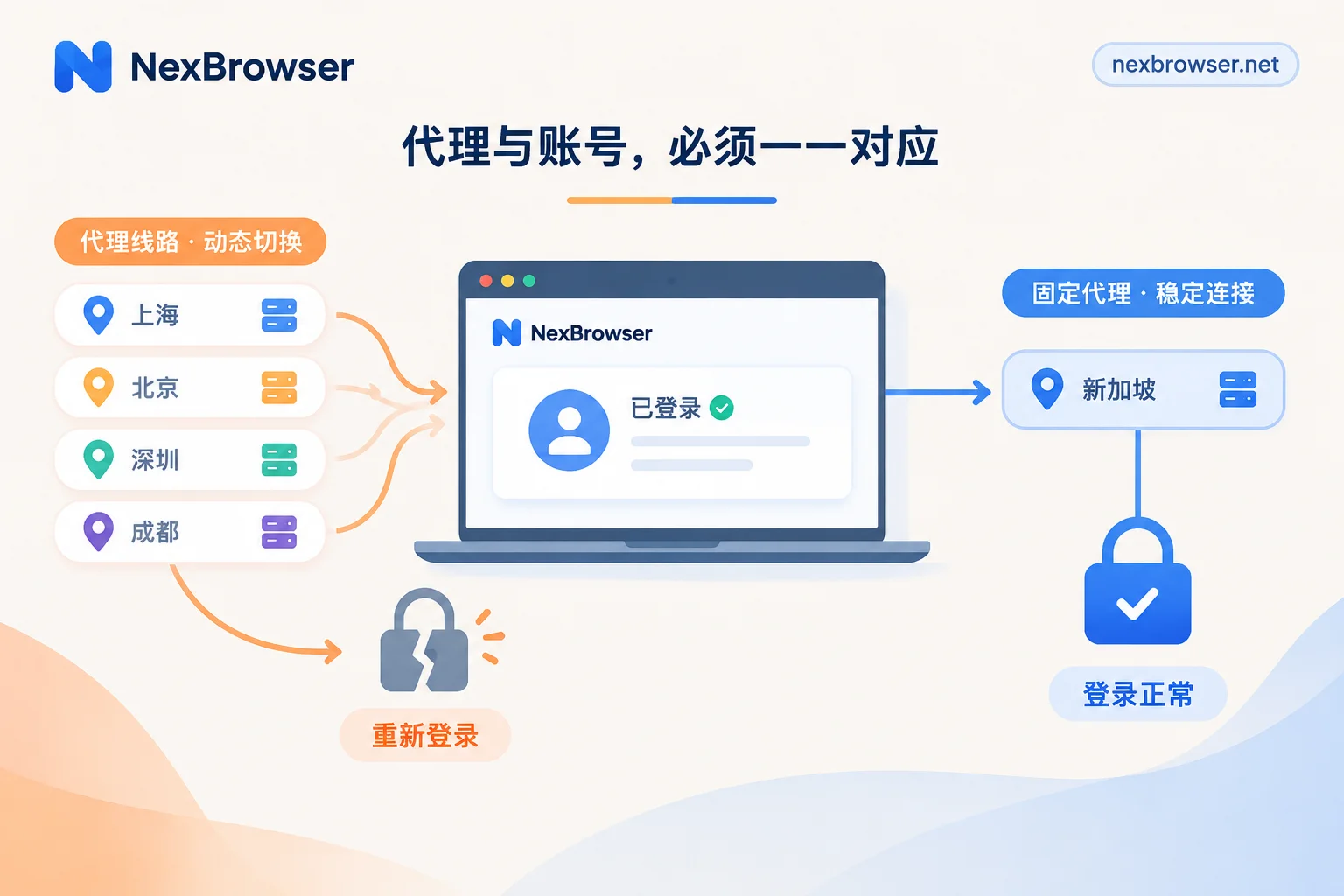
- IP changes by itself every so often: This is usually caused by time-based proxy rotation. What you need to address is the rotation method. See Will Dynamic Rotating Proxies Cause Login Drops.
Choose a New IP: Keep It as Close as Possible
Determine the new IP's conditions in this order:
- Same country – this is the bottom line.
- Same state or province, preferably same city. The closer the location, the more it looks like a normal network change.
- Same type. If you were using a residential IP, continue with a residential IP. For accounts that need long-term login, prefer static residential IPs. For reasons, see Static Residential IP vs Dynamic IP for Account Farming.
- Dedicated to this environment only. Generally, don't assign the new IP to other account environments at the same time, to avoid linking several accounts at the network level.
After getting the new IP, first check if it can connect and where the exit actually lands (country and city). Don't just rely on the provider's labeled region.
Rebinding Steps
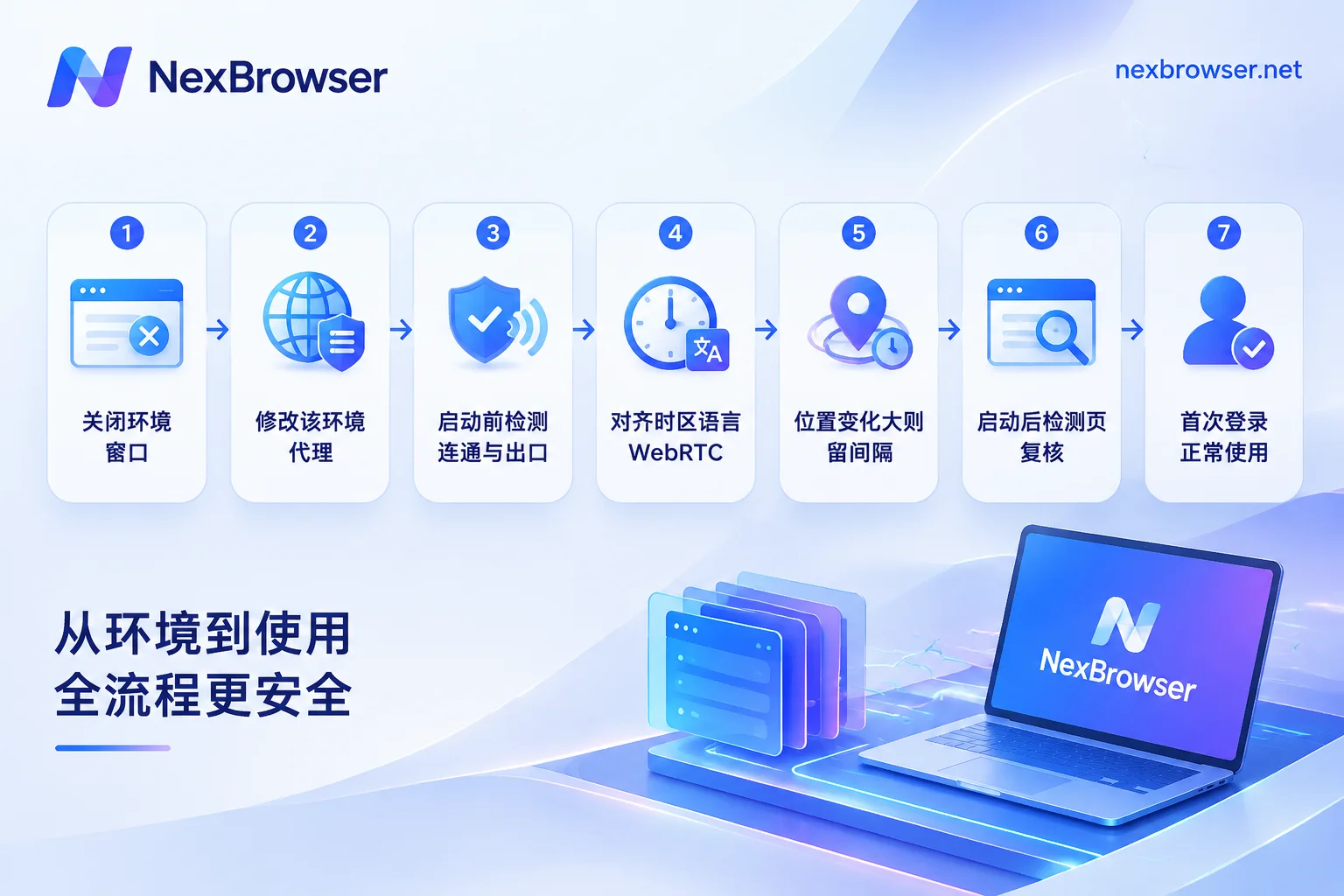
1. Close the browser window for that environment. If scripts or automation tasks are running on that environment, stop them first. Don't switch proxies while the account is in use. A sudden exit change within the same session is more conspicuous than switching after the window is closed.
2. Change only this environment's proxy. Modify it in the environment's own configuration, not the global proxy, otherwise other accounts will be affected.
3. Test before launching. Confirm connectivity, latency is acceptable, and the exit country and city match expectations.
4. Align fingerprint with the new exit. Check if timezone, language, WebRTC, and geolocation match the new IP's location. When switching within the same city, these usually don't need changes. When switching to a different state or city, the timezone may change. For how to troubleshoot and align, see IP and Browser Timezone/Language Mismatch Triggers Risk Control.
5. Allow an interval for large location changes. Same-city IP switches are minor. If the new IP is far from the original, you can wait roughly the time a real trip would take before logging in, commonly a few hours to overnight.
6. Double-check after launching. Open an IP detection page to see if the exit IP, WebRTC, and DNS all point to the new proxy. If one field on the detection page doesn't match the others, troubleshoot item by item as per Proxy Connected but Detection Page Shows IP Mismatch.
7. Use normally after first login. Start with daily browsing and routine actions. Sensitive actions like changing passwords or payment info can wait. If the platform asks for email confirmation or a captcha, complete it through the normal flow. This is the platform confirming the account owner; don't try to bypass it.
Situations to Be Extra Careful About
Only cross-country switching is possible. For example, the original US IP is no longer available and you only have a UK IP. This essentially tells the platform the account changed countries, a noticeably higher risk than switching within the same region. Try to find an IP in the same country first. If truly unavoidable, change all fingerprints like timezone and language accordingly, allow ample interval, and be prepared for verification challenges.
Back-and-forth switching. Using A today, B tomorrow, then back to A the day after – this trajectory is less natural than a single switch. Once switched, stick with the new IP. Don't switch back just because of temporary lag.
Someone else on the team takes over. If the person handling proxy changes and the person operating the account daily aren't the same, tell them the switch time and new exit. Otherwise, a colleague might see the IP changed and change it back, causing a second hop.
How to Switch in NexBrowser
In NexBrowser, proxies are bound to each environment, not a global setting. Simply edit the proxy for the target environment in the environment list. It supports HTTP, HTTPS, and SOCKS5 proxies, and you can also assign a NexIP residential exit with one click. Before launching the environment, you can check connectivity, latency, and exit location with one click. Timezone and language automatically align with the exit, corresponding to steps 2 to 4 above. After launching, it's still recommended to open the detection page and check WebRTC and DNS.
For detailed instructions on binding and detection, see Residential IP and Proxy Detection. If you haven't installed the client yet, you can get it from the download page. Currently the client supports Windows; the macOS version is in development.


Comments(0)