 NexBrowser指纹浏览器-官方博客Blog
Once a team starts arranging for outsourced staff, part-timers, remote customer service, or agency operators to assist with multiple-account business, the safest approach is to bring collaborators directly into a formal fingerprint browser team collaboration workspace for passwordless authorization, instead of making do temporarily by "exporting environments and sending files" or "sending account and password documents".
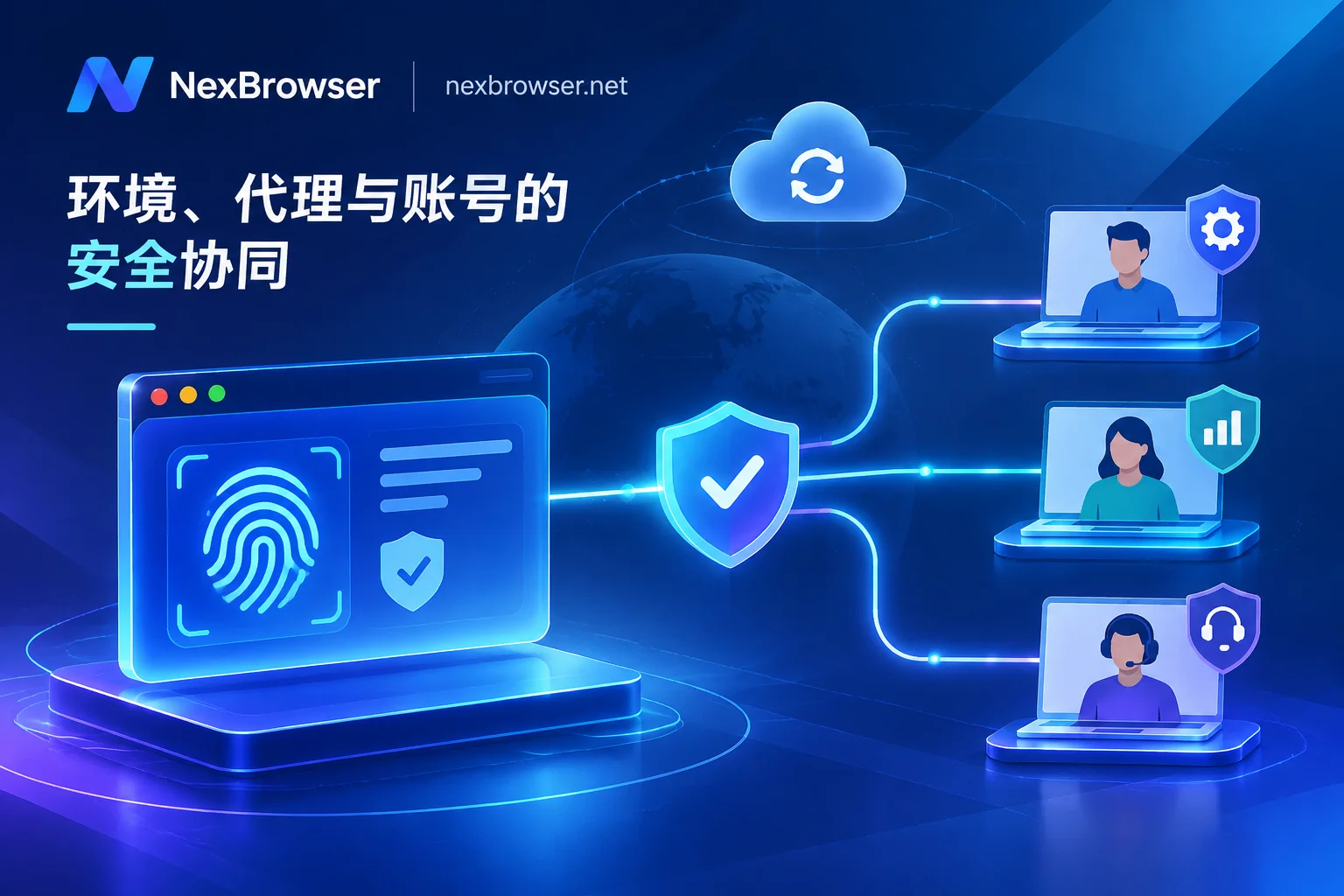
The reason is straightforward: once a file is sent to an outsourced worker's computer, cookies and local login states leave team control, causing version forks, and permissions cannot be fully revoked when the collaboration ends. In a mature team workbench, however, administrators only need to authorize a specified business group to collaborators, achieving people can enter the backend to work, hands cannot touch passwords or underlying configurations, multiple people will not race to log in and collide at the same time, and permissions can be revoked with one click when collaboration ends.
Below, we break down a practical plan you can follow directly, based on the four issues teams most easily stumble over in actual collaboration.
Why can't you "export a single environment and send it to an outsourced worker" to save a seat?
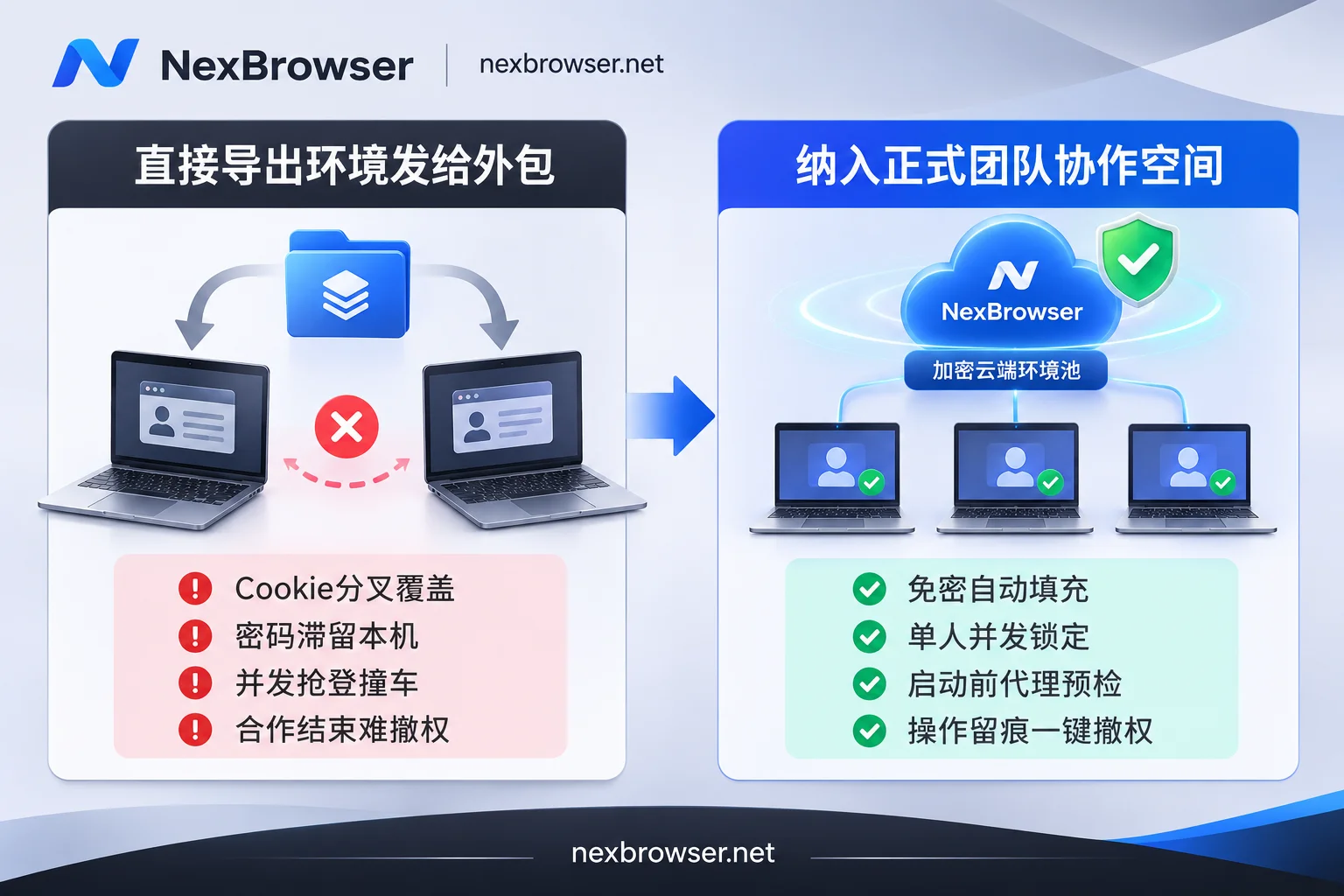
Many small teams, when the business is just starting, habitually export a single environment configured with a proxy and cookies and send it to a part-timer to save a member seat, or directly package the logged-in browser directory and send it over. This seems to save money in the short term, but four hard flaws immediately surface in practice:
- Login state forks, and you have to log in again when it comes back: After the other party browses, refreshes tokens, or logs in again on their own computer, the latest cookies remain only on their local machine and are not automatically synced back to the team's main control console. When internal operations take over again, the sessions on both sides are already inconsistent—at best you get logged out, at worst you trigger abnormal device verification.
- Account collision risks cannot be intercepted: If the administrator and the outsourced worker each keep a local copy of the environment file, and both open the same account at the same time, data overwrites each other, IP exits conflict, and platform risk control is easily triggered (for the specific concurrency impact, see What Happens When Multiple People Log In to the Same Browser Environment at the Same Time).
- Passwords and local caches go out of control: Once the environment package is handed to the other party, they can modify proxies, export cookies, or even casually save web passwords in the local browser. Even if you later change the platform password, residual sessions and environment details remain out of control.
- No operation trail to check: When an order price is changed incorrectly, an ad budget is misclicked, or an account is suddenly restricted, because it ran offline on the outsourced worker's personal device, the team backend has no operation records for post-mortem attribution.
How can outsourced and part-time workers "be able to work, but not get passwords or break environments"?
The key to managing outsourced and part-time workers is not a verbal confidentiality agreement, but separating "usage rights" and "control rights" at the tool layer. In fingerprint browser team collaboration scenarios, when using a workbench such as NexBrowser that has fine-grained permissions and isolation mechanisms, you can set up four layers of defense:
1. Group by business first, then use custom roles to restrict actions
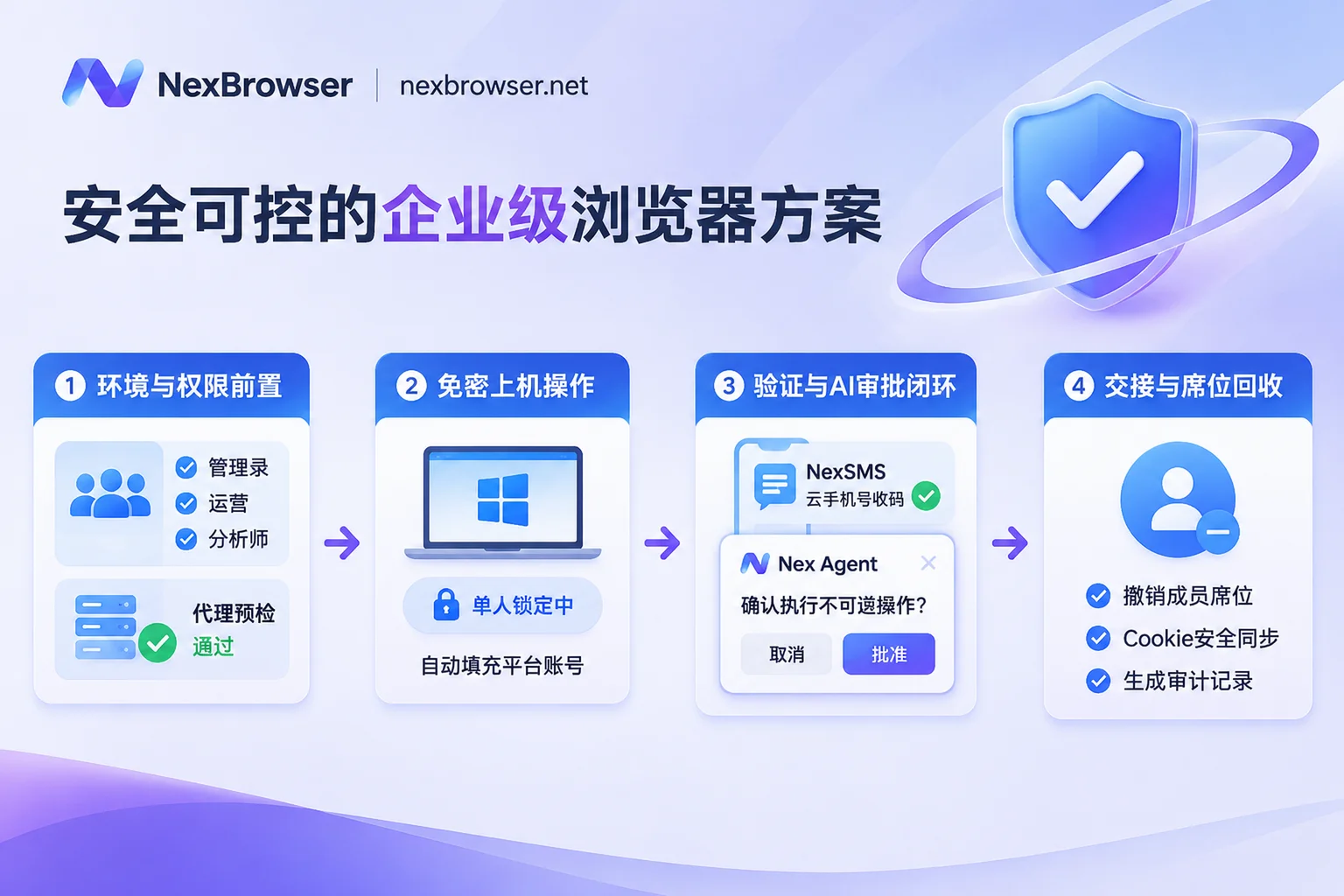
Team founders can first tag and group by platform, store, or project in the NexBrowser backend, then create custom roles such as "part-time customer service", "outsourced designer", and "advertising assistant", and precisely check in the permission matrix which groups each role can see and which operations each role can perform (for details, refer to Role and Permission Description and How to Assign Sub-Account Permissions in a Fingerprint Browser). After outsourced workers log in to the client, they only see the windows assigned to them in the list; other core company assets are simply invisible.
2. Passwordless sharing, and distinguish between "platform-bound accounts" and "window-stored passwords"
After administrators bind platform accounts and passwords to specified environments, outsourced members will have logins automatically filled in when launching the environment, without ever needing to know the plaintext account and password.
Here is a synchronization detail many teams overlook: in NexBrowser, when an environment is closed, cookies, cache, and local storage (including IndexedDB) are encrypted and synced to the cloud according to the selected scope, and can be restored after logging in on another machine; but passwords stored by the browser itself inside the window remain only on the local machine and will not migrate with cloud sync. Therefore, account credentials shared by the team must be uniformly filled in at the environment's platform account binding, and operators should not casually click "Save password" in web pop-ups, hoping the browser's built-in password manager will sync to the next person.
3. Single-user concurrency lock + pre-launch proxy check
In remote collaboration, the biggest fears are "both sides clicking open at the same time" and "connecting directly without a proxy". NexBrowser enforces that the same environment can only be opened by one member at a time, locking down multi-user concurrency conflicts at the mechanism level. At the same time, the proxy is bound to a single environment and changing the proxy does not clear cookies; before the environment starts, the proxy exit is automatically checked, and if the check fails, it will not start. Even if the outsourced worker's own network fluctuates or the proxy expires, there will be no accident of "opening the store directly with the local real IP without a proxy attached".
4. Permission changes and operations are fully traceable
All permission adjustments and member operations leave records. When collaboration ends or personnel rotate, administrators only need to remove members or adjust group permissions in the backend, and the other party immediately loses access to environments. There is no need, as in traditional methods, to resend packages one by one or hurriedly change the environments on all computers (for the complete revocation sequence, see How to Recover Browser Environments and Permissions After an Employee Leaves).
When remote collaborators encounter SMS verification and batch tasks, how can they avoid getting stuck?
Once permissions are clearly divided, remote collaboration most often gets stuck at two points: secondary SMS verification and misoperations in semi-automated/AI tasks.
1. When encountering SMS verification codes: use the environment sidebar to get a number and receive codes directly
Previously, when outsourced workers logged in to the backend and encountered a mobile verification code, they had to take a screenshot and send it via WeChat, wait for the administrator to look at the phone, and then send the 6-digit code back—almost impossible for continuous work across time zones. In NexBrowser, each environment sidebar has a built-in NexSMS Number Center, where you can directly obtain a number based on country/region and target platform, receive SMS, and fill in the verification code; stores or social media accounts that need long-term verification maintenance can also be directly converted to long-term rental (cloud phone numbers and browser plans are billed separately on a pay-as-you-go basis). In this way, administrators do not need to hand over physical SIM cards or the main account of an SMS receiving platform, and collaborators can complete verification within a secure boundary.
2. When encountering batch or AI tasks: add "manual approval" to high-risk actions
If there is temporary repetitive work requiring batch clicks or form filling, the main controller can use window synchronization or no-code RPA (Beta) to uniformly complete the infrastructure actions; if the team introduces the client's built-in Nex Agent to execute tasks across windows using natural language, administrators can also set requesting approval before executing irreversible operations and review each step after execution is complete. This allows outsourced workers or assistants to use AI to improve efficiency, while keeping key actions such as withdrawals, deleting posts, and changing bound email addresses firmly in the hands of reviewers.
When staff turnover is high, how can seat costs and device compatibility be checked in advance?
Many teams hesitate to let temporary collaborators into the formal workbench for two reasons: first, they worry that "adding one part-timer means upgrading to an entire expensive plan"; second, the computers temporary workers bring have all kinds of systems and cannot install the client.
When evaluating tool costs and access conditions, it is recommended to align on the following three things before bringing people in:
- Don't pay double threshold fees for "team permissions" or "automation": Many tools on the market split operation audits, batch capabilities, APIs, or multi-account permissions into high-priced commercial/enterprise editions, forcing teams with few people but needing collaboration features to buy large plans. NexBrowser adopts a strategy of all features open, no version tiers—the free tier can run the complete functionality (including permission isolation, window synchronization, RPA, Nex Agent, and the free unlimited-call Local API and MCP). For specific free quotas and current descriptions, see the NexBrowser Free Campaign Page.
- Flexibly increase or decrease capacity on a 30-day cycle: NexBrowser paid plans only purchase window and member capacity, with a 30-day billing cycle. The first activation is billed only for newly added capacity, and renewals are calculated based on all current capacity. Alipay and USDT payments are supported; cloud phone numbers, NexIP residential IP traffic, and model tokens for the built-in Nex Agent are billed separately as needed (for the latest window and member unit prices and discounts, refer to the official pricing page). When the off-season arrives or the project ends, seats can be reduced without being burdened by idle annual seats.
- Confirm collaborators' computer systems in advance: Before signing a contract or accepting an order with an outsourced worker, be sure to check the device environment first. Currently, the NexBrowser client offers Windows 10 and Windows 11 (64-bit) versions, and the same code-signed installer is downloaded for both Chinese and overseas networks; the macOS client is still under development and not yet available for download, and Windows 7 and 32-bit systems are not supported. If external collaborators only use Mac computers, system conditions must be coordinated in advance before scheduling to avoid being unable to get on the machine after seats are activated.
Implementation checklist: complete these 5 steps before bringing external collaborators into the group
- Determine devices: Confirm that collaborators use Windows 10 / 11 (64-bit) systems, and complete installer download and login from the official website.
- Create templates and test proxies: Administrators first configure the corresponding platform template and bind a proxy (if built-in residential IPs are needed, they can be bound by region with one click via NexIP), and confirm that all pre-launch proxy checks pass.
- Group and assign roles: Establish dedicated outsourcing groups and least-privilege roles, open only the necessary environments, and bind platform accounts to achieve passwordless auto-fill.
- Set verification and approval rules: Confirm whether accounts requiring long-term maintenance have enabled long-term code receiving in the sidebar, and if Nex Agent is allowed, enable approval prompts before irreversible operations.
- Recover promptly after the cycle ends: On the day the project wraps up or the outsourced worker leaves, first adjust member seats and group authorization, confirm that cloud cookies and local storage have been properly synced and retained, and then have internal operations take over seamlessly.
If you want to institutionalize the entire long-term process from account creation and environment configuration to multi-role collaboration, you can continue with How to Implement an SOP for Fingerprint Browser Team Collaboration to get the daily pipeline running smoothly.