 NexBrowser指纹浏览器-官方博客Blog
When you type "AI browser automation" into a search box, most people are overwhelmed by a flood of new terms: Perplexity Comet, Kimi extension, Playwright MCP, Chrome DevTools MCP, CLI Skill, Browser Use, cloud browsers, fingerprint browsers...
Let's get straight to the conclusion: There is no one-size-fits-all AI browser automation tool. Choosing the wrong approach is the root cause of slowness, high cost, and frequent disconnections. You can directly match your task:
- Personal research, cross-site price comparison, content summarization: Use a browser with a built-in AI assistant or browser extension—no need to configure code or protocols.
- Development self-testing, front-end bug fixing, occasional single-account tasks: Use Claude Code, Codex, or Cursor with Playwright MCP / Chrome DevTools MCP or command-line tools (e.g.,
playwright-cli,agent-browser). - Need to log into backend systems, avoid anti-bot triggers, or run multiple accounts in parallel or for team handover: Never use your daily main browser, and don't spin up blank headless instances requiring re-login each time. Instead, choose a browser workbench with environment isolation and persistent login states (e.g., NexBrowser's built-in AI Agent, or use its Local API / MCP to control isolated environments), combined with "AI exploration + script solidification" to reduce token costs.
Below, we'll thoroughly explain the boundaries of the 4 solution types, common pitfalls, and low-cost implementation processes.
1. First, Distinguish the 4 Main AI Browser Automation Approaches
Many people jump straight to comparing specs but overlook that these tools fundamentally solve different problems. Even in 2026, early general-purpose products like ChatGPT Atlas have exited, and the industry has clearly divided into four paths:
| Category | Typical Examples | Core Strengths | Login State & Anti-Bot Performance | Cost & Boundaries |
|---|---|---|---|---|
| AI Browser / Browser Extension | Perplexity Comet, Fellou, Sigma, Kimi/Claude extensions | Ready to use; sidebar chat can read pages, summarize, assist form filling | Relies on current browser session; multi-account switching is difficult; large extension permissions pose privacy and misoperation risks | Suitable for personal daily efficiency; most closed products can't be integrated with external coding agents, not suitable for batch business |
| Coding Agent Interfaces (MCP / CLI) | Playwright MCP, Chrome DevTools MCP, playwright-cli, agent-browser | Let Claude Code / Cursor directly inspect DOM, check console, click pages | By default often launches temporary blank instances, lacking historical cookies and easily exhibiting automation fingerprints | Tools are free; you only pay for model tokens; suitable for development debugging, not for strict anti-bot or long-term account nurturing |
| AI Automation Frameworks / Cloud Browsers | Browser Use, Stagehand, Skyvern, Browserbase, Steel | Code custom multi-step autonomous tasks, or run directly on cloud with high concurrency | Open-source local versions easily trigger captchas; cloud hosting includes anti-detection but requires placing credentials and sessions with third parties | High development freedom; pay for model tokens plus cloud browser time or per-page fees |
| Isolated Environment Workbench + Agent/API | NexBrowser (built-in Agent + Local API / MCP + RPA) | Independent environment per account, fingerprints and proxies; can command via natural language or let external frameworks take over | Cookies and local storage persist per environment; fingerprints align with proxy egress, avoiding repeated logins that trigger anti-bot | Suitable for cross-border e-commerce, social media matrices, ad placement, logged-in backend data collection, and multi-account team collaboration |
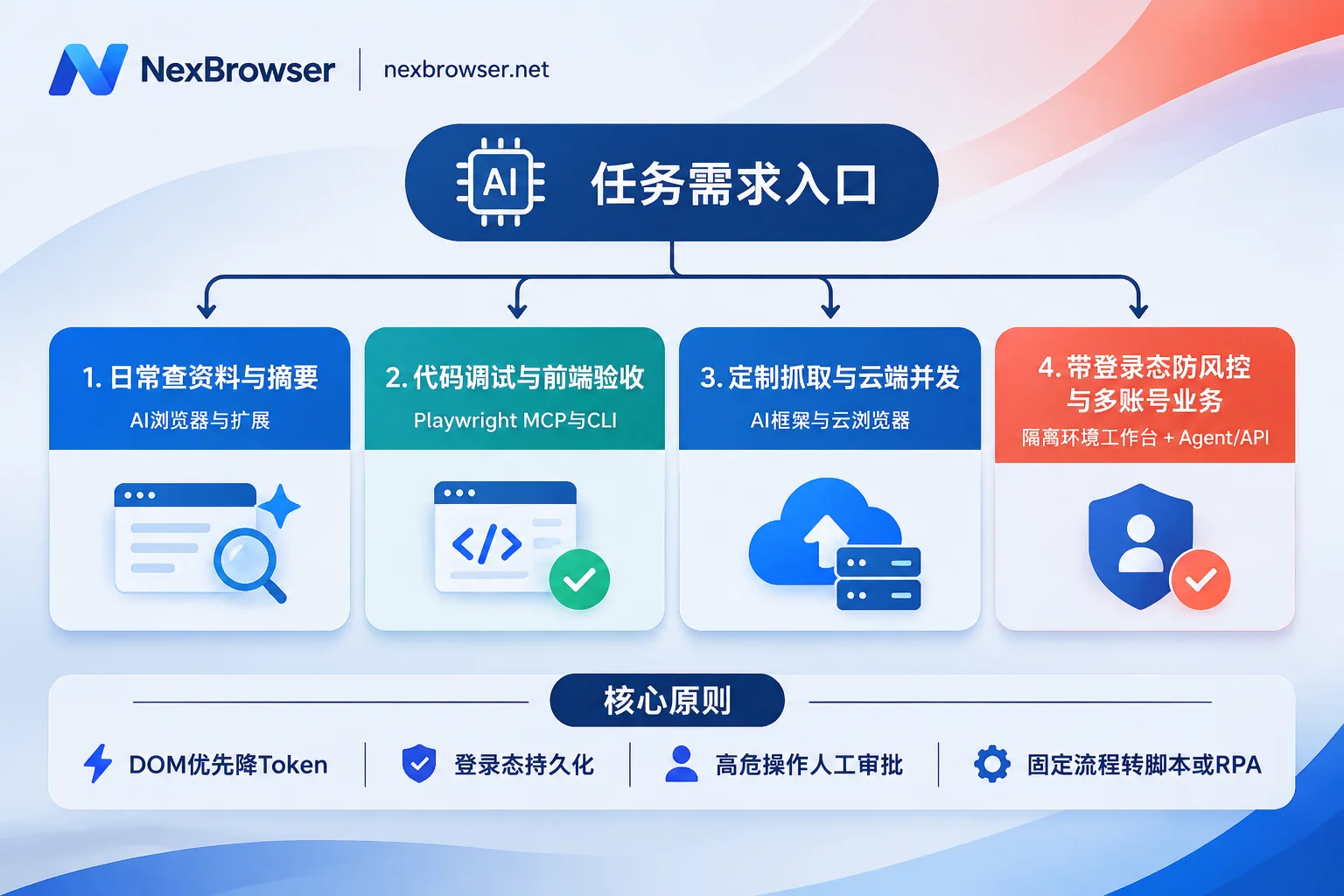
Remember a selection rule: Public page reading and front-end self-testing prioritize "speed and savings"; once it involves "your own business accounts, repeated logins, or multi-person collaboration," the browser foundation's isolation and login-state persistence matter more than the model itself.
2. Why Demos Are Smooth but Real Runs Are "Slow, Expensive, and Constantly Disconnect"?
Many people follow tutorials to run their first demo, but fail in real business scenarios. The problems usually stem from the following four areas.
1. Relying Entirely on "Screenshots + Vision Models" Causes Token and Time Explosion
AI operates web pages mainly in two ways: reading the DOM structure / accessibility tree, or feeding full-page screenshots to multimodal vision models.
If every step relies on full-page screenshots, each step requires uploading a high-res image and waiting for the model to infer coordinates—single-step latency is often 3 to 10 seconds. A more hidden billing trap is context snowballing: many agents, at each small step, repackage historical page snapshots and previous screenshots into the model for recalculation. For a dozen-step form task, token consumption can be several times or even ten times that of pure DOM solutions.
How to avoid: Prioritize DOM or accessibility tree-based locating (e.g., Playwright MCP, structured element extraction), and only fall back to visual screenshots for canvas charts, shadow DOM, or highly dynamic pop-ups.
2. Each Launch Is a "Blank New Window," Stuck in Login and Anti-Bot Checks
When using traditional scripts or default MCP to launch a browser, you often get a freshly minted clean instance: no historical cookies, no local storage (IndexedDB), navigator.webdriver flags exposed, WebRTC or timezone/language mismatched with proxy egress.
The result: AI must re-enter credentials, receive SMS codes, and solve slider captchas before every task—at best interrupting the flow, at worst triggering platform security locks.
How to avoid: Automation must never run in "disposable" empty environments. Login states must be retained per account long-term, and browser fingerprints must match network egress.
3. Handing Your Daily Main Chrome to AI Saves Effort but Creates Security Risks
Since new windows lack login states, some let extensions or debug ports take over their daily Chrome. This immediately causes two troubles:
- Human-machine focus contention: AI is clicking in the background while you switch tabs or move the mouse, causing script misalignment.
- Privilege escalation and misoperation risks: Your main browser likely has email, payment backends, primary social accounts, and internal company systems logged in. If a webpage contains malicious prompt injection, or the model misunderstands, the cost of mistakenly sending messages, deleting data, or even making payments is extremely high.
How to avoid: Strictly follow the principle of least privilege—give AI a separate isolated browser environment, log in only to sites needed for the current task, and add manual approval before irreversible actions like submitting orders, posting, or transferring money.
4. Treating AI as a Fixed Script: Repeated Daily Tasks Force the Model to "Think on the Spot" Every Time
Large models excel at handling uncertainty (e.g., entering an unfamiliar backend for the first time, button text suddenly changing). If a fixed backend requires data entry 50 times a day with an unchanging path, and you still have AI re-examine the page and infer clicks each time, you not only waste tokens but also risk occasional hallucinations causing wrong menu clicks.
How to avoid: Use AI for exploration, use deterministic processes for volume. Let AI run through unfamiliar processes once or twice to understand the page structure; once the path is fixed, solidify it into a fixed script or no-code RPA for batch execution.
3. How to Implement Low-Cost Solutions for Login States, Anti-Bot, or Multi-Account Scenarios?
If your task is just scraping public web pages, agent-browser or scraping APIs suffice. But if your scenario involves e-commerce store backends, social media matrix publishing, ad account inspections, or supplier portals that require login, a more reliable approach is to separate the "browser environment isolation layer" from the "AI decision layer."
Take NexBrowser (a multi-account workbench based on Chromium, currently offering Windows 10/11 64-bit client with full features available in the free tier), commonly used in AI browser automation scenarios, as an example. You can address the pitfalls mentioned above in three steps:
Step 1: First Stabilize "Login State and Environment Consistency"
Before starting automation, create independent environments for each business account in NexBrowser:
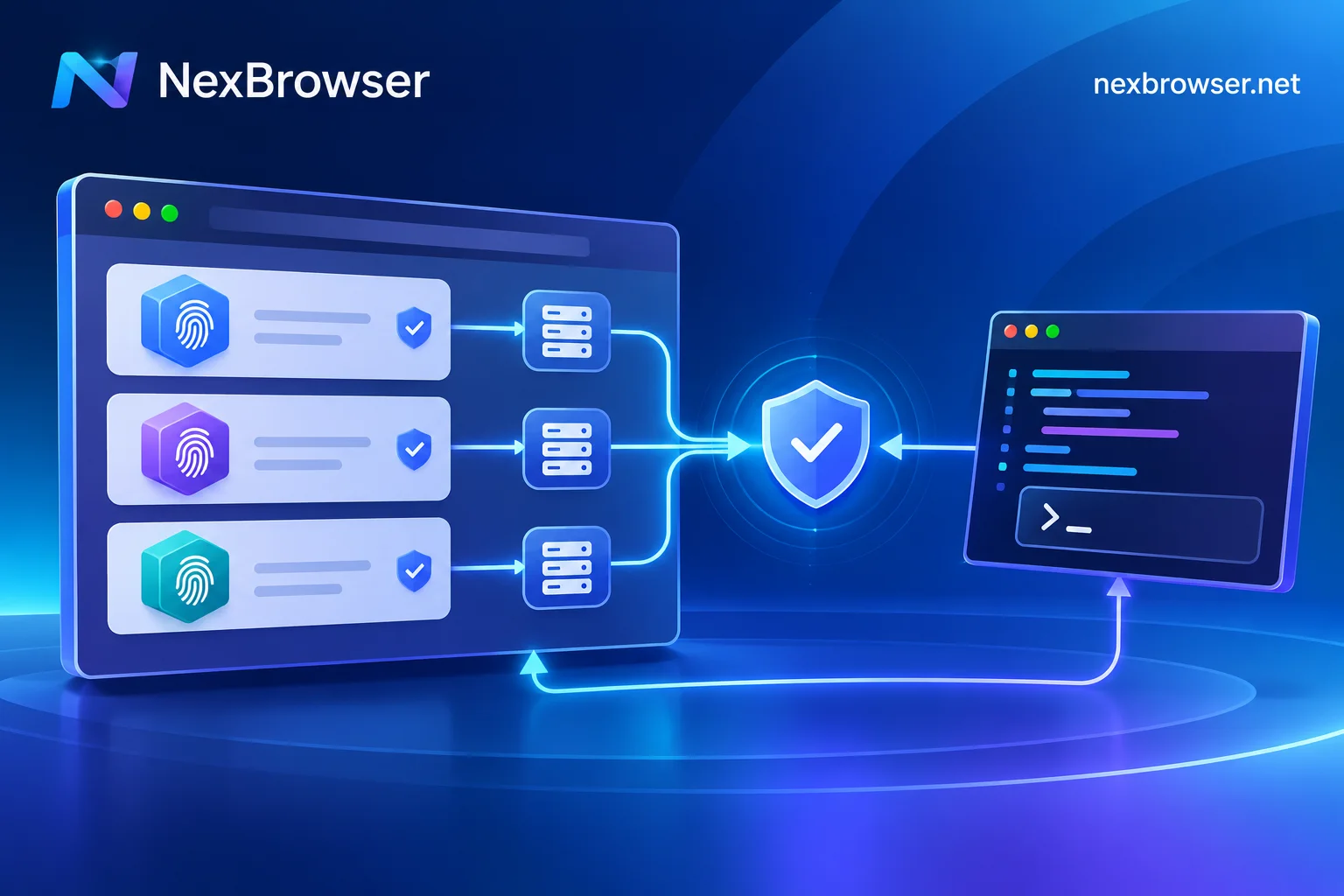
- Physical data isolation: Cookies, cache, local storage (including IndexedDB), and proxies for each environment are isolated; operating one account with AI won't kick another offline or cause collateral damage.
- Egress verification before launch: After binding HTTP / HTTPS / SOCKS5 or residential IP to an environment, the system automatically checks proxy connectivity and egress ownership before launch; if the check fails, it won't start. WebRTC, timezone, and language automatically align with the egress, preventing "proxy connected but environment leaked."
- Long-term login state continuity: After manually logging into the target platform for the first time, data can be encrypted and synced to the cloud when closing the environment (passwords stored only locally in the window). Next time, whether opened manually or by AI, the login state resumes directly—no need to re-verify each time.
Step 2: Choose "Built-in Agent" or "Take Over External Agent" Based on Your Tech Stack
Once environments are ready, the operation layer isn't locked into one vendor—both paths work directly:
- No coding, quick task execution (using built-in Nex Agent): Directly issue natural language task commands in the client. Nex Agent will open the corresponding environment, recognize pages, fill forms, or take screenshots, and supports splitting tasks across multiple windows in parallel. Crucially, you can set it to request approval before irreversible actions, and review the entire operation log afterward to prevent unauthorized orders or accidental posts. The built-in Agent's model calls are billed by token, purchased directly from your account balance (available models and token prices are subject to the official website).
- Already using Claude Code, Codex, Cursor, or custom scripts (using Local API + MCP): In the client, enable OpenAPI. Local API is also available in the free tier with unlimited calls. You can use it to create or start specified environments and read CDP connection info, letting Playwright, Puppeteer, Selenium, browser-use, or Playwright MCP take over real windows with fingerprints and login states already set; or directly integrate NexBrowser MCP Server to let coding agents list environments and operate pages directly. For specific integration methods, refer to the Local API + CDP and MCP direct connection实战指南 and browser-use and Playwright MCP takeover tutorial.
Step 3: After Smooth Operation, Implement "Cost Diversion"
Don't push all actions onto AI tokens:
- Temporary judgments, occasional page changes: Let Nex Agent or MCP client handle them.
- Batch fine-tuning requiring human on-the-spot review: Use NexBrowser's window synchronization. Click once in the main window, and other slave windows with independent fingerprints and proxies follow suit.
- Completely fixed repetitive actions (e.g., daily fixed-path backend report downloads): Move to NexBrowser's RPA scripts (Beta) no-code canvas—drag variables, conditions, and failure retries, bind a set of scripts to a batch of environments, and execution logs detail every step per environment, reducing subsequent token costs to near zero.
For more on how these automation capabilities work together in daily business, see Practical division of labor among built-in AI Agent, RPA, and window synchronization.
4. Pre-Launch 5-Point Self-Checklist
Before handing tasks to AI, spend 1 minute reviewing these 5 points to save 80% of rework and unnecessary costs:
- Does this website require long-term login state retention or anti-association? If yes, don't use temporary headless browsers; first set up independent environments and proxy isolation.
- Can it be solved with DOM / accessibility tree? As long as the page has clear HTML structure, don't rely entirely on high-res screenshots for the vision model to guess.
- Have you added "brakes" for high-risk actions? For any step involving payment, account deletion, public posting, or password changes, always set manual approval; and never log into online banking or unrelated main accounts in the AI environment.
- Is the single-round history too long? For multi-step tasks, periodically summarize or clear invalid snapshots to avoid feeding the previous dozen pages of source code and screenshots to the model each round.
- Will this path be run daily in the future? The first run benefits from AI convenience; from the third run onward, solidify into Playwright scripts or no-code RPA, letting AI only handle "exploration and fallback."
If you want to test the complete chain of "isolated environment + AI automated operation" at zero cost, start by opening an independent environment from the official website's free tier, enable Local API, or directly try the built-in Agent to run your first real workflow before scaling up.