 NexBrowser指纹浏览器-官方博客Blog
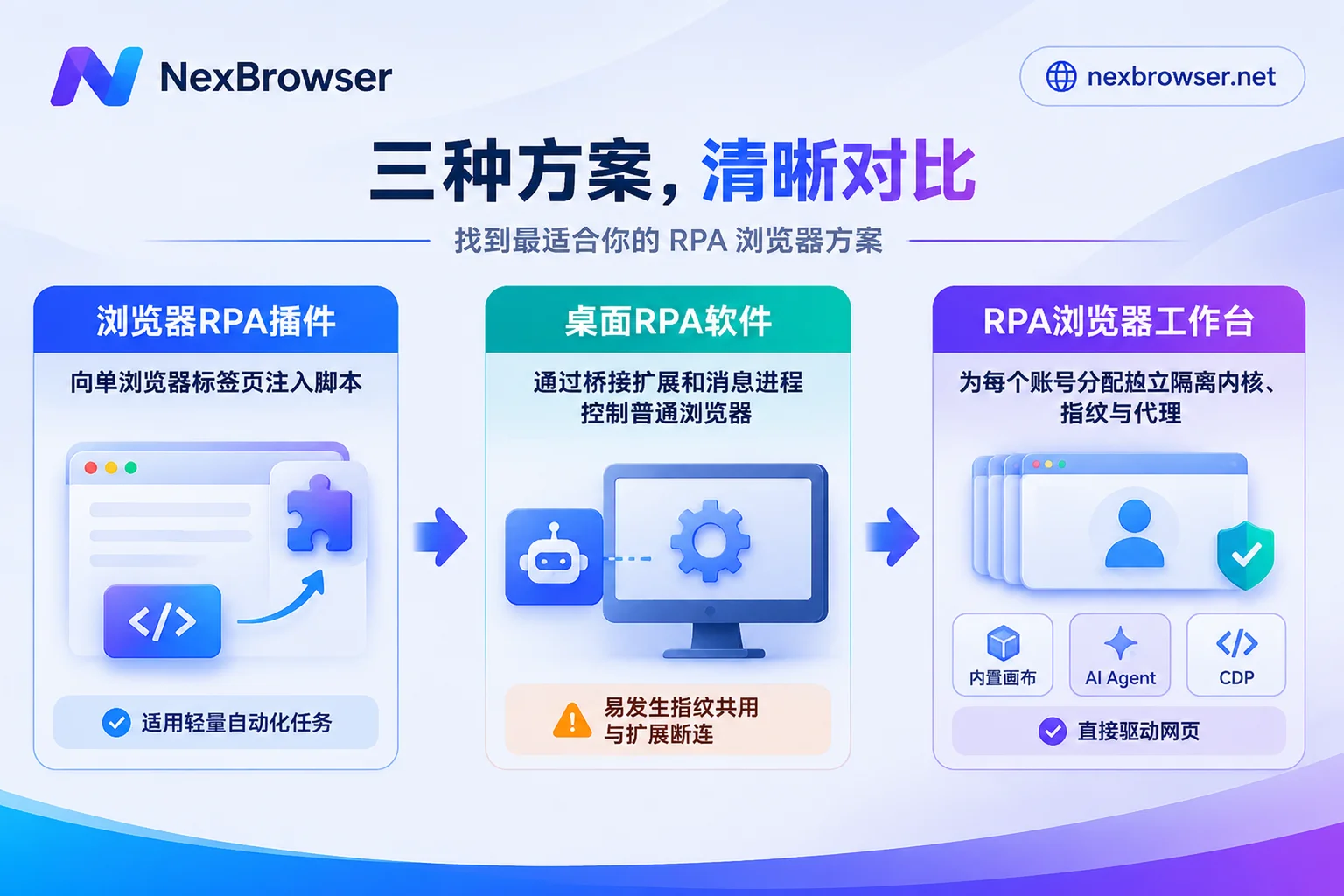
Bottom line: When you search for "RPA browser," you're actually referring to three completely different types of tools—"RPA extension plugins" installed in your existing browser, "desktop-level RPA software" that bridges and controls local Chrome/Edge via extensions, and "RPA browser workbenches" that build automation capabilities directly into an isolated independent kernel.
If you just want to automate a single webpage check-in or fill out a form once, a free extension plugin will do the job; if you need to transfer web orders into local financial software, ERP, or client applications, you need desktop-level RPA; but as soon as you're dealing with batch login operations for multiple accounts, long-duration cross-site data collection, or you don't want to spend all day fixing extension disconnections and account-ban verifications, you must use an RPA browser workbench with built-in environment isolation and low-level control capabilities.
Confusing the differences between these three is the root cause of frequent errors, memory freezes, and even account association bans that most people encounter after starting automation. Below, we'll explain everything in one go: underlying principles, reasons for pitfalls, and selection routes.
1. Why does searching for "RPA browser" return three completely different solutions?
There is no single standard category called "RPA browser" in the industry; what people refer to usually corresponds to three different technical paths:
- Browser RPA extensions (plugin form)
Representative tools include Automa, Ui.Vision RPA, etc. They run directly as Chrome or Edge extensions in your everyday browser, injecting content scripts into web pages or using visual/OCR recognition to perform clicks, form filling, and data scraping. Advantages: lightweight, free, and quick to get started; drawbacks: dependent on the current browser window, and multiple accounts mixed in one local environment can easily get crossed or detected. - Desktop RPA + browser bridging (cross-software automation)
Representative tools include UiPath, Power Automate, Yingdao RPA, Alibaba Cloud RPA, etc. They are essentially robots that control the entire computer; besides browsers, they can operate Excel, PDF, SAP, or traditional desktop clients. When desktop RPA needs to control Chrome/Edge, it usually requires installing a dedicated automation extension in the browser and passing commands via the Native Messaging protocol or window title/process attachment. - RPA browser workbench with built-in environment isolation (independent kernel form)
This is a standalone client designed specifically for batch web operations and multi-account scenarios (such as NexBrowser, built on a modified Chrome kernel). Each account corresponds to a completely independent browser environment, with cookies, local storage, fingerprint parameters, and proxy IPs isolated from each other, while no-code workflows, AI Agents, or code scripts are executed directly within the workbench or via local debugging protocols.
2. Hardcore comparison of the three solutions: choosing the wrong tool is more tiring than writing wrong scripts
To make it easy to match your needs, here's a direct comparison of the differences between the three types of tools in real-world use:
| Comparison dimension | Browser RPA extension | Desktop RPA + browser extension | Natively isolated RPA browser workbench |
|---|---|---|---|
| Underlying control method | Browser extension injects JS or visual positioning | Desktop client + browser extension communication / window handles | Independent Chrome kernel + built-in orchestration or CDP protocol takeover |
| Multi-account anti-association | None, shares local fingerprints and network egress | Weak, regular Chrome multi-user still shares underlying hardware fingerprints | Strong, each environment has independent fingerprints, cache, IndexedDB, and proxy |
| Cross-desktop software capability | Very weak, basically limited to browser tabs | Very strong, can connect ERP, local files, email, and desktop clients | Focused on web workflows, requires Local API and external system integration |
| Long-running stability | Susceptible to tab closure, sleep, and page redesigns | Prone to extension communication timeouts, multi-window title conflicts, memory buildup | Controllable per-environment lifecycle, no reliance on fragile third-party extension bridges |
| Suitable for | Individuals with single accounts for daily form filling, check-ins, light scraping | Finance, government, supply chain, and other cross-client office automation | Cross-border stores, social media matrices, ad placement, persistent data collection |
3. The 3 most common pitfalls when running automation with a regular browser
Many teams initially try desktop RPA with regular Chrome or install an automation extension and start running, only to quickly hit three walls:
1. Extension disconnections and multi-window "wrong window identification"
When desktop RPA controls a regular browser, it relies heavily on the communication stability of the automation extension. During long loops or high-concurrency opening of dozens of web pages, once browser tabs are not released in time and memory spikes, errors like extension startup failure or connection timeout easily pop up. Meanwhile, if you open multiple regular browser windows to run multi-store tasks simultaneously, the script identifies the target by window title or process attachment, and a moment of carelessness can lead to clicking the wrong window and filling store A's price into store B.
2. Simply switching Chrome multi-user profiles still triggers platform association risk control
Many people think that "creating a few Chrome user profiles" is enough to run RPA in batches. In reality, Chrome multi-user only separates superficial cookies and bookmarks; the underlying Canvas, WebGL, Audio, font lists, hardware parameters, and local IP egress remain identical. The more regular and faster the automation script operates, the easier it is for platform risk control to classify these accounts as batch operations on the same machine—resulting in frequent CAPTCHAs at best, or batch account restrictions at worst. For details on avoiding pitfalls at this layer, you can refer to another article on our site: How to Choose an RPA Browser: Don't Just Look at Auto-Clicking, Solve Multi-Account Isolation and Frequent Script Errors First.
3. A slight page tweak and rigid record-and-replay scripts stall completely
Traditional fixed-rule scripts rely on XPath or CSS selectors. Modern web pages are mostly dynamically rendered; today a button class name changes, tomorrow a temporary announcement pops up, and the entire batch of tasks gets stuck at some step. If the automation tool neither supports step-level retries nor has AI fallback with contextual understanding, operators spend as much time fixing scripts as doing manual work. For engineering practices to reduce maintenance costs, you can read this: How to Reduce Script Maintenance Costs in RPA Browsers: A Practical Guide from No-Code Canvas Troubleshooting to AI and MCP Collaboration.
4. Selection answers directly based on your business scenarios
No need to overhype tools; just choose based on your most real tasks at hand:
- Scenario A: Personal single-account office work, intranet forms, light scraping
If there's only one or a few non-sensitive accounts and no need for device fingerprint isolation, using a browser extension like Automa or Ui.Vision is fastest—you can get it running in minutes. - Scenario B: Cross-software data transfer (web → local Excel / desktop ERP / financial client)
As long as the workflow must leave the browser to click desktop software windows, choose desktop-level RPA (such as Yingdao, UiPath, Power Automate, etc.). Their control over native OS controls and local files is irreplaceable. - Scenario C: Multi-account web operations, high-frequency backend inspections, data collection that requires long-term login state
As long as your pain point is "repetitive operations on dozens or hundreds of web accounts, no account crossing, stable login state and risk control avoidance," go directly for an RPA browser workbench with a multi-account isolation foundation.
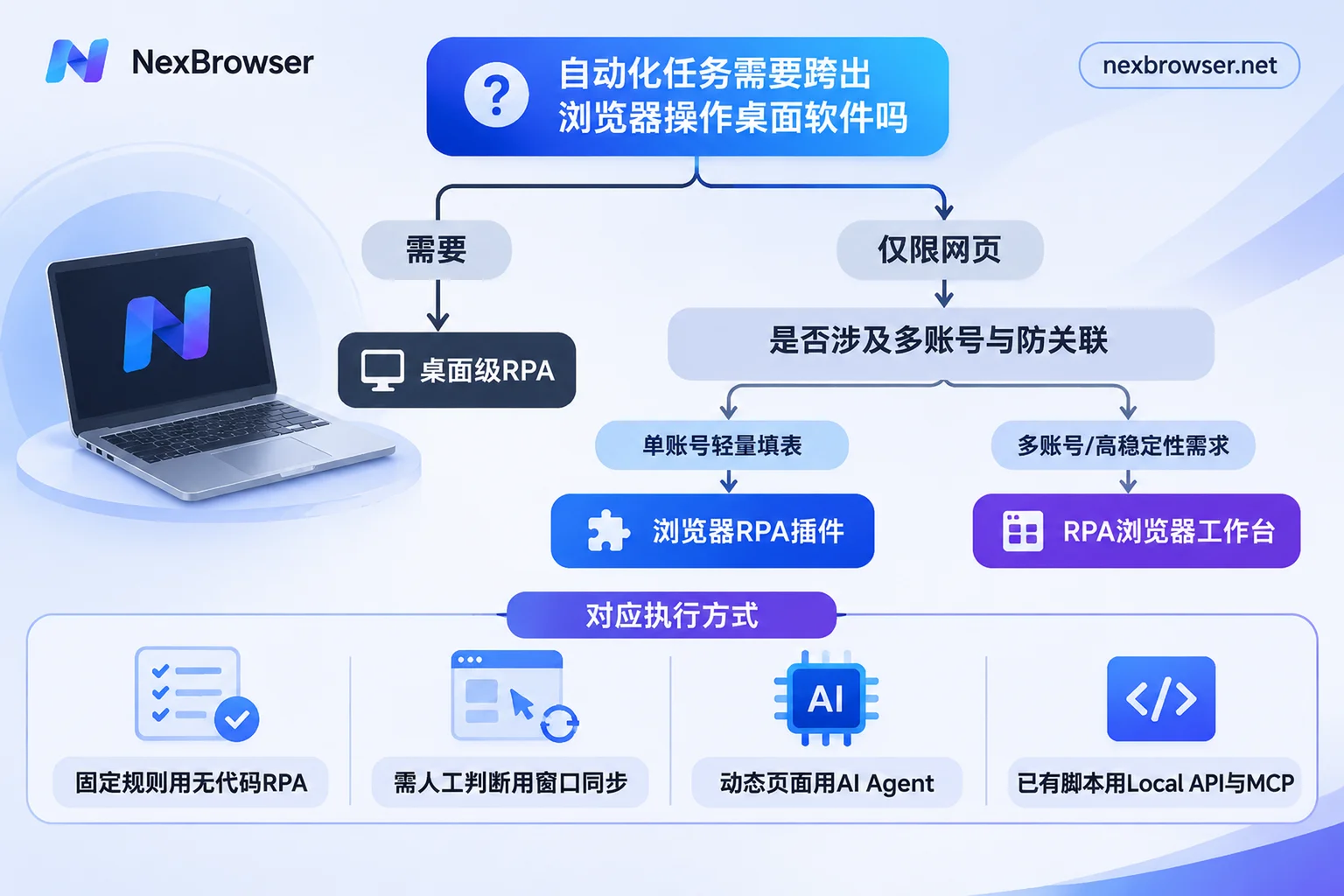
5. If you choose an RPA browser workbench, what does a practical configuration look like?
Take NexBrowser, built on the Chrome kernel, as an example. It's not simply stuffing a macro plugin into a regular browser; rather, it combines an "environment isolation foundation" and "multiple automation execution methods" in one workbench. Follow these three steps to minimize early trial-and-error costs:
Step 1: Lock down environment isolation and network egress first
In NexBrowser multi-account environment management, each account runs in an independent browser container: cookies, cache, and IndexedDB are isolated from each other; fingerprint parameters such as Canvas, WebGL, and fonts are independently generated and kept consistent per environment, while binding independent proxies (supporting HTTP / HTTPS / SOCKS5 and residential IP access).
A very practical detail is pre-launch proxy detection—before the environment opens, it checks proxy egress connectivity and location, and automatically aligns time zone, language, and WebRTC policies; if the check fails, it won't start, preventing scripts from running under abnormal network conditions and triggering secondary verification. If registration or remote verification requires SMS, the built-in NexSMS number center in the environment sidebar can directly obtain numbers, receive codes, and fill them back in the current environment.
Step 2: Choose the execution method based on task complexity, don't force one method for everything
On the same clean environment foundation, different tasks can be run with more suitable tools:
- Fixed, high-frequency standardized workflows → No-code RPA scripts (Beta)
Suitable for daily backend inspections, report extraction, fixed-path form filling, and other repetitive actions with clear rules. Drag and drop nodes on the canvas to orchestrate, configure variables, conditionals, loops, waits, and step-level failure retries, then bind a script to a batch of environments for execution. Each environment still runs independently with its own cookies, fingerprints, and proxies; logs are recorded by environment and step, making it clear where a step is stuck. For specific orchestration steps, refer to How to Build Workflows with No-Code RPA in a Fingerprint Browser. - Batch operations requiring human on-the-spot judgment → Window synchronization
When you encounter temporary batch operations where you need to look at the screen before deciding where to click (e.g., confirming differentiated campaigns for different stores), Window Synchronization is more handy: select a master window to operate, and clicks, inputs, and scrolls synchronize to the other slave windows, with support for throttle intervals and stopping at any time—more flexible than hard-coding scripts. - Tasks with frequently changing pages and unstructured judgments → Built-in AI Agent
For tasks where page layouts are not fixed and you need to understand content before filling forms or taking screenshots, you can directly call the built-in Nex Agent in the client. Describe the goal in natural language and it will automatically open environments for execution, with support for splitting into multiple windows for parallel processing; for irreversible operations like submitting payments or deletions, you can set it to request human approval first (the built-in Agent's model calls are billed by token; purchase as needed with account balance). - Development teams with existing scripts or AI coding tools → Local API and MCP
If your team already has Playwright, Puppeteer, or Selenium scripts, or is used to driving automation with Claude Code, Cursor, Codex, or browser-use, simply enable Local API in the client to call for free with unlimited次数, and obtain standard CDP connection information to directly take over the isolated browser environments; you can also use the NexBrowser MCP Server to let AI assistants directly list environments, open windows, and operate pages (see How to Connect browser-use and Playwright MCP to a Fingerprint Browser for integration methods).
Step 3: Run a small-scale trial on the free tier before deciding whether to scale up
Many beginners worry that automation tools require buying expensive plans right away. NexBrowser's features are not tiered; the free tier also opens the full set of automation and Local API capabilities, with no credit card required and quotas that don't expire (the current free window and member capacity are subject to the limited-time free activity page at the time).
One thing to note is the system environment: currently the client provides a Windows 10 / 11 (64-bit) version (available on the official download page), does not support Windows 7 or 32-bit systems, and the macOS client is still in development and not yet available. If you're on a Windows computer, you can absolutely create one or two test environments first to run through the entire workflow, and after confirming stability, purchase windows or team member capacity as needed.
6. A 3-step self-check list before you start
Before closing this page, take 30 seconds to go through these 3 questions, and you'll be able to decide immediately:
- Does the task require leaving the browser to click desktop software? If yes, choose desktop RPA; if everything is done within web pages, prioritize browser-side solutions.
- Does the same web workflow need to run on multiple logged-in accounts? If there's only 1 account, a free browser extension is enough; as soon as there are more than 2 sensitive accounts, you must first set up environment isolation with independent fingerprints and independent proxies before talking about automation.
- Is the page structure stable? For backends with unchanging structure, use a no-code RPA canvas or fixed scripts; for pages with frequent pop-ups, redesigns, or requiring semantic understanding, leave it to AI Agent or manual coordination with window synchronization.