 NexBrowser指纹浏览器-官方博客Blog
Bottom line: Original Chrome (as well as Edge based on the same Chromium core, SwitchyOmega / ZeroOmega extensions, and even Selenium / Puppeteer that directly pass --proxy-server parameters) only implements unauthenticated SOCKS5 handshake at the network layer and does not support transmitting username and password. Therefore, when you get a SOCKS5 proxy in the format IP:端口:用户名:密码 and fill it into Chrome or an extension, you will often see a popup saying "Your browser does not support socks5 proxy authentication", or in automation scripts, it will directly throw ERR_PROXY_AUTH_UNSUPPORTED, get stuck on a blank page, or even silently fall back to the local IP.
If you need a quick fix, you can choose a path based on your use case: For temporary access to a single ordinary webpage, ask your proxy provider for the HTTP/HTTPS port of the same channel, or switch to IP whitelist authentication without a password; If you run crawlers/automation scripts but don't want to change tools, you can set up a local forwarder with no authentication; If you need to manage multiple e-commerce, social media, or ad accounts, or connect Playwright / AI Agents to multiple independent environments, it's easiest to use a fingerprint browser like NexBrowser that handles SOCKS5 authentication at the client layer. No need to build your own forwarder or worry about account mixing.
1. Why does filling in SOCKS5 username and password cause errors or connection failures?
When many people encounter this problem, their first reaction is "the proxy is broken" or "I copied the password wrong". They delete and reinstall the extension several times but still can't fix it. The problem actually lies in the implementation boundaries of the browser and operating system:
- Windows system proxy has no SOCKS5 entry at all: Chrome and Edge follow system network settings by default, and the manual configuration section in Windows "Network & Internet → Proxy" only supports HTTP/HTTPS addresses and ports. Filling in a SOCKS5 node will not work at all.
- Chromium network stack deliberately blocks SOCKS5 username/password authentication: HTTP proxy authentication is done by returning the
407 Proxy Authentication Requiredrequest header, which browsers, extensions, and CDP interfaces can handle smoothly. However, SOCKS5 username/password authentication occurs during the TCP connection handshake phase. In the Chromium source code, when sending the SOCKS5 handshake packet, it only declares "NO_AUTH" and directly refuses to handle username/password. - Extensions and launch parameters cannot bypass it either: ZeroOmega and SwitchyOmega both call the
chrome.proxyAPI under the hood, limited by the browser kernel, and will directly error out when username/password is checked. Similarly, writing--proxy-server=socks5://user:pass@ip:portin Selenium or Puppeteer launch parameters will cause Chromium to ignore the authentication fields and fail to connect.
By the way: If you just need to manually view web pages in a single browser temporarily, Firefox natively supports filling in SOCKS v5 username and password in "Network Settings" (remember to check "Proxy DNS when using SOCKS v5"). But if your workflow relies on the Chrome ecosystem, multi-account anti-detection, or script takeover, you need to look at the 4 solutions below.
2. How to bind SOCKS5 proxy with username/password to a browser? 4 practical solutions
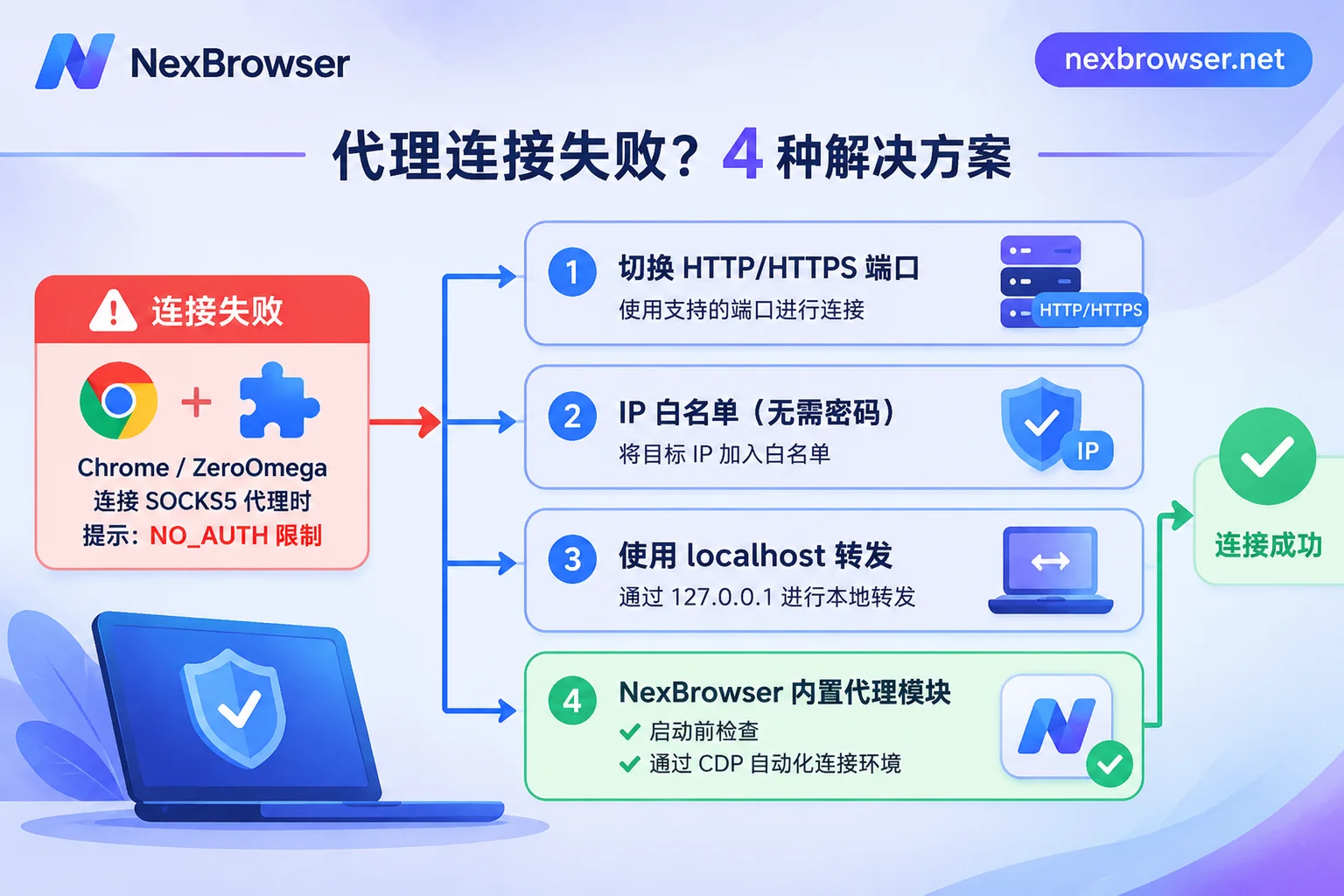
Solution 1: Use the HTTP/HTTPS port with the same credentials (fastest single-window solution)
Most static residential IPs or dynamic proxy gateways on the market open both SOCKS5 and HTTP ports for the same line, and share the same username and password.
- Ordinary manual browsing: In a proxy extension like ZeroOmega, change the protocol from
SOCKS5toHTTP, fill in the corresponding HTTP port, then click the lock icon to save the username and password, and you can connect normally. - Playwright / Puppeteer development: In Playwright's
launch()ornewContext(), setproxy.servertohttp://主机:端口, and passusernameandpasswordseparately; for Puppeteer, launch with--proxy-server=http://主机:端口and then submit credentials viapage.authenticate({ username, password }).
Caveat: After switching to the HTTP port, traffic goes through an application-layer proxy without native UDP forwarding. If you are doing multi-account operations, be sure to check whether the browser's WebRTC policy is blocked or aligned to avoid the situation where the HTTP exit changes but WebRTC leaks your real broadband IP. For the differences in underlying transport and leakage surface, see "What is the difference between SOCKS5 and HTTP proxy binding to browser" and "What to do if the exit IP is still the local IP after binding a proxy".
Solution 2: Add your public IP to the whitelist and use passwordless SOCKS5
If your proxy provider's backend supports "terminal IP whitelist authorization", you can add your current computer's public egress IP to the whitelist. Once authorized, the proxy server no longer asks for username and password, and you can use passwordless socks5://IP:端口 to connect directly via ZeroOmega or Chrome launch parameters.
The applicable boundary is obvious: This approach is only suitable for self-use in a fixed office dedicated line environment. If you are on a home dynamic broadband (public IP changes after restarting the optical modem), frequently switch to mobile hotspot, or need to share the environment with remote team members, the whitelist will frequently cause errors like "it worked yesterday, but today everything is down".
Solution 3: Run a local passwordless forwarder on your machine (suitable for debugging a few automation instances)
When the business explicitly requires using the remote SOCKS5 port (e.g., for remote DNS or underlying socket compatibility) but you must drive Chrome, a common developer approach is to run a lightweight proxy forwarder locally (such as Privoxy, 3proxy, pproxy, or Nginx).
The logic is simple: let the forwarder listen on 127.0.0.1:本地端口 for unauthenticated requests, and when it receives traffic from Chrome, the forwarder carries the username and password to complete the handshake with the remote SOCKS5 server, then point Chrome or Selenium to 127.0.0.1:本地端口.
Why only recommended for small-scale debugging? Once you open 20 or even hundreds of accounts simultaneously, you not only need to maintain dozens of non-conflicting forwarding ports and background daemon processes locally, but also need to split user directories with --user-data-dir and write scripts to inject timezone and fingerprint parameters. If any forwarding process dies, the browser will directly lose network or even expose the real environment.
Solution 4: Use NexBrowser client's built-in proxy module to directly handle SOCKS5 authentication (recommended for multi-account and automation)
If you need to log into multiple cross-border stores, social media matrices, or ad accounts on one computer simultaneously, or connect Playwright, Puppeteer, Selenium, or AI Agents to multiple persistent browser environments, handing authentication to a professional workbench on the client side is much more stable than piecing together extensions and local forwarders.
In NexBrowser (currently available as Windows 10/11 64-bit client, macOS client still in development), when doing proxy IP binding to browser, you are not limited by the original Chrome interface or extensions:
- Native support for HTTP / HTTPS / SOCKS5 username/password authentication: When creating an environment, directly select
SOCKS5, fill in host, port, username, and password (also supports batch import of proxies and batch binding to multiple environments). The client handles authentication at the underlying level, and will not pop up "socks5 authentication not supported" errors. - Pre-check before launch, block if not working: Click detect to verify connectivity, latency, and exit IP ownership at once; before environment launch, the proxy exit is also validated, and if detection fails, launch is directly blocked to prevent accounts from accidentally logging in with the local network when the proxy fails.
- Network exit and fingerprint automatically aligned: After binding the SOCKS5 proxy, the environment's WebRTC policy, timezone, language, and geolocation are automatically matched and aligned with the exit IP (see fingerprint parameter isolation explanation); if you later change the proxy for the environment, cookies and local storage (including IndexedDB) will not be cleared, and the business login state can be retained.
- Direct takeover for development and AI Agents without writing forwarding scripts: For teams running automation scripts or integrating
browser-use,Playwright MCP, Claude Code, Cursor, simply create or launch an environment already bound with a SOCKS5 proxy via NexBrowser Local API, get the CDP connection info, and directly take over page operations (for specific integration, see "How to launch environment and get debug port with Local API"), or directly use NexBrowser MCP Server to drive multiple independent windows, saving the trouble of maintaining local forwarders and MV3webRequestAuthProviderauthentication extensions. Moreover, Local API is free and has unlimited calls.
3. Three must-check verifications after binding
No matter which of the 4 solutions you choose, before officially logging into important accounts, it is recommended to spend 1 minute checking these three things in order:
- Check special characters in username/password: If the proxy password contains symbols like
@,#,:, manually concatenating them into command lines or configuration file URLs can easily be mistaken as field separators, causing authentication failure. If you encounter "the information is correct but it keeps erroring", first check whether URL encoding is needed or use separate input fields. If one-click detection in the panel still fails, refer to "How to troubleshoot when one-click detection fails after proxy import" for item-by-item diagnosis. - Ensure only one proxy channel is active at a time: If you have global system proxy, other proxy software, or ad-blocking extensions running on your computer, it is easy for extensions and system proxy to "fight for control" in Chrome. During testing and daily operations, try to keep a single environment with a single link (for the trade-off boundary between extension proxy and built-in proxy, see "Which is better: browser extension proxy or software built-in proxy").
- Actually test whether exit IP and WebRTC are consistent: After opening the environment, first visit an IP detection page to confirm that the displayed public IP and country/region match the proxy backend, and that WebRTC does not leak the local LAN or broadband public address, then log into the business account.
4. Quick match by scenario
| Your current scenario | Recommended solution | Core reason |
|---|---|---|
| Temporarily use Chrome to check overseas pages | Solution 1 (switch to HTTP port) | No need to mess with forwarders, just fill in credentials in ZeroOmega |
| Fixed office dedicated line, only need a few passwordless debugging | Solution 2 (IP whitelist) | Remove the credential step, Chrome's native passwordless SOCKS5 can connect |
| Run a few headless scripts on a single machine and must use remote SOCKS5 | Solution 3 (local forwarder) | Bypass Chromium authentication restrictions, suitable for developers familiar with command line |
| Multi-account anti-detection operations / team collaboration / batch automation | Solution 4 (NexBrowser built-in binding) | Client handles SOCKS5 authentication + pre-launch check + fingerprint alignment + CDP/MCP direct connection |