 NexBrowser指纹浏览器-官方博客Blog
The proxy showing "connected" in the client only means the channel to the proxy server is open; it doesn't mean all traffic in the browser goes through that channel. When a detection page shows an "IP mismatch," there are four common causes:
- Mistaking the proxy's access address for the exit IP;
- WebRTC uses UDP and bypasses the proxy;
- The local machine's IPv6 connects directly to the target site;
- Extensions or routing rules cause the page to go direct.
There's also a case that isn't a leak at all: different IP databases label the same IP with different cities.
So don't rush to switch proxies. First check which column on the detection page doesn't match, then troubleshoot accordingly.
Step 1: Confirm which column the "mismatch" is in
Open the detection page and check each column in the following order:
- Page main IP (often labeled Remote IP, Your IP): This is the source address when the web request actually reaches the server, i.e., the proxy exit.
- WebRTC column: The address the browser obtains via STUN probing.
- IPv6 column: Whether the page gets an IPv6 address, and whether that address belongs to your local broadband.
- Geolocation, ISP labels: City, ISP, ASN.
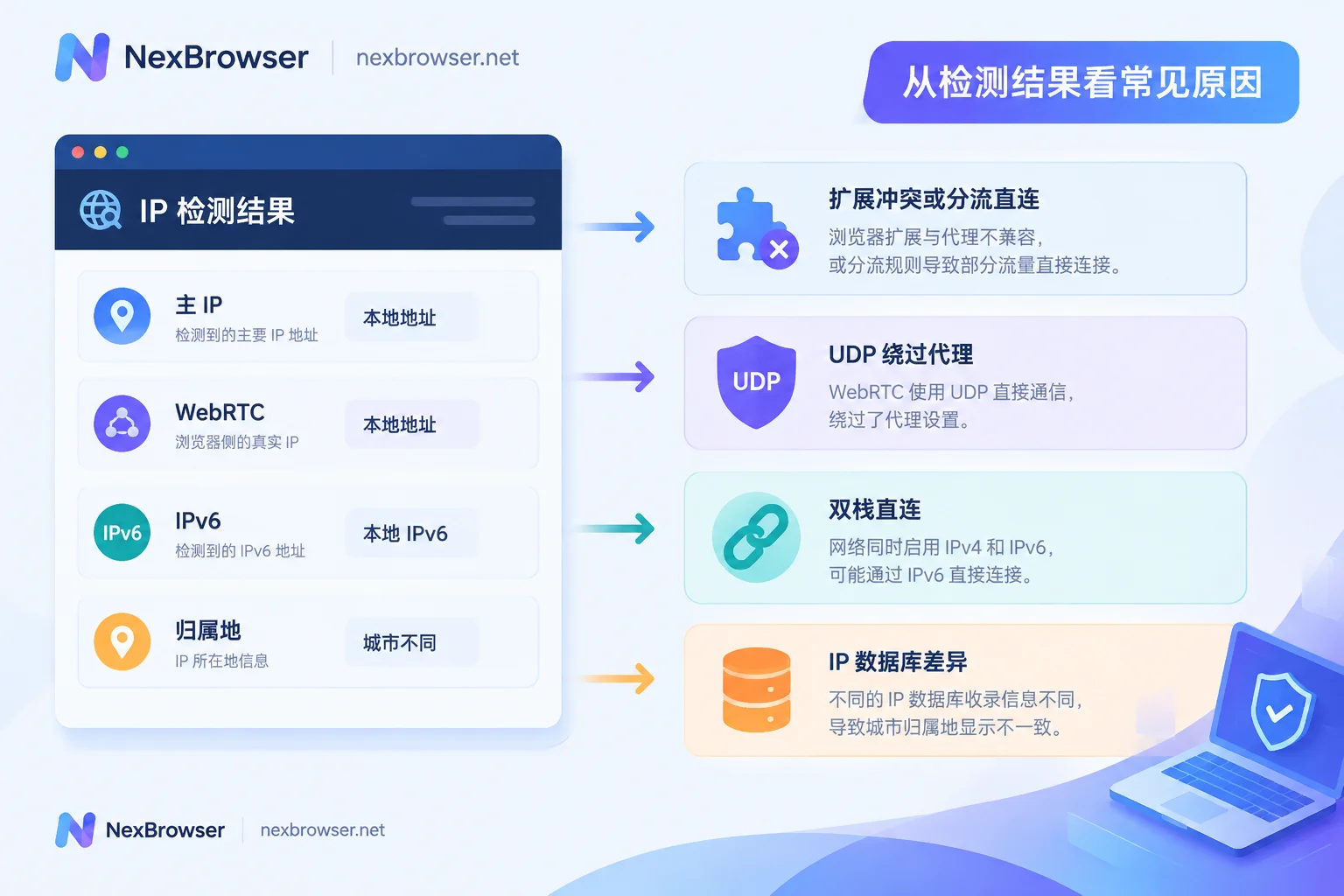
The four situations have corresponding causes:
- The main IP is your local broadband IP: the proxy isn't handling page traffic; check the section "Page directly shows local IP."
- The main IP is the proxy exit, but WebRTC shows a local address: handle it in the WebRTC section.
- The main IP is correct, but an extra local IPv6 appears: handle it in the IPv6 section.
- The IP address itself hasn't changed, only the city doesn't match: mostly database differences; see the last section.
Main IP differs from the address filled in the proxy: often normal
The Host filled in the proxy configuration is the access gateway address, not necessarily the exit. Many providers use reverse-connect gateways: all users connect to the same entry host and port, and traffic is forwarded from the gateway to the actual exit node. The detection page shows the exit node; it doesn't match the Host you filled in—this is by architecture, not a fault.
How to confirm: Check the proxy provider's backend or documentation for the exit IP assigned to this line, and compare it with the detection page—not with the Host.
If you're using a dynamic rotating proxy, the problem is more obvious. Each session, or even different asynchronous requests within the same page, may be assigned to different exits. So several fields on the detection page show different IPs, and refreshing changes them again.
For such proxies, if you need to stay logged in for a long time, switch to a sticky session to keep the exit fixed for a period, and refresh multiple times to confirm the exit doesn't change mid-way. For details, see Does the fingerprint browser support dynamic rotating proxies?.
Main IP is correct, but WebRTC shows a local address
This is the most common "half leak." When WebRTC establishes a connection, it uses UDP by default to communicate with STUN/TURN servers. Most HTTP proxies and SOCKS5 proxies without UDP forwarding configured can't handle this traffic. The result: web requests go through the proxy, but WebRTC probing bypasses it and obtains local information.
First look at the candidate types listed on the detection page to determine which layer is exposed:
- host: Local network interface address, usually a LAN IP like 192.168.x.x. It's not your public identity, but alongside the proxy exit it looks contradictory.
- srflx: The public address seen by the STUN server. If this is your home broadband's public IP, it's a real leak and needs priority handling.
- relay: Address relayed via TURN.
How to handle it depends on your browser:
- Regular Chrome or Chromium: You can restrict non-proxy UDP via WebRTC IP handling policy (e.g.,
disable_non_proxied_udp), or use a trusted extension to limit WebRTC. Note this affects web calling and other features that rely on WebRTC. - Multi-account browser environment: Check the WebRTC item in the environment's fingerprint parameters. Set it to a replacement consistent with the proxy exit, or disable it when not needed for your business. Specific option names depend on the client interface.
After changing, reopen the environment and test again. It's only solved when the srflx column no longer shows the local public IP.
For the difference between HTTP and SOCKS5 on this point, and how to check DNS together, see What's the difference between SOCKS5 and HTTP proxy binding in a browser?.
An extra IPv6 address appears: dual-stack direct connection bypasses the proxy
If your broadband has native IPv6 and the proxy only supports IPv4, this happens. When the target site also supports IPv6, the browser's Happy Eyeballs mechanism races IPv4 and IPv6 connections; the IPv6 path may connect directly to the detection page without going through the proxy.
How to confirm: Use a dedicated IPv6 leak test page to see if an IPv6 address is detected, and determine whether it's your local ISP's address.
How to handle it, choose one:
- Switch to a proxy that fully supports IPv6;
- Disable IPv6 in the browser environment or system network settings.
If your business doesn't need IPv6, disabling is more straightforward.
Page directly shows local IP: check extensions, routing rules, and residual config
If the main IP is the local broadband address, the page traffic isn't going through the proxy at all. Common causes: a third-party VPN or proxy extension is installed in the environment and competes with the environment's built-in proxy settings for control; or a routing rule puts the detection site's domain in the direct list. Then the outer proxy test shows connectivity, but the page falls back to direct.
Troubleshoot in this order:
- Disable all VPN or proxy extensions in the environment. Keep only one set of proxy settings per environment.
- Check routing rules or PAC configuration to confirm the detection site and target site aren't set to direct.
- Clear the environment's network configuration cache, fully close the environment, and restart. Just refreshing the page may still use old connections.
- Go back to the client and see if the proxy test actually returns an exit IP. Showing "connected" alone isn't enough.
Same IP, different city
Different detection sites reference different databases, such as IP2Location, MaxMind, IPinfo, and their update frequencies and classification rules differ. Residential IPs and newly allocated ranges especially tend to show Los Angeles on one site and Dallas on another.
To judge whether it really changed, look at the raw IP address and ASN, not the city name. If both IP and ASN are unchanged, it's not a proxy problem.
If the platform cares about consistency between timezone, language, and IP location, see Troubleshooting IP and browser timezone/language mismatch to align environment parameters with the IP's actual location.
A troubleshooting order
- Run a proxy test in the client, note the returned exit IP and ASN.
- Open the environment and use the detection page to check whether the main IP equals that exit.
- Check whether the srflx in the WebRTC column is the local public IP.
- Use an IPv6 test page to see if there's local IPv6.
- Disable extra extensions, check routing rules, restart the environment, and test again.
- If geolocation differs, rely on IP and ASN.
Retest after each change so you know which step made a difference. To systematically check other places in the environment that might leak, refer to Checklist for detecting fingerprint browser environment disguise leaks.
How to do this step in NexBrowser
In NexBrowser, each environment has independent proxies, cookies, cache, and local storage, and fingerprint parameters are configured per environment. Proxies support HTTP, HTTPS, SOCKS5 batch import and one-click testing, so you can confirm the returned exit before launching the environment. The exit obtained from the test is your baseline for checking the detection page later. You can import your own proxies or bind NexIP residential IPs with one click.
For specific operations on binding proxies and reading the exit, see Bind proxy and verify exit. The client currently supports Windows, available from the download page.
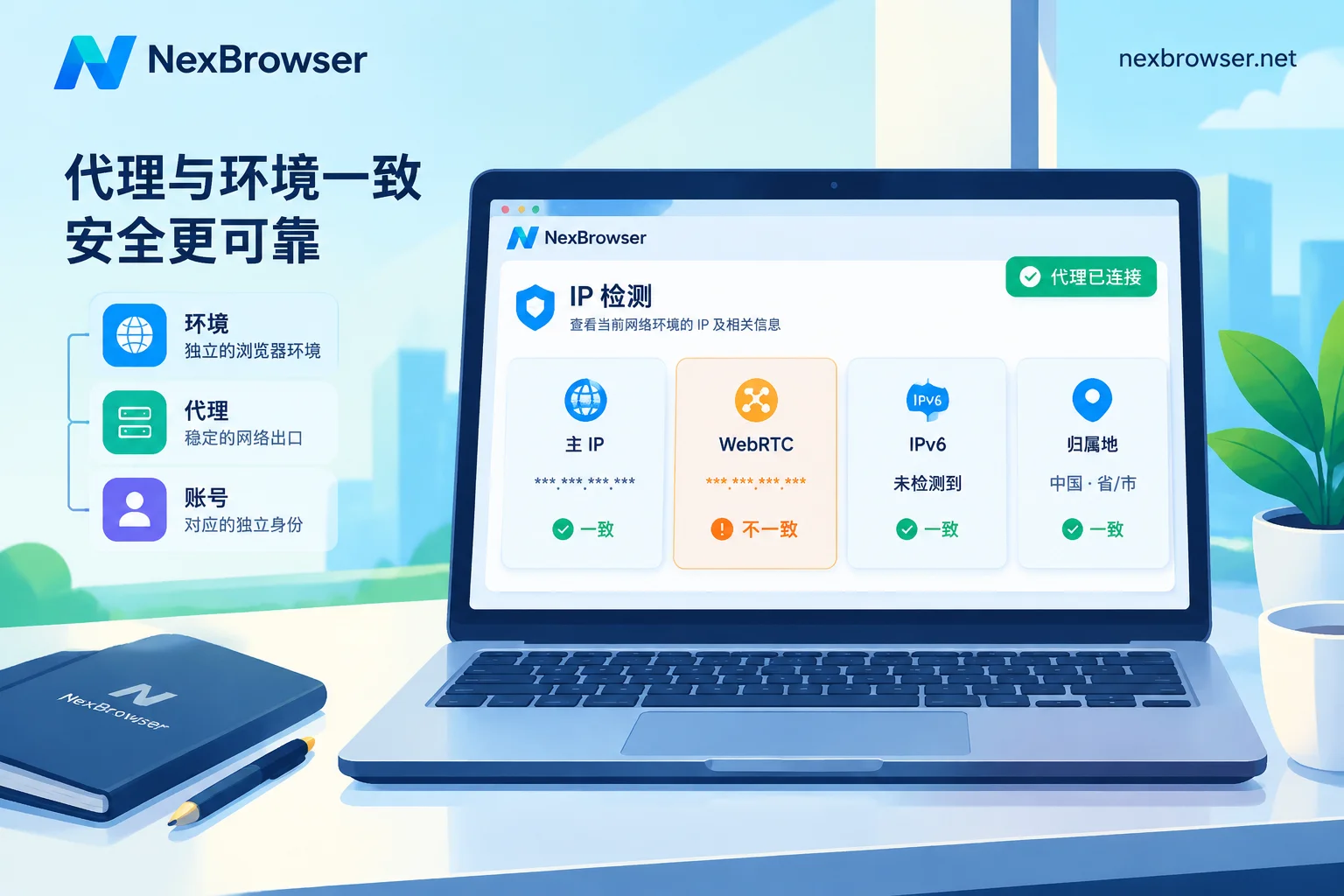
One final reminder: if the main IP, WebRTC, and IPv6 columns all match, it only means this environment currently has no obvious network-layer contradictions. It doesn't guarantee the platform won't make associations; how you use the account matters just as much.


Comments(0)