 NexBrowser指纹浏览器-官方博客Blog
Here's the conclusion first. Based on how many accounts you have, there are three cases:
- Only 2 ChatGPT accounts, and only used on the web: Just use OpenAI's official account switcher. No need to install anything.
- More than 2 ChatGPT accounts, or you need to use a second account on the desktop client/mobile app: The official switcher doesn't cover that. You need separate environments.
- Managing both ChatGPT and Claude: Claude has no native quick account switching. Once you have more than one account, you can only rely on browser-level isolation.
The rest of this article follows that order, focusing on the specific methods for the second and third cases.
First, confirm the boundaries of official capabilities
OpenAI provides an Account Switcher on the ChatGPT web app that can keep up to 2 accounts logged in within the same session and switch instantly. The conversation history, memory, billing, and workspace of the two accounts are independent. This capability has two clear boundaries: it does not support keeping more than 2 accounts in session simultaneously, and it does not apply to the desktop client or mobile app—there, switching accounts still requires logging out and back in.
On Anthropic's side, Claude currently has no publicly documented multi-account switching mechanism for individual users. The official documentation mainly covers Team plans and single accounts. There is no official guidance on how an individual with multiple accounts should use them in parallel.
So "two or fewer, web only, ChatGPT only" is the only scenario the official tools can handle. Beyond that, you need to do the isolation yourself at the browser level.
Before you start: what not to do
Both OpenAI's and Anthropic's terms of service state that accounts are for individual use, prohibit sharing login credentials, and prohibit creating multiple accounts to circumvent usage quotas or rate limits. Both explicitly say they use IP addresses, network signals, and device- and session-level telemetry for security and anti-abuse monitoring.
In other words, the legitimate use of environment separation is to let multiple accounts you already legally hold (personal and work accounts, subscriptions for different projects, delivery accounts for different clients) coexist stably without logging in and out every day. It is not for bulk quota farming, and it cannot let you bypass the platform's abuse detection. No isolation configuration guarantees you won't be linked.
Why you must isolate the egress IP as well
Many people's first instinct is to use multiple Chrome profiles. That does separate cookies at the storage level, but it's missing one layer: network egress.
ChatGPT and Claude widely use human verification like Cloudflare Turnstile. Such verification doesn't just check whether you clicked a box; it validates TLS fingerprints, IP reputation, and geolocation, and it collects browser rendering characteristics and page runtime state. Two practical pitfalls:
- Frequently logging out and logging into different accounts within the same browser leads to multiple identity changes under the same fingerprint in a short time, easily triggering a "verify, pop up, verify again" loop.
- A sudden change in the egress IP for the same account (home broadband today, a different node tomorrow, corporate network the day after) makes geolocation and reputation signals inconsistent, which can also trigger additional checks or even blocks.
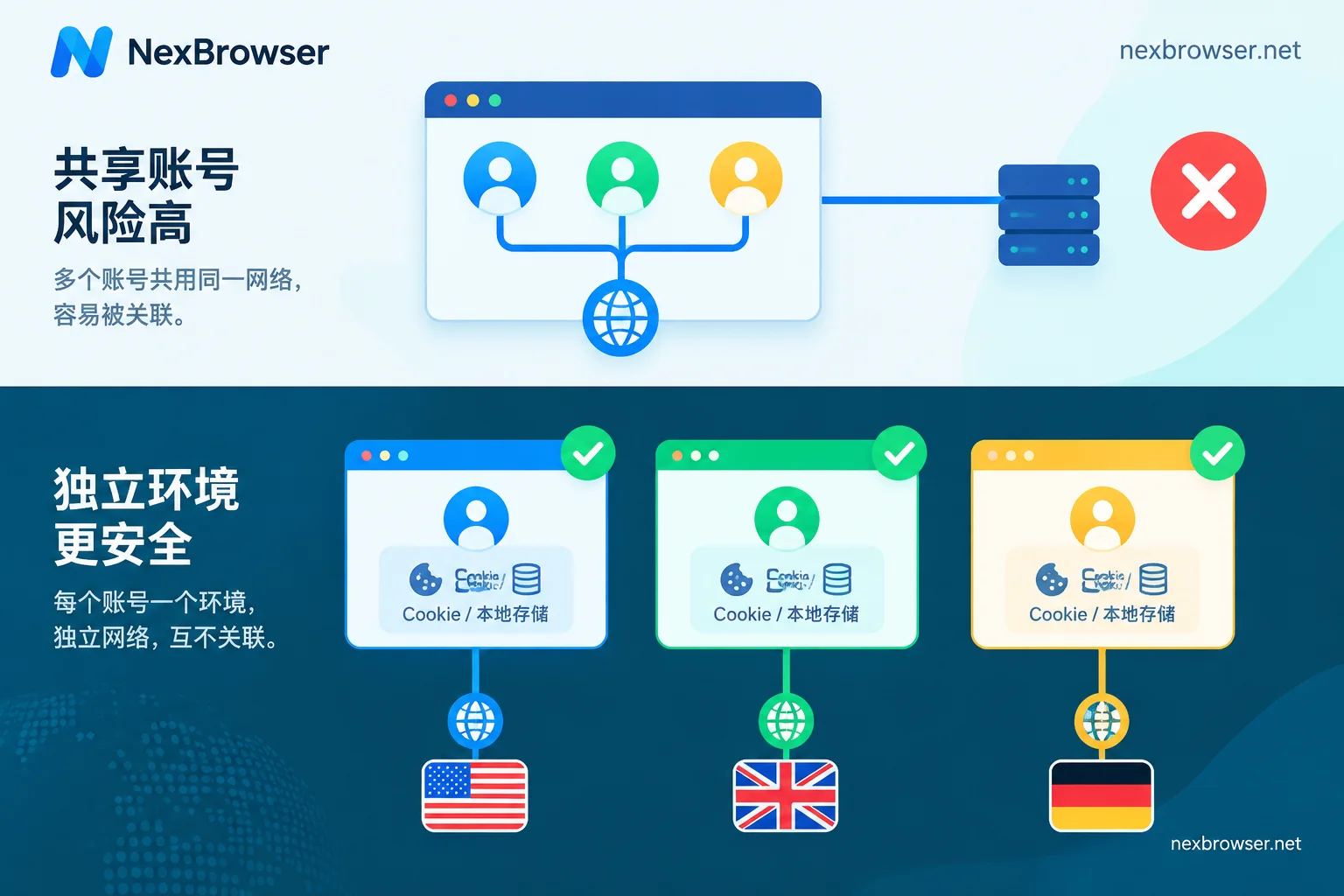
So isolation must satisfy two conditions at once: each account has completely independent Cookie, Local Storage, and IndexedDB containers, and is bound to a fixed egress IP consistent with that account's usual region. Without the latter, no matter how clean the former is, the platform still sees the same egress switching identities.
Specific operation order
Step 1: List your accounts first
Don't start creating environments as soon as you open the software. First, make a table to clarify: which platform each account belongs to, which country/region it was registered in, where the payment method is bound, and who usually uses it. The region column will determine how proxies are configured later; if you miss it, you'll have to redo the work.
Step 2: One account per environment, fix the naming first
Do not log two accounts into one environment, even if they belong to the same person. Environment naming should follow a consistent pattern like "platform-purpose-region-account identifier", for example GPT-市场组-US-a01, Claude-研发-JP-b02. With many accounts, telling windows apart by memory is the most common source of misoperations.
In NexBrowser, each environment has independent cookies, cache, local storage, and proxy. Fingerprint parameters are configured per environment and kept consistent, so "one account per environment" directly isolates at the storage layer, not just relabeling the same data. Group environments by platform or by person for easier handover and checks later: Environment isolation and grouping.
If you have few accounts with largely the same parameters, you can configure one working environment, save it as a template, and copy it. Fingerprints are regenerated per environment while the baseline stays consistent—more stable than configuring each manually. For details, see How to save a browser environment as a template and copy in bulk.
Step 3: Bind a proxy per environment, one egress per environment
Just three principles:
- Region matches the account. An account registered in the US and paid with a US card should use a US egress, not US today and Singapore tomorrow.
- One environment, one egress, not shared with other environments. Sharing effectively merges the accounts you just separated back together at the network layer.
- Prioritize stability over speed. Session-based products fear mid-session IP changes; better slow than unstable egress.
Own proxies support HTTP/HTTPS/SOCKS5 bulk import. After import, run a one-click check to confirm connectivity and correct egress region before binding to the environment. If you don't have a proxy ready, you can bind a residential IP directly in the environment (egress resources themselves are from NexIP; here we only cover how to bind in the environment): Bind proxy and verify egress. If the check fails, it's usually a wrong protocol, incorrect auth format, or blocked port. For troubleshooting order, see How to troubleshoot a failed one-click check after proxy import.
Step 4: Don't reverse the first-login order
- Start the environment first. Do not rush to open chatgpt.com or claude.ai.
- In the environment, first visit an IP lookup page to confirm the egress IP and region are what you want.
- After confirming, open the target site, log in, and complete any human verification.
- After successful login, use it normally: send a message and wait for the full reply.
- Close the window, reopen the same environment, and confirm you're still logged in.
Steps 2 and 5 are often skipped, but they are the foundation for all later stability. If step 5 logs you out, storage isn't truly persisting. Continuing to configure further will just carry the problem into every environment.
Step 5: Receive verification codes inside the environment
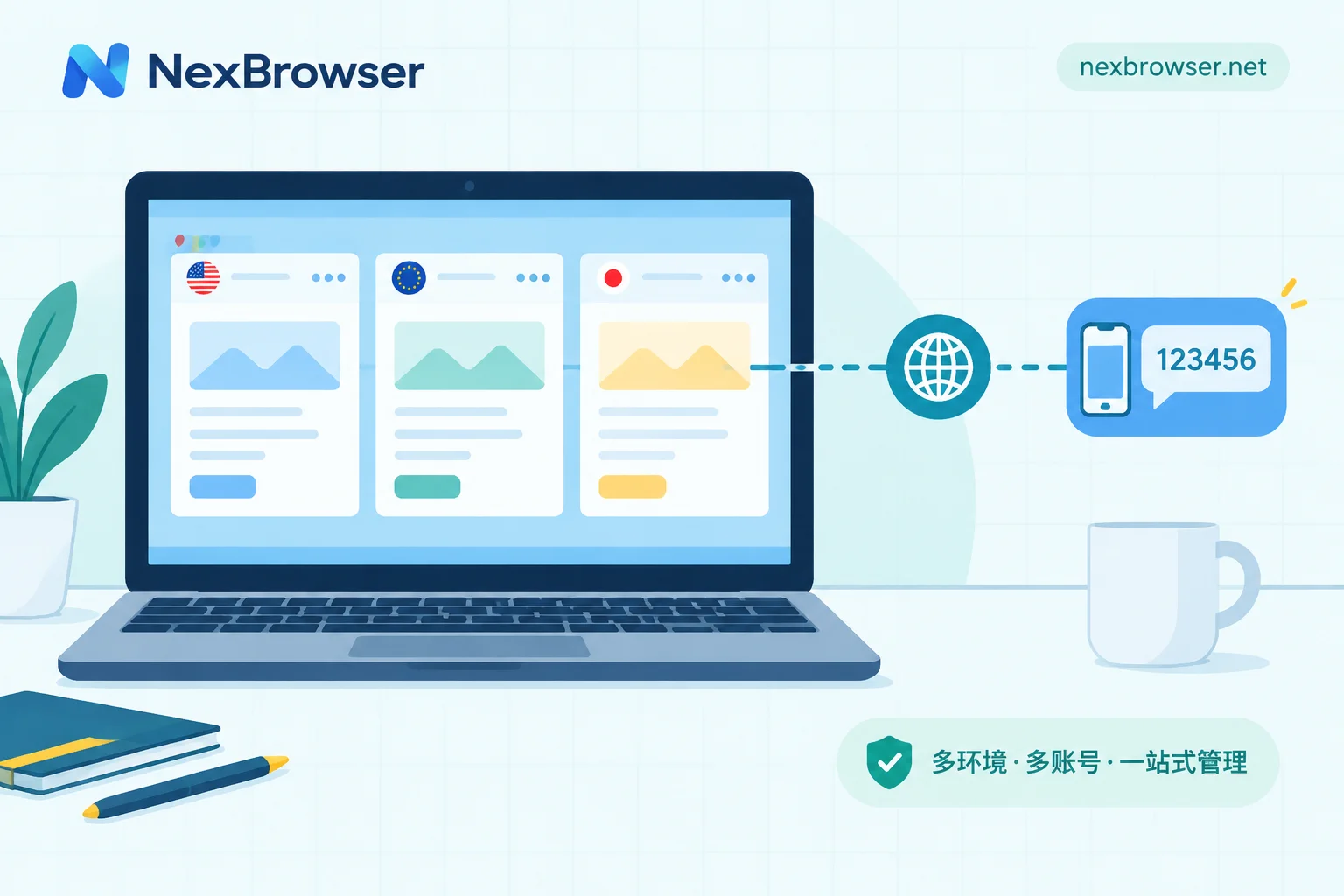
When registering or triggering two-factor verification, the region of the number you use should ideally align with the environment egress and the account's region. Number resources are from NexSMS. For the exact steps to get a number and fill it in inside the environment, see How to get a number and receive verification codes in a browser environment.
Step 6: Verify in three places to confirm isolation is effective
After configuring, don't rush to use it. Spend three minutes confirming:
- Egress check: Open an IP lookup page in each environment and confirm the IPs are all different and the regions match expectations.
- Reopen persistence: Close all windows, relaunch each one, and confirm they're all still logged in without being asked to re-verify.
- Parallel without crossover: Open two environments at the same time, refresh ChatGPT or Claude in each, and confirm the account in the top-left, conversation list, and subscription status are each their own, with no interference.
Only after all three pass is it truly working.
Switching machines, handover, and script takeover
Switching computers: Configurations support encrypted cloud sync. After switching, log into the same account to restore environment configurations. Note the order of actions before and after switching; syncing first then migrating is completely different from migrating first then syncing. For details, see How to restore fingerprint browser environment configurations after switching computers.
Colleague takeover: In team scenarios, assign permissions by role and share without passwords. Members can open and use environments without needing the account credentials themselves—this aligns exactly with the platform terms' prohibition on sharing login credentials. For how to do it, see Let members log into environments without seeing account passwords.
Script or AI Agent takeover: If you want to drive these environments with Selenium, Puppeteer, Playwright, browser-use, or Playwright MCP, the correct approach is to connect to an already-started environment, not let the framework launch a new browser itself—the latter would bypass your carefully configured proxy and storage isolation. Start the environment via Local API and get the debugging port to take over. Local API is free with unlimited calls: How to start an environment via Local API and get the debugging port, How to connect browser-use and Playwright MCP to a fingerprint browser.
If you run into problems, check these first
Human verification keeps popping up: First check whether the egress IP for this environment has changed recently or is shared with another environment on the same line; also confirm you didn't log out and log into another account in the same environment.
Logged out after a while: Check whether a cleaning tool is clearing browser data, and whether the environment's proxy dropped mid-session, invalidating the session.
Two accounts crossed over: Usually because you once logged a second account into an already logged-in environment for convenience. The correct fix is to create a fresh environment and log in again, not to log one out in the original environment.
Need a second account on the desktop client: The official switcher doesn't cover the client, so this path doesn't work. Use a browser environment to access the web version for that account.
If you currently only have two ChatGPT web accounts, the official switcher is enough; no need for tools. If you have more, or you also need multiple Claude accounts, follow the order above to get the first environment working—Download the client (currently Windows only; macOS in development). The free tier has all features. Start with one account and go through "create environment → bind proxy → verify in three places". Once confirmed, copy in bulk.
Basic concepts like what a fingerprint is and how to configure parameters consistently are already covered in the official User Guide, so I won't repeat them here.


Comments(0)