 NexBrowser指纹浏览器-官方博客Blog
Conclusion First
If you only use a browser to open web pages, manage accounts, and run automation scripts, both HTTP and SOCKS5 proxies can change the exit IP. When configured correctly, they are essentially identical from a website's perspective.
The real differences lie beyond web pages, mainly in three aspects:
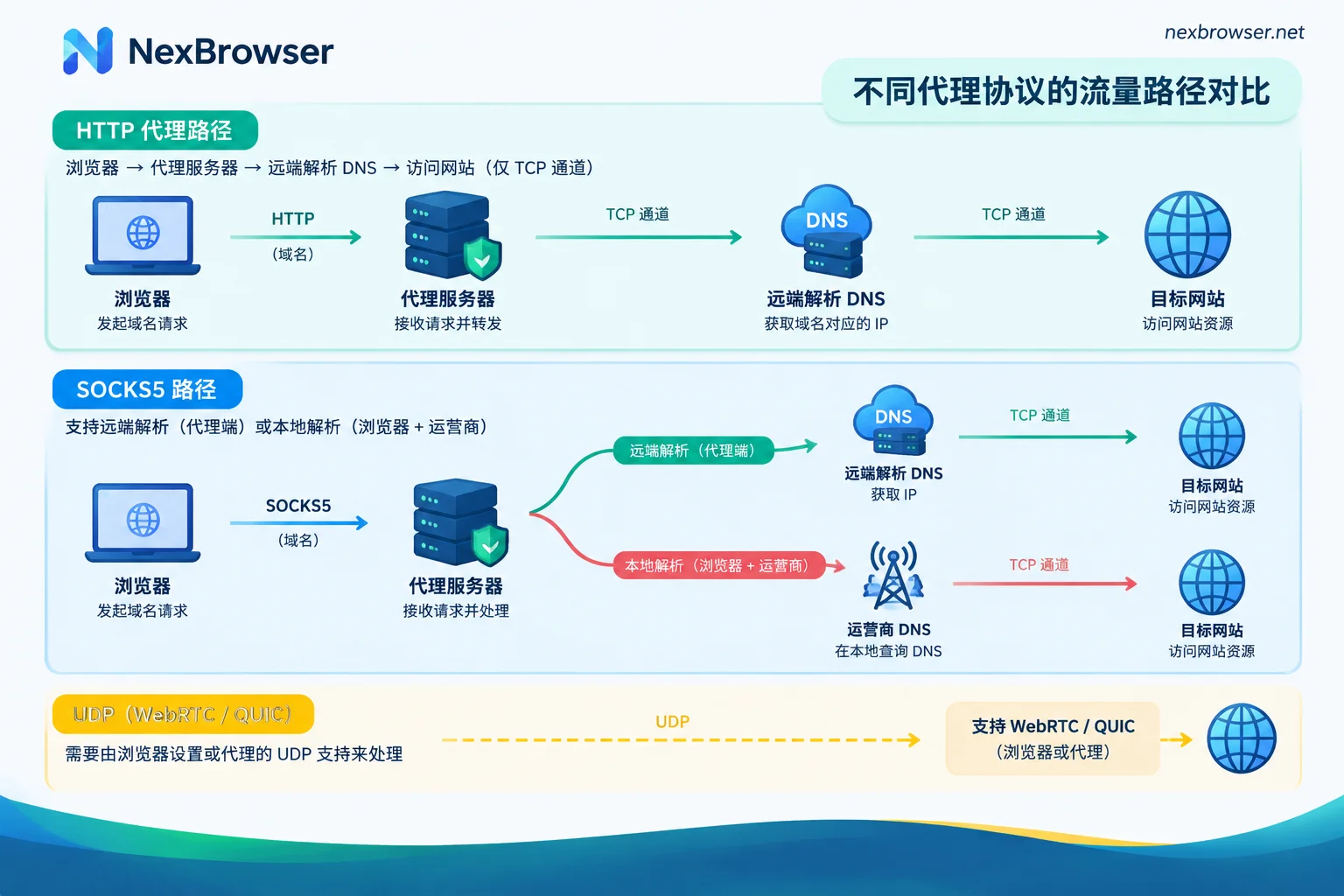
- Who resolves DNS: HTTP proxies typically pass the domain to the proxy server for resolution. If SOCKS5 does not enable remote resolution, the browser may still query DNS locally.
- UDP traffic: The SOCKS5 protocol specification supports UDP forwarding, while regular HTTP proxies only handle TCP. WebRTC and HTTP/3 (QUIC) use UDP.
- Connection overhead: HTTP CONNECT usually establishes a tunnel in 1 round trip. SOCKS5 with username/password authentication generally requires 2 to 3 round trips.
Therefore, the choice of protocol is often not the most critical step. What matters more is verifying three things after binding: whether the exit IP is correct, whether DNS queries are local, and whether WebRTC exposes your real IP.
How the Two Proxies Work
| HTTP / HTTPS Proxy | SOCKS5 Proxy | |
|---|---|---|
| Working layer | Application layer (OSI layer 7) | Session layer (OSI layer 5) |
| Traffic handling | Recognizes HTTP requests; for HTTPS sites, typically uses CONNECT to establish a transparent TCP tunnel | Does not parse data content, only forwards |
| Supported transport protocols | TCP | TCP and UDP per specification |
| Connection establishment | Typically 1 round trip | Authentication negotiation, credential verification, connection request: typically 2 to 3 round trips |
| DNS resolution | By default sends the domain to the proxy for remote resolution | Protocol supports remote resolution, but depends on client implementation |
HTTP proxies are designed specifically for web traffic. SOCKS5 is more like a generic pipe that can forward any data, but it does not care what is being transmitted.
Three Differences That Affect Results
1. Where DNS is resolved
This is where the two most easily cause problems.
With an HTTP proxy, the browser passes the full domain to the proxy, and the proxy server performs DNS resolution remotely. The local network does not see this query.
SOCKS5 has two modes:
- Local resolution: The browser first resolves the domain to an IP locally, then passes it to the proxy.
- Remote resolution: The browser passes the domain directly to the proxy for resolution. In some tools this is written as
socks5h.
If local resolution is used, DNS queries are sent via local UDP port 53 to the ISP. The result could be an exit IP in the US but a DNS server in China. Some websites detect this inconsistency and trigger risk controls.
Different software may default to different resolution modes for SOCKS5. Do not guess; after binding, use a DNS leak test page to verify.
2. UDP, WebRTC, and HTTP/3
In modern browsers, both WebRTC and HTTP/3 (QUIC) use UDP. Regular HTTP proxies only handle TCP and cannot forward such traffic.
If the browser does not restrict WebRTC—for example, it does not replace the public IP or disable public STUN candidates—WebRTC may bypass the proxy and connect directly to the outside, exposing your real IP.
Two points to note:
- The SOCKS5 specification supporting UDP does not mean your proxy provider has UDP enabled, nor that the browser will forward UDP through it.
- In multi-account browsers, whether WebRTC leaks depends mainly on the environment's WebRTC settings, not just the proxy protocol. With HTTP proxies, this setting must be handled properly. With SOCKS5, it also needs checking.
3. Speed of establishing connections
HTTP CONNECT typically requires only 1 round trip to establish a tunnel. SOCKS5 with authentication requires negotiating the authentication method, verifying credentials, and then requesting the connection, typically 2 to 3 round trips.
This difference is noticeable only when frequently creating new connections, such as a script opening many new pages in a short time. In daily manual operations, browsers reuse existing connections, so you hardly feel the difference. The quality and distance of the proxy line itself usually have a greater impact on speed.
How to Choose in Different Situations
- Provider offers only one protocol: Use that one and check item by item as in the next section. The protocol itself is not the bottleneck.
- Only web account management, want to avoid DNS pitfalls: HTTP/HTTPS proxies resolve DNS remotely by default, making configuration easier. WebRTC still needs to be handled by environment settings.
- Environment has traffic beyond web pages, or needs UDP forwarding: Choose SOCKS5, confirm with the provider whether UDP is supported, and ensure remote DNS resolution is active.
- Automation scripts with high-frequency new connections: HTTP proxies have slightly lower connection overhead. But it's more worthwhile to first check the proxy's concurrency limits and line stability.
- Using proxies with rotating IPs: The protocol is not the focus; the key is that the exit IP must not change during a session. See How to integrate rotating proxies.
How to Verify After Binding
Regardless of protocol, check in this order within the environment:
- Test proxy connectivity and exit IP: Confirm the proxy is reachable and the exit IP's country and city match expectations.
- Open the environment and visit an IP lookup page: Confirm the IP seen in the browser matches the exit IP from the previous step.
- Perform a DNS leak test: The DNS servers in the results should be in the same region as the exit IP. If local ISP DNS appears, resolution is still local. SOCKS5 users should specifically check whether remote resolution is enabled.
- Perform a WebRTC test: Your real public IP should not appear.
- Check timezone and language: Ensure they match the exit IP's location. If not, see Troubleshooting IP, timezone, and language mismatch.
For a more complete set of tests and tools, see How to detect environment spoofing leaks.
How to Do It in NexBrowser
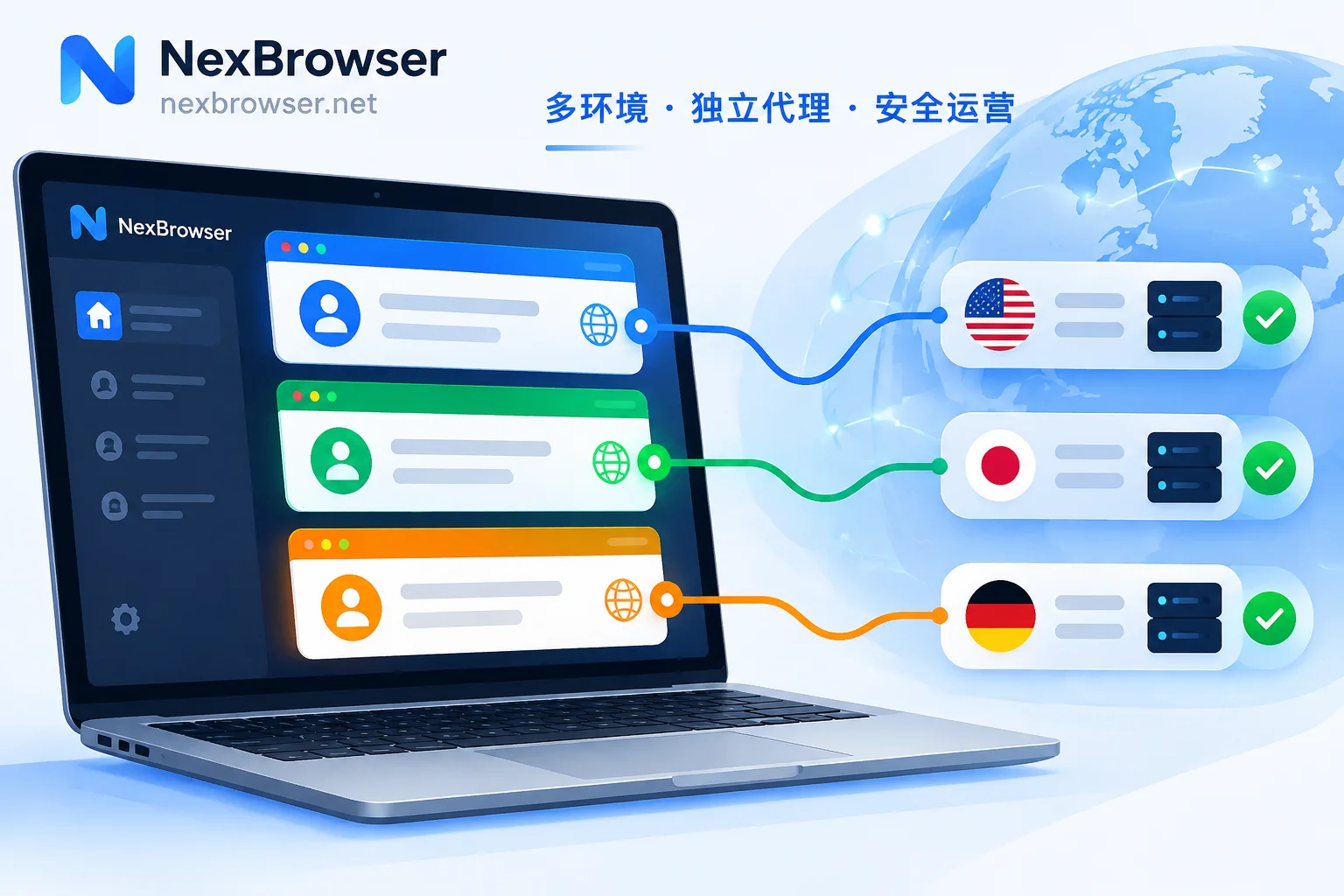
Each environment in NexBrowser can bind a proxy individually, supporting HTTP, HTTPS, and SOCKS5. Proxies can be imported in bulk and tested with one click. You can also bind NexIP residential IPs with one click.
It is recommended to follow the order above: first test connectivity and exit with one click, then open the environment for DNS and WebRTC tests, and only log into accounts after all pass. For the complete steps of setting proxies per environment, testing, and aligning fingerprints, see Set proxy for each environment separately. The entry for binding and verifying the exit is at Proxy and exit verification.
One more note: any proxy protocol or environment configuration can only reduce information leaks; it cannot guarantee that accounts won't be associated. Choosing the right protocol and completing the checks can eliminate the most common configuration issues.


Comments(0)