 NexBrowser指纹浏览器-官方博客Blog
Migration is possible, but first determine which scenario applies:
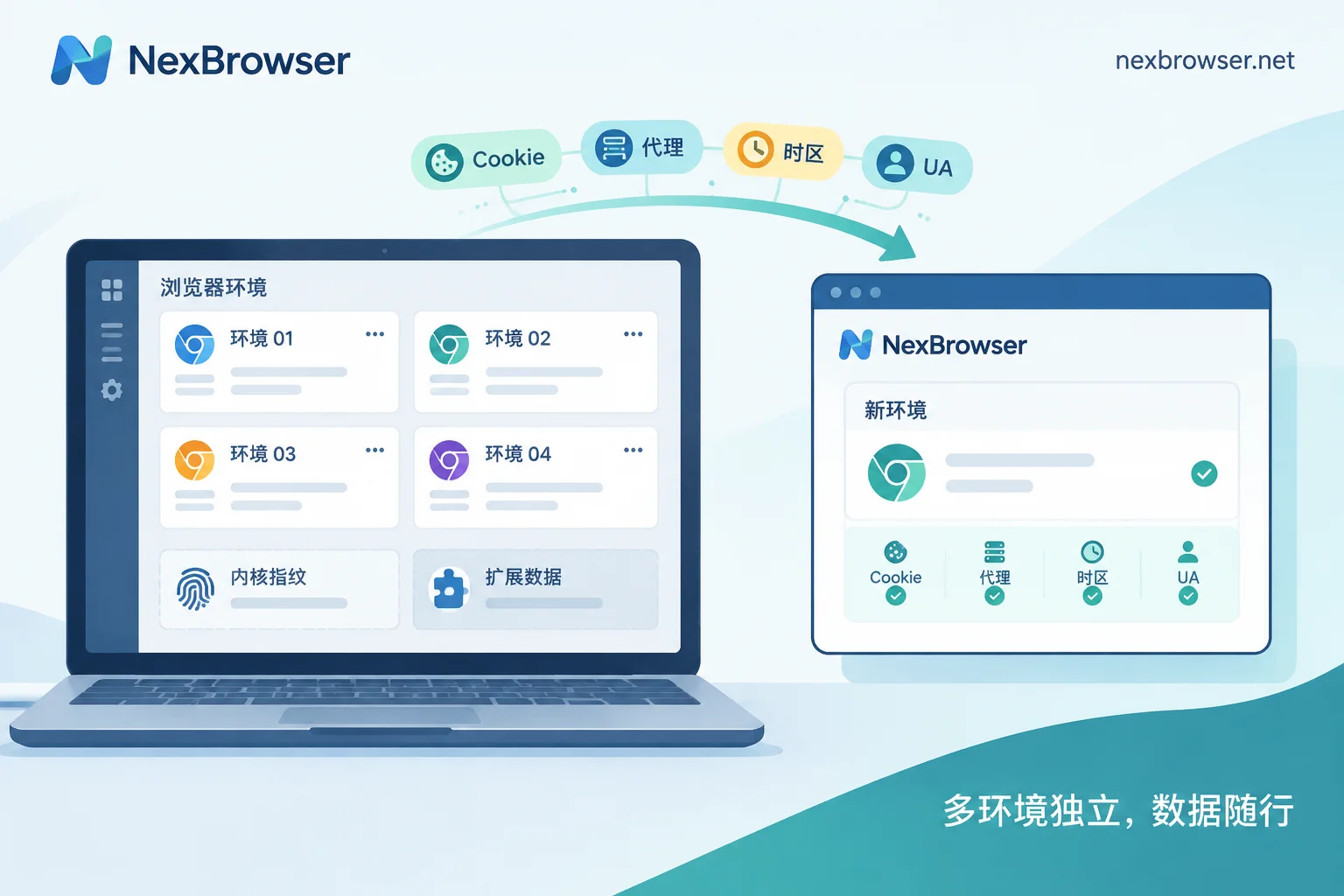
- Switching to a different fingerprint browser (cross-vendor): What can be migrated are account assets, including cookies, proxy configurations, User-Agent, and superficial parameters like resolution, timezone, language, and notes. The underlying kernel fingerprint, extensions, and their local data generally cannot be migrated. After migration, the platform sees what looks more like a new device, and some accounts will be asked to re-verify.
- Switching computers or reinstalling the OS with the same software: If the original software offers cloud sync and you enabled it in advance, logging into the same account on the new computer will restore environment configurations, fingerprint parameters, and login states. No manual export/import needed.
Below we cover how to handle each scenario and how to confirm it worked. If you're handing the environment to a colleague, that's not migration—skip to the last section.
Switching Software: What Can Be Taken, What Cannot
Cross-software migration usually has two approaches: exporting and importing a spreadsheet (Excel or CSV), or batch-creating environments via an open API. Field formats differ between vendors, so follow the export instructions of the source software and the import instructions of the target software.
| Typically migratable | Typically cannot migrate or will be reset |
|---|---|
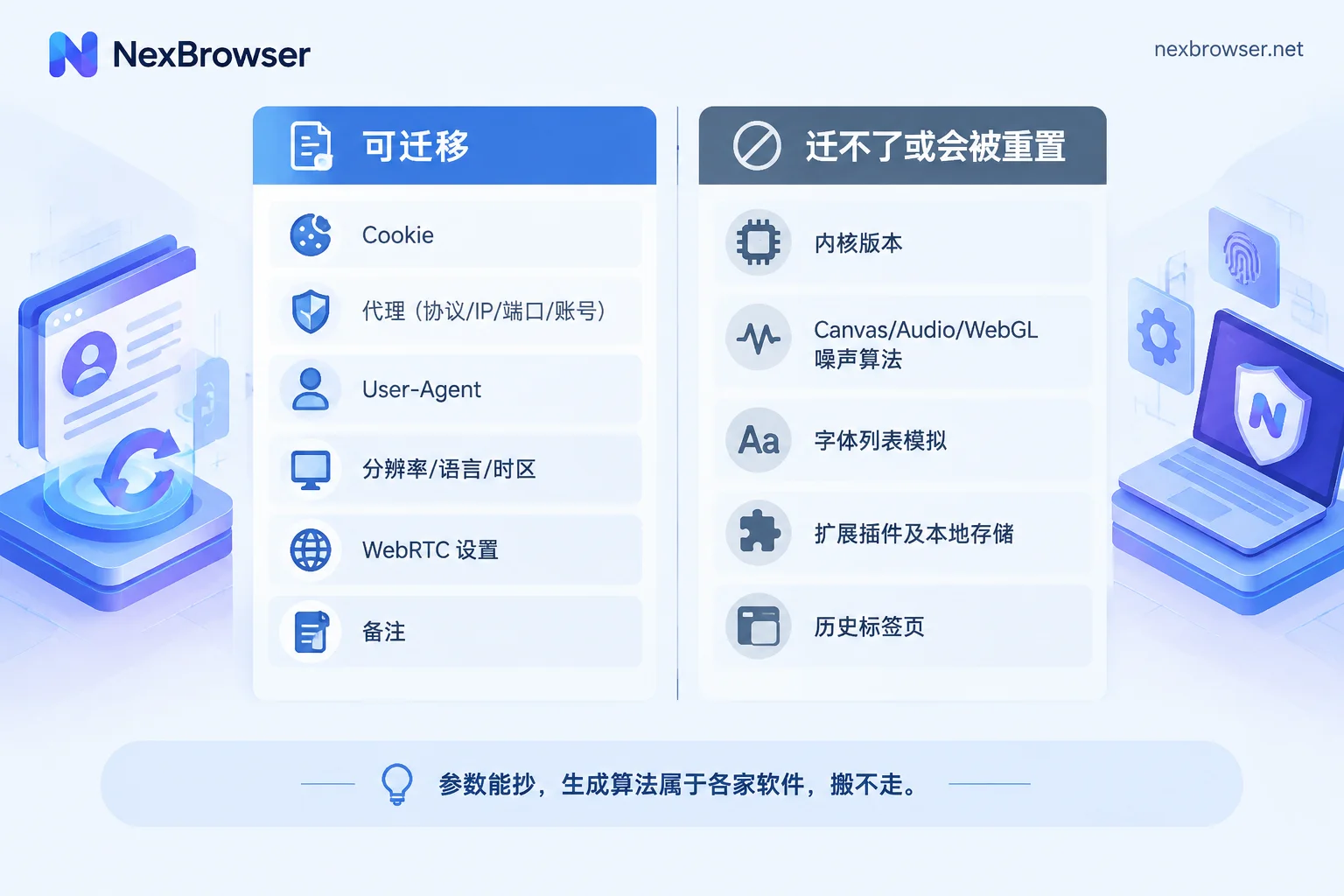
| Cookies of logged-in sessions | Kernel version (each vendor's customized Chromium / Firefox is not interchangeable) |
| Proxy info: protocol, IP, port, username/password | Noise generation methods for Canvas, Audio, WebGL, and font list simulation |
| User-Agent | Extensions and their local storage (e.g., IndexedDB and other extension data) |
| Resolution, language, timezone, WebRTC settings | Historical tab states |
| Account platform, notes |
The reason is that an environment's fingerprint consists of two parts: "parameters" and "generation algorithms." Parameters can be copied as-is, but algorithms are each software's own implementation and cannot be moved. So even if the User-Agent, timezone, and resolution are identical, after import the rendering-related fingerprints will be regenerated according to the new software's algorithm. To the website, the account is still the same account, but the device has changed.
Steps for Switching Software
1. Prepare a fallback before migration
- Confirm account passwords, two-factor authentication (2FA) devices, or bound phone numbers are still usable for each account. After migration, the most common situation is being asked to re-verify; if you can't receive the verification code, you'll be stuck at this step.
- Make a list of accounts, noting platform, proxy, and remarks, and mark high-risk platforms such as cross-border e-commerce seller backends, payment and financial services, and sensitive social platforms. Migrate these accounts last.
2. Treat exported cookies like passwords
Cookies can restore login states without a password, effectively acting like login credentials. Do not place exported files on shared drives or send them via chat apps. After import is complete, delete the local files.
3. Create environments, bind proxies, then import cookies
The order is critical: configure the proxy first, then restore the login state. If you import cookies first, the environment may access the platform with the wrong exit IP on its first launch.
- Keep the exit IP in the same region as the original environment; using the same IP is best.
- Set timezone and language to match the exit IP's region; do not use local defaults.
In NexBrowser, proxies support batch import via HTTP, HTTPS, and SOCKS5, and you can check connectivity with one click after import. Each environment's cookies, cache, local storage, and proxy are independent; just bind them one by one according to your list. You can also directly bind NexIP residential IPs; for details, see Bind proxy and verify exit.
After binding, launch the environment, open an IP detection page, and confirm the exit IP, region, timezone, and language are consistent, then import cookies. If timezone/language does not match the IP, refer to How to troubleshoot mismatched IP, browser timezone, and language.
4. Test one or two accounts first, then migrate in batches
Start with one or two accounts with lower risk control, where re-verification won't affect business. After logging in and using normally for a while with no issues, migrate the rest in batches. Save high-risk accounts for last, and migrate only a few per batch so you can easily identify which batch caused a problem.
5. Do not log into the same account in both software simultaneously
After migration, use the account only in the new software. Keep the old software's environment for rollback but do not launch it again. If you log into the same account from both sides at the same time, the platform will see two devices with different fingerprints online simultaneously, which can trigger extra verification.
What to do if asked to re-verify after migration
Just complete verification through the platform's normal process. This kind of verification is common after device characteristics change and doesn't mean the account has a problem. Do not switch back and forth between old and new software trying to "recover" the old login state; that only confuses the platform's device history.
Which platforms force logout due to device characteristic changes varies and can change at any time; refer to the platform's help center announcements. To check if the new environment itself has leaks, use the Fingerprint browser environment authenticity and spoofing leak detection checklist.
Same Software, Different Computer: Restore via Cloud Sync
If you're not switching software, only changing computers or reinstalling the OS, you don't need export/import. Here's how:
- Confirm sync is enabled on the original computer. Some software splits cookies, local storage, passwords, and extension data into separate toggles; if one is off, that item won't be uploaded to the cloud. Check each item before switching.
- Install the client on the new computer and log into the same account. When you open an environment, the software will fetch the encrypted configuration and fingerprint parameters from the cloud.
- Spot-check a few environments. Confirm the login state is still there and the proxy exit matches the original.
- Avoid running the same environment on both computers simultaneously. Close the environment on the original computer first, then open it on the new one.
One easily overlooked point: if the proxy is set to a local proxy software address (e.g., 127.0.0.1 plus port), that proxy only exists on the original computer. After switching, you must install and configure the proxy software on the new computer for the environment to connect.
NexBrowser syncs environment configurations encrypted via the cloud; after switching computers, just log into the same account to restore. Note that the client is currently only available for Windows; the macOS version is still in development. If you're switching from Windows to Mac, you cannot restore directly on Mac for now. If switching to another Windows computer, install the client from the download page and log in.
Handing Over to Colleagues or Outsourcing: Don't Export, Authorize Instead
If the environment change is due to colleague handover, part-time, or outsourcing, do not send cookie files back and forth. Once a file leaves your computer, you can't control who it gets forwarded to, and the other party will also face fingerprint changes when importing into their own software.
A safer approach is to assign permissions by role within the same software and share the environment group with the other party. They open the same original environment and cannot see account passwords. When they leave, just revoke permissions. For details, see Let members log into environments without seeing account passwords and How to recover environments and permissions after an employee leaves.
Summary
- Just changing computers: check sync toggles, log into the same account on the new computer, and spot-check login states and exit IPs.
- Switching software: accept that the underlying fingerprint will change. Follow the order: prepare 2FA → bind same-region proxy and verify exit → import cookies → test a small number → migrate in batches → stop using old environments.
- If you haven't decided which software to switch to, you can first look at Alternative software to AdsPower and clarify the specific problem you want to solve before choosing.
The above practices only apply to managing accounts you own. No migration method or environment configuration can guarantee that the platform won't require verification or make association judgments.


Comments(0)