 NexBrowser指纹浏览器-官方博客Blog
Conclusion: It's supported, but per-request rotation is not recommended. Rotating proxies are typically accessed through a single gateway address (Host:Port) with a username and password, using standard HTTP, HTTPS, or SOCKS5 protocols, and an antidetect browser can establish the proxy connection normally. The real decision is the rotation method: in a browser environment you should use sticky sessions, so that one profile keeps the same exit IP for a period of time. If an account needs to stay logged in long-term—such as a store backend, social media page, or ad account—the safer approach is to bind each profile to a fixed static residential IP or ISP IP.
The following three sections explain the difference between the two rotation methods, which proxy to use for which scenario, and how to configure and verify them in a profile.
Difference Between Per-Request Rotation and Sticky Sessions
Rotating proxy providers usually offer two modes.
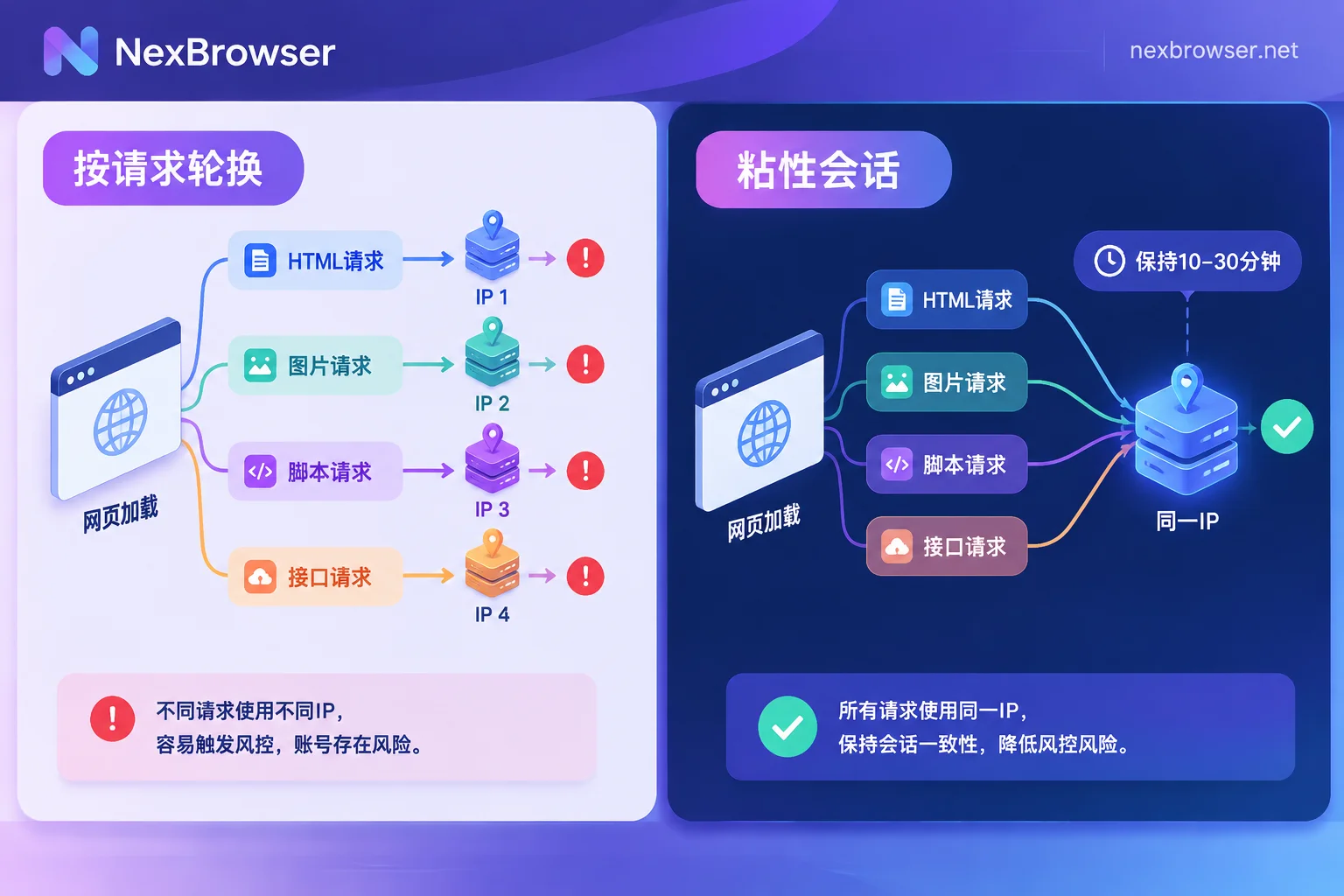
Per-request rotation: every request gets a new exit IP. When you open a webpage, the browser doesn't send just one request; it simultaneously loads HTML, images, CSS, third-party scripts, and various APIs, often dozens of them. With per-request rotation, a single page load can come from dozens of different exit IPs. As a result, cookies and session state don't match, staying logged in is difficult, and platforms may trigger abnormal login alerts or captchas. This mode suits stateless bulk requests, not browser environments with login state.
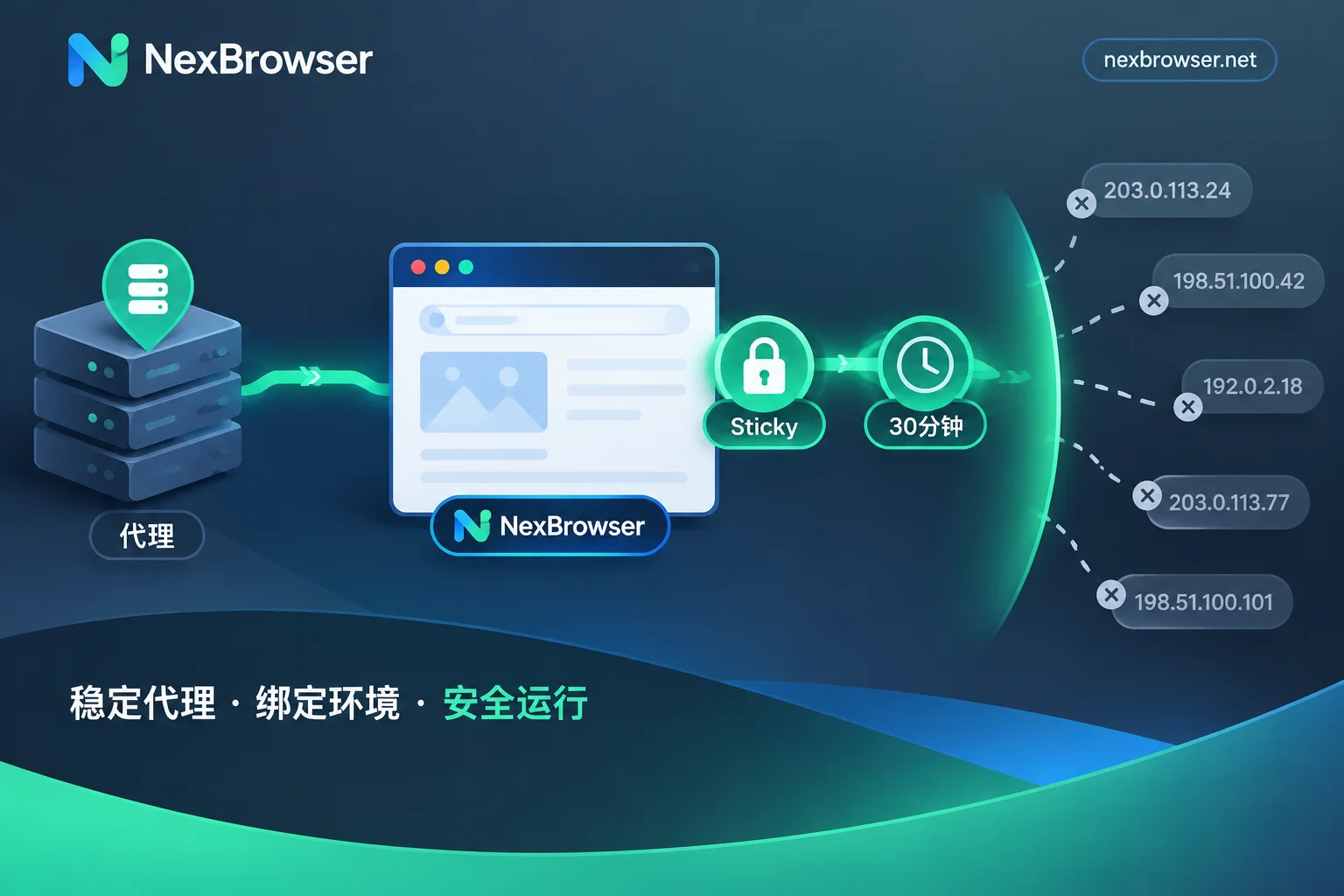
Sticky session: include a Session ID and a keep-alive duration in the authentication parameters, commonly 10 to 30 minutes. During this period, the same Session ID uses the same exit IP; only when the duration expires or the Session ID changes will a new IP be assigned. When using rotating proxies in an antidetect browser, you should use this mode.
First Decide: Is Your Task Suitable for a Rotating Proxy?
| Task Type | Recommended Proxy | Reason |
|---|---|---|
| E-commerce store management, long-term social media operation, ad placement | One fixed static residential/ISP IP per profile | Accounts need to stay logged in for consecutive days; frequent exit changes are seen as abnormal by platforms |
| Short workflows that finish within tens of minutes | Rotating proxy + sticky session | Keep-alive duration covers the entire workflow |
| Public data scraping, price monitoring, automated testing | Rotating proxy, change Session per task | No login state required, or only a short session needed |
When deciding, ask yourself: Will this profile need to log in as the same identity tomorrow? If yes, prioritize a fixed IP. The IP pool of rotating proxies is shared; after a sticky session expires, which IP you get is determined by the provider, and you can't guarantee it will be the same one next time.
Steps to Configure a Rotating Proxy in a Profile
1. Get the sticky session connection string from your provider
In the provider's dashboard, select "Sticky" mode and generate the gateway address and authentication info. Many providers embed country, city, Session ID, and keep-alive duration in the username, similar to:
网关:gate.example.com:7777
用户名:user-country-us-city-dallas-session-a01-sesstime-30
密码:你的密码
Parameter names and formats vary by provider; the above is just an example, please refer to your provider's documentation. If the provider supports specifying a city, it's recommended to include it so that newly assigned IPs don't drift across cities.
2. Use a different Session ID for each profile
This is where mistakes are most likely. If you copy the same connection string to multiple profiles, they will share one Session and thus the same exit IP, effectively putting those profiles on the same IP. When configuring in bulk, generate Session strings by profile number (a01, a02, a03...) so that each profile maps to one Session.
3. Keep-alive duration should exceed the workflow length
First estimate how long an operation takes from start to finish, then set the keep-alive duration slightly longer. If the Session expires halfway through, the exit IP changes mid-operation, similar to per-request rotation. For longer workflows, split them into segments and switch to a new Session ID before each segment.
4. Bind to the profile and test the exit
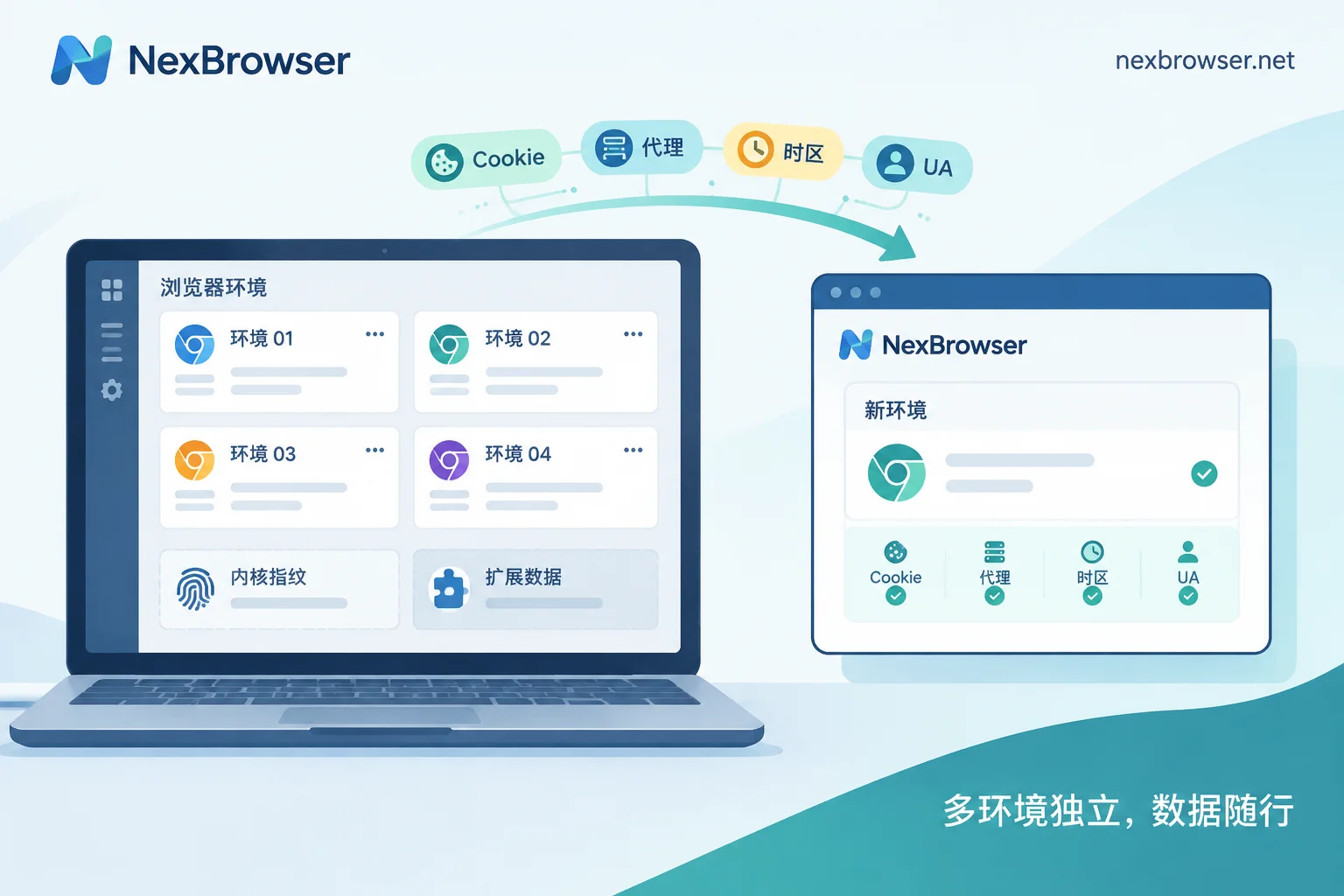
In NexBrowser, each profile has independent cookies, cache, local storage, and proxy settings. You can import the connection string above via HTTP, HTTPS, or SOCKS5 into the corresponding profile; multiple profiles can be imported in bulk. After import, use one-click detection to confirm the proxy is reachable and the exit IP and region match expectations. For details, see Bind Proxy and Verify Exit. For long-term accounts that need a fixed exit, you can bind a NexIP residential IP with one click in the same place, or import your own static proxy.
5. Verify timezone, language, and WebRTC
A working exit is not enough. The profile's timezone, language, and WebRTC-exposed address must match the region of the exit IP. Many antidetect browsers set these parameters based on the exit IP when the profile starts. The problem is that if the rotating proxy switches to another city or even another country during operation, the already-loaded timezone, language, and coordinates won't change accordingly, creating a contradiction like "IP in location A, timezone in location B." For how to troubleshoot such contradictions, see How to Troubleshoot IP and Browser Timezone/Language Mismatch; for a complete check of whether the profile leaks anything, refer to the Profile Authenticity Checklist.
What to Do If the Exit Changes During Operation
Several situations with rotating proxies can change the exit without you noticing:
- Session expiry: the keep-alive duration ends and the provider assigns a new IP.
- Node offline: if the IP you're using goes down, the provider may automatically switch to another IP. Whether the new IP stays in the same city or with the same ISP varies by provider, and there's little public information on this. For stability, it's best to confirm failover rules with your provider.
- Insufficient region parameters: only the country was specified, not the city, so the new IP may land in another city in the same country.
If the exit changes, follow this order: pause the current operation; re-test the exit to see which region the new IP is in; if it crossed cities or countries, close the profile and restart it so the timezone and language are re-set according to the new exit, then verify consistency before continuing. For accounts with login state, if the exit changes frequently, that account is better off using a fixed IP.
Also note: proxy configuration is only one part of profile isolation; no configuration can guarantee accounts won't be linked or replace platform rules. Please only use it on your own accounts that you are authorized to manage.
Summary
- Protocol-wise: rotating proxies can connect to antidetect browsers via HTTP, HTTPS, or SOCKS5.
- Mode-wise: use sticky sessions, not per-request rotation; assign a unique Session ID per profile, and make the keep-alive duration longer than the workflow.
- Scenario-wise: accounts that log in long-term should use fixed static residential or ISP IPs; scraping, monitoring, and testing tasks can use rotating proxies.
- After configuration: test the exit, verify timezone, language, and WebRTC; if the exit changes during operation, restart the profile before continuing.
If you don't have a client yet, you can Download NexBrowser (currently Windows version available), create a profile, follow the steps above to connect a proxy, and test the exit once.


Comments(0)