NexBrowser指纹浏览器-官方博客Blog
A colleague sent a Chrome Web Store link and said, "This product selection plugin is really useful; can you check if I can install it?" You open the details page, look at the ratings, then the install count, and scroll to the "Privacy Practices" section. You see a few checkmarks: no data collected, no data sold. Looks clean. But you know this plugin will be installed in the browser where your store backend and ad accounts are logged in. How much can you trust those few lines? To answer "Can I install it?" you first need to understand a basic question: Who is disclosing the Chrome extension data on the store page, and to what extent?
A Typical Approval Request: Details Page Says "No Data Sold," but Permissions Include <all_urls>
This scenario is familiar. A tool claims it "only does currency conversion," and the data disclosure on the details page says "no data is collected." But after installation, when you expand the permission list in the extension details, you see it can read and write to any page you visit. You don't need to understand code to notice the contradiction: does converting currency require knowing the full content of every webpage you browse?
We won't dive into topics like the Manifest V2 timeline here; we'll only cover the few verification steps you can complete before clicking "Add to Chrome"—no coding required, just three to five minutes.
First, Clarify Ownership: This Disclosure Is Self-Declared by the Developer; Google Manages Policies and Enforcement
Let's correct a commonly assumed premise. The "Privacy Practices" on the Chrome Web Store details page are not Google's behavioral assessment of the developer. According to the Chromium official blog introducing the store's privacy disclosure mechanism, and the Chrome Web Store Developer Program Policies disclosure requirements, developers self-select data collection types, fill in purpose descriptions, and promise to comply with policies in the Privacy tab of the Developer Dashboard. The disclosure then appears on the store page.
In other words, this is the developer's self-declaration. Google's role is policy creation and violation management: the Developer Program Policies and the Limited Use Policy define which data practices are allowed, and then Google cleans up extensions that don't comply. But "successfully listed" and "shows no data sold" do not mean Google has verified every line. Policy constraints and violation management are not equivalent to real-time pre-review.
Policy Gives You a Ruler: What Single Purpose and Limited Use Mean
Since the disclosure is self-reported, the yardstick for judgment should come from the policy. According to the Chrome Web Store Limited Use Policy, user data collected by an extension must be strictly limited to its publicly stated single purpose. It prohibits selling user data, using it for personalized ads, credit assessment, or resale to data brokers.
This policy gives you a reverse-use method: first look at the purpose stated by the developer on the details page, then check whether the permissions and data scope applied for exceed that purpose. A currency conversion tool that requests global webpage read/write permissions already goes beyond the reasonable boundary of "single purpose." Note: "exceeding" is only a suspicious signal, not necessarily a violation or data theft, but it's enough to pause the installation and move to the next verification step.
Additionally, according to a CyberInsider report from July 2026, Google updated developer policies to further strengthen prominent disclosure requirements for data collection and mandated that extensions must actively notify users if data handling practices change after installation. This means even if the current check passes, every subsequent update could be a new risk point.
The Second Document: Lay Out the Manifest Permission List and See What It Really Wants to Read
The first document is the store page's disclosure table; the second is the extension's actual declared permission list. You don't need to parse code; just find the permission list. How? On the details page, you can see the "Permissions" section; after installation, expand the extension's details in Chrome's extension management page to see it; for a more hardcore approach, unzip the .crx file and read the permissions and host_permissions fields in manifest.json. For most people, the first two are sufficient.
Focus on these sensitive permission types:
<all_urls>or host_permissions wildcards: means the extension can read and modify content on any page you visit, including store backends, ad backends, and emails.tabs: can read tab titles and URLs.webRequest: can observe network requests, usually meaning the extension can access information at the request level; the specific scope needs further confirmation based on its stated purpose.cookies: can read or modify cookies under your domain.storage: the extension can store data locally or sync to the cloud; pay attention to what it stores.scripting: can inject scripts into pages to manipulate them.
Seeing these permissions doesn't mean the extension is problematic; the key is comparing them with its stated purpose. A translation tool needing to read page text is understandable, but a tool that only displays a currency exchange rate floating window and requests "read all website content" and "modify network requests" is hard to justify. At this point, copy the permissions into your application materials, keep them alongside the store disclosure, and proceed to the next verification.
The Third Document: Is the Privacy Policy Link Present and Does It Align with the Store Page?
The third document is the external privacy policy provided by the developer. On the store's disclosure table, there is usually a "Privacy Policy" link. Click it, and you need to verify three things:
- The link points to a real, accessible page, not a shell or an unrelated homepage.
- The policy text describes collection items, retention periods, and sharing scope consistently with the store's disclosure.
- The policy states which third parties the data flows to, such as ad platforms or analytics services.
Low-cost red flags include: no privacy policy link at all; the link is broken or redirects to an unrelated page; the policy is a generic template used for all extensions without mentioning this specific one; or the policy allows data uses significantly broader than the store disclosure and single purpose declaration. Again, these are "signals needing further inquiry," not "conclusions of violation."
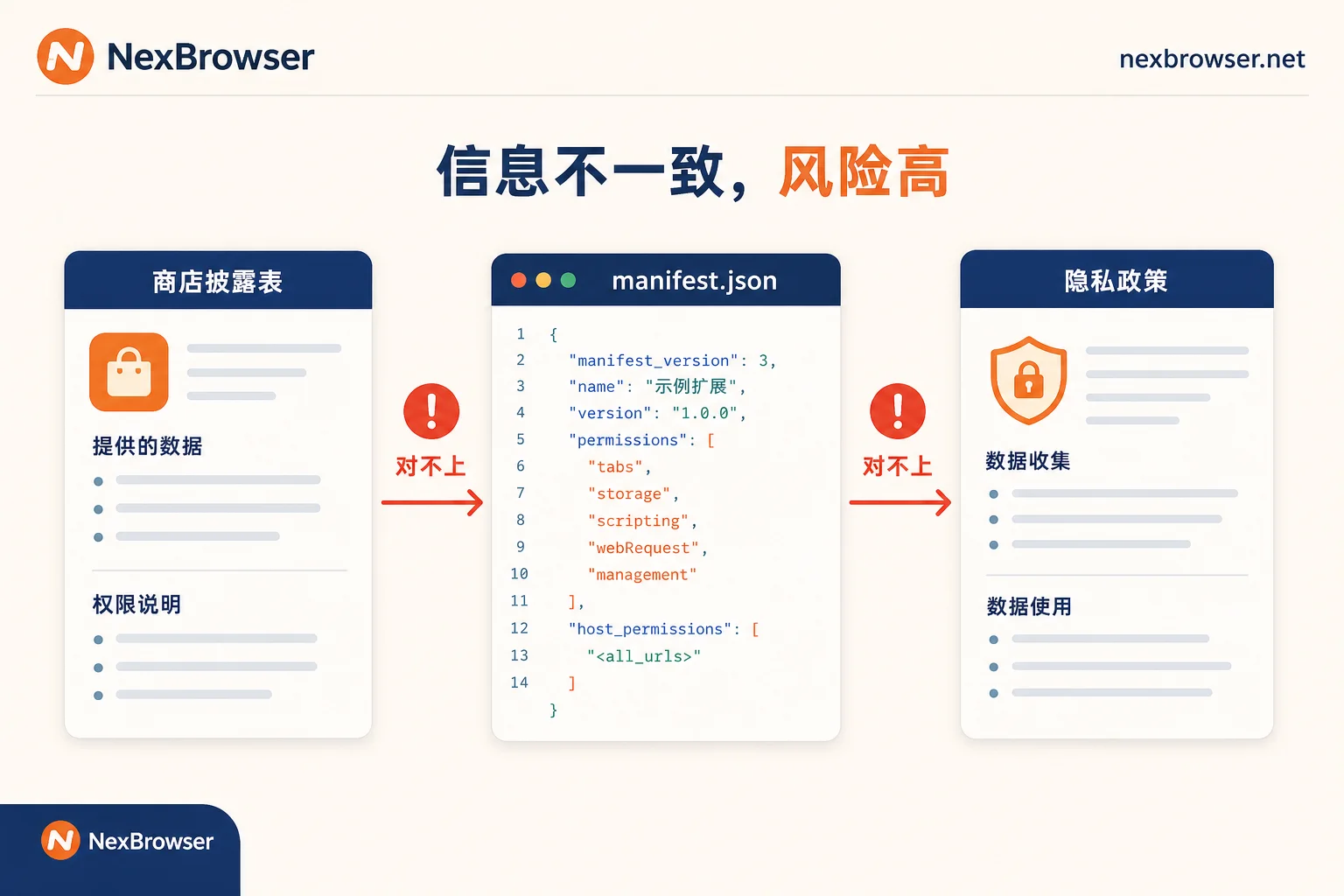
The table below lists what to look for in each of the three documents and what mismatches indicate:
| Document | What to Look For | What Inconsistency Means |
|---|---|---|
| Store Disclosure Table | Self-reported data collection items, purpose, whether data is sold | Conflicts with permissions or privacy policy indicate self-consistency issues in the declaration |
| Manifest Permission List | Types and scope of sensitive permissions, whether they exceed the single purpose | Permissions beyond the stated purpose are suspicious signals requiring further confirmation |
| Privacy Policy Link | Authenticity, whether it mentions this extension, clarity of data flow | Missing or inconsistent with the store page means the promises cannot be verified |
How to Handle When the Three Documents Don't Align: Reject, Limit Installation, or Observe First
Now map the verification results to action. You can classify them into three levels of severity:
- Directly Reject: The store disclosure claims no data collection, but global read/write permissions are requested; there is no privacy policy but sensitive permissions are required; the developer entity cannot be verified. In these cases, the installation value does not justify the risk.
- Restricted Installation: The purpose is clear, but the permissions are broader than necessary. For example, a form autofill tool indeed needs to read page fields, but it requests permissions covering all websites. Install it only in the necessary business line environment, and do not let it share the same browser profile with your store backend and ad accounts.
- Isolated Observation: The functionality is valuable, but the materials have minor inconsistencies, such as a template privacy policy that mentions some collection items. Put it in a separate environment for a while, record its behavior, and monitor subsequent permission changes and disclosure updates.
Also agree on post-installation review triggers: after extension updates with permission increases, disclosure changes, or developer entity changes, you need to rerun the verification process. These three levels address the process of "who can install and where," and the basis for judgment remains the three documents in your hands, not any automated detection result.
Confine Extensions Under Observation to a Separate Environment: Practical Environment and Permission Partitioning
Why are "restricted installation" and "isolated observation" listed separately? Because risk never comes from a single extension alone; it comes from mixed installations. On the same computer, in the same browser profile, product selection plugins, ad assistants, and translation tools are logged into store backends and ad accounts. If one extension's disclosure doesn't match its actual permissions, the scope of impact becomes undefined.
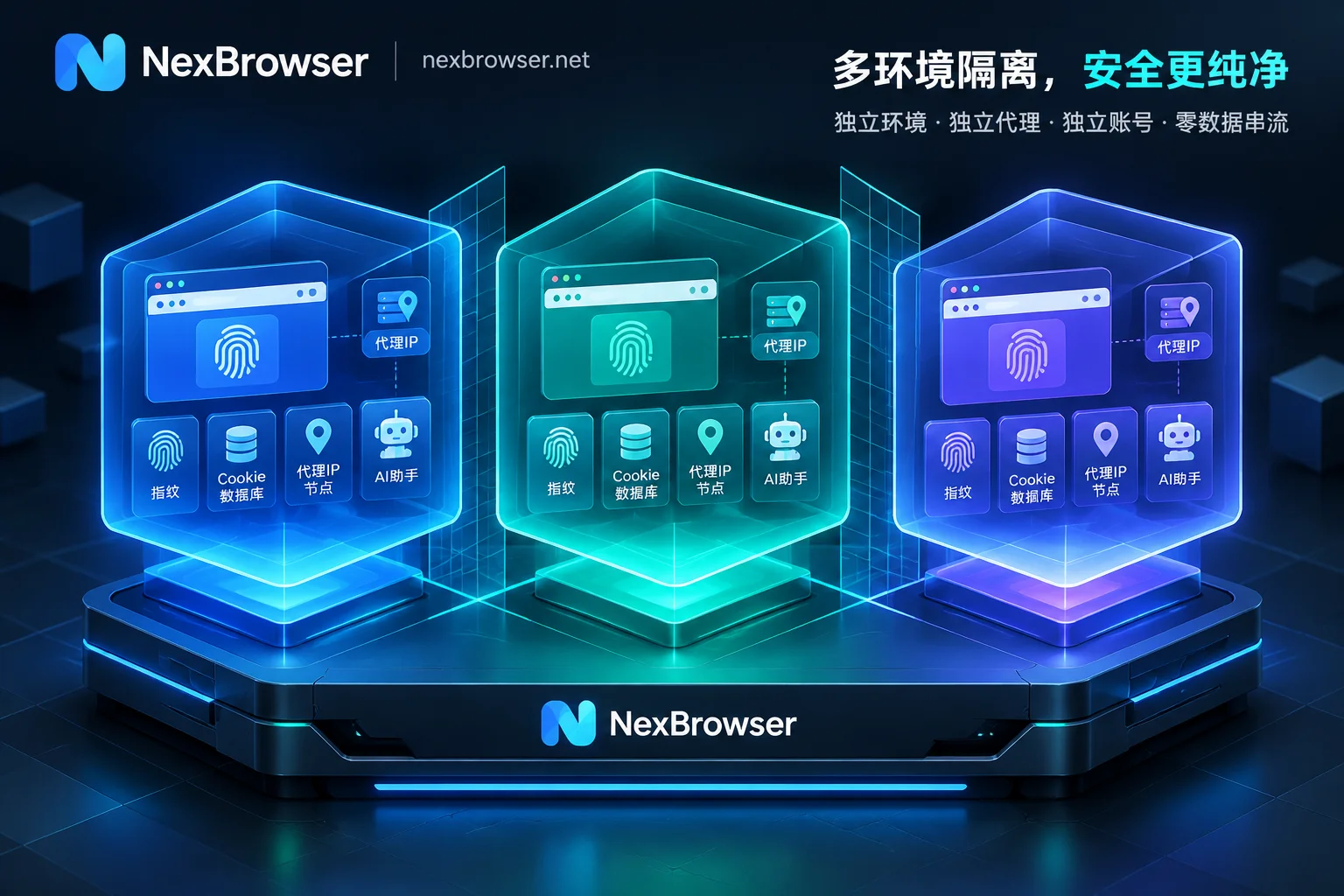
At this point, environment isolation becomes a practical management method. For example, NexBrowser builds independent browser environments by business line, with fingerprints, cookies, and caches isolated from each other. You can install extensions under observation only in a designated environment, use team collaboration features to assign member permissions by environment, and limit the trial scope of new tools to a single business line rather than all accounts. Window synchronization features facilitate batch verification operations. This way, even if an extension goes rogue later, the impact is limited to a controllable boundary.
According to the AdsPower help documentation on plugin and extension data management, the plugin functions of such tools mainly focus on batch distribution in the app center, synchronization and backup of plugin data across environments; the verification of disclosure and permission self-consistency before installation still relies on manual processes. Environment isolation can limit the scope of impact, but the verification steps still need to be done by humans.
Turn It into a One-Page Form: Let Applicants Fill It Out First
After discussing the method, let's finalize it into an actionable form. I suggest creating a team-internal "Extension Installation Application Checklist" with the following fields:
- Extension name and developer entity
- Purpose stated on the store page
- Data collection items checked in the store's disclosure table
- Sensitive items in the manifest permission list (paste verbatim)
- Privacy policy link and accessibility
- Whether the three documents are self-consistent; if not, note the contradictions
- Intended business line and environment (main environment / separate environment)
- Review time point (e.g., one month later)
- Approval decision (reject / restricted installation / isolated observation)
The value of this form is shifting the burden of proof to the applicant. A verbal "should be fine" becomes a documented decision, and if problems arise later, there's a trail to follow. I recommend integrating it into your team's extension installation application process. If the team needs to trial new tools only in designated business line environments and assign member permissions by environment, you can learn about NexBrowser's environment isolation and team collaboration features.