NexBrowser指纹浏览器-官方博客Blog
The approach boils down to one sentence: let members obtain the right to launch the environment, not the credentials to log into the account. The admin logs in once inside an isolated environment; the login state is stored as cookies and local storage in that environment and encrypted-synced to the cloud. When a member pulls the same environment on their own machine, it opens already logged in—no username or password is ever entered. The password never leaves the admin.
But doing only this half is not enough. Many teams finish the sync and forget that the account password field is still plainly visible in the environment details, or a right-click reveals "Export environment" or "Export cookies". So the second task is role-based permission splitting: disable the member's ability to view/edit credentials and to export, then restrict visibility to specific groups. Only with both halves does it become "usable but invisible".
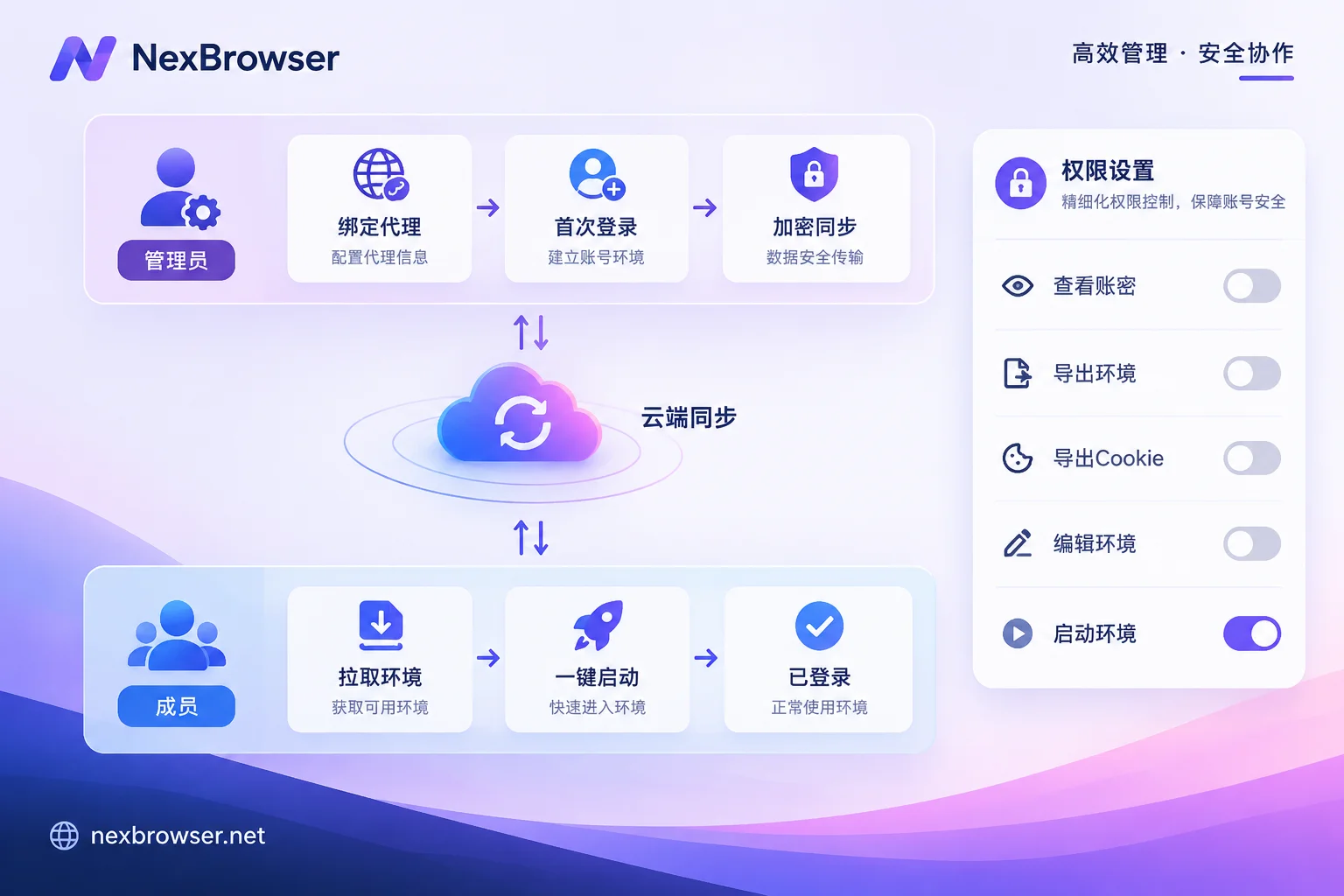
Admin side: four steps, keep the order
Step 1: Create environments and group them first. Group by project, platform, or owner, e.g. "TikTok-Southeast Asia-Xiaoli". Grouping isn't for tidiness—it's the unit for least-privilege authorization later. Permissions are granted per group; if environments are scattered in the root directory, you'll have to pick them one by one or just grant everything.
Step 2: Bind the proxy, then log in. Reversing the order often causes trouble: logging in from a local exit and then attaching an overseas proxy means the account's initial login record and subsequent access exit don't match, and some platforms will force re-verification. After binding, confirm the exit is active, then perform the login. For details on entering and verifying this, see How to bind a separate proxy to each environment in an antidetect browser.
Step 3: Complete the first login inside the environment and handle 2FA. If the platform offers "Remember this device" or "Trust this browser", check it—it writes a local trust marker, reducing the chance members are repeatedly asked for verification on subsequent launches.
There is an easily overlooked detail here: don't let Chromium's built-in password manager save the password. When prompted "Save password?", choose not to. Otherwise, after a member launches the environment, they can open the browser's password settings page, verify the system account, and see the plaintext—your client-level access control is bypassed by a browser built-in feature. Similarly, if your tool supports filling in account credentials in environment properties for autofill, you must confirm that on the member side this field is masked and has no "Show" button. If uncertain, the safer approach is to leave that field empty and rely solely on the session.
Step 4: Confirm the configuration is encrypted and synced. Members switch to another computer; local files won't transfer, so cloud sync is essential. Sync typically includes cookies, local storage, fingerprint parameters, and proxy configuration. The sequence for restoring after switching machines is covered in another article: How to restore antidetect browser environment configuration after switching computers.
Member side: which permissions to disable
When inviting members, select the ordinary member role (different products call it Employee, Sub-user, Operator, etc.), then verify each permission item:
- View/edit account credentials—turn off; this is the primary goal.
- Export environment, export cookies, bulk backup—turn off. Leaving them on is like keeping a packing/download port for session credentials; a member can export a cookie file and reproduce the logged-in state in any browser.
- Edit environment—recommend turning off. If they can edit, they can change the proxy, fingerprint, or notes; when issues arise, you can't tell whether the platform changed something or someone modified the config.
- Delete environment, transfer environment—turn off.
- Visible groups—check only the one or few groups they are responsible for. Other groups are completely invisible to them, which is more reliable than simply "not telling them".
What actually remains for members is often just "Launch environment" and "Operate inside the environment". It sounds strict, but it's sufficient for operations execution roles.
The exact names and granularity of permission items vary by product; some merge export into a broader "Environment management" item, others split it finely. Don't just follow another product's manual—open your own client and check each item.
Verification: log in once with a member account
After configuration, don't rush to hand off. Use a test member account (or have the person share their screen) and check three things as the member:
First: environment list and detail page. The password field is masked or not displayed, with no "show plaintext" or "copy" entry. Right-click menus and bulk action bars have no export-related options. Unauthorized groups do not appear in the sidebar.
Second: login state after launching the environment. The target platform's homepage should open directly in a logged-in state, without redirecting to login or asking for a password. Also open the browser's password management page and confirm it is empty.
Third: exit and timezone. When the member launches from another city or even another country, the exit IP should still be the proxy bound to the environment, and the timezone/language should match the exit. If this fails, the platform will likely require verification on the member's first action. For verification methods, see How to confirm exit ownership and timezone/language match after binding a proxy.
Only when all three pass is the environment truly ready to hand off.
After handoff: revocation and a boundary that must be stated
When personnel change, the admin can remove the member's group authorization or remove them from the team in the backend; the member's client immediately loses access to those environments, and locally synced data becomes invalid—this is the most direct advantage of passwordless sharing over "sending the password to a group chat": revocation is immediate, no need to change passwords one by one.
But the boundary must be clear: session credentials are themselves credentials. While a member has access, they could theoretically still read cookies via developer tools or packet capture. Client-level restrictions raise the bar but cannot be considered physical isolation. Therefore, for core accounts with high asset value, the standard offboarding procedure should be three steps: revoke environment authorization → change the password on the platform side → execute "Log out of all devices / terminate all sessions" in the platform's security settings. The third step is most critical—it voids any cookie copies synced earlier.
Similarly, no environment configuration guarantees "no association" or "no risk control triggers". The above practices address compliant internal handoff and permission containment for your own accounts; they are not a means to bypass platform checks.
What if the session expires: receive codes inside the environment
The most common interruption in passwordless handoff is two-factor authentication. Amazon, PayPal, some banks, and payment systems force session expiration and require 2FA when they detect access from a new device or after prolonged inactivity. At that point the member has neither the password nor the ability to receive the code, and the process stalls.
Prepare two paths in advance: first, schedule predictable re-logins for the admin, periodically refreshing the login state on their side and syncing; second, enable the environment to receive verification codes directly so members can complete verification without accessing the phone or email bound to the account. NexBrowser supports receiving SMS codes within the environment (numbers provided by NexSMS), suitable for scenarios where members need to complete verification independently but should not control the receiving channel; details on the receiving verification codes inside the environment page.
There is also a conservative approach: keep the 2FA TOTP secret only with the admin, and have members ask the admin for the six-digit code when they reach the verification step. Sacrifice a little efficiency to retain ultimate control over the account—worthwhile for core assets.
Implementing in NexBrowser
The above process maps to four features: environment groups define authorization units; team role-based permissions remove view-credentials and export permissions; encrypted cloud sync restores the environment on a new machine; passwordless sharing lets members enter the logged-in state without touching the password. Each environment's cookies, cache, local storage, and proxy are independent; members get a complete environment, not a string of credentials. Features are not tiered; the free plan allows creating groups, adding members, and setting permissions. Paid plans purchase window and member capacity; the client is currently Windows only, with macOS still in development.
To start configuring, go to the environment isolation and grouping page. First define the group structure and permission matrix, then place environments into them—doing it the other way around makes reclassification painful once you have many environments.