 NexBrowser指纹浏览器-官方博客Blog
The same cross-border account can be operated normally in Shenzhen yesterday, but when a colleague opens it in Hangzhou today, they get a verification code, email verification, or even a temporary lockout. The problem is usually not the "remote location" itself, but that at least one of the three layers—network egress, device fingerprint, session state—is inconsistent with what the platform observed last time.
Here's the bottom line: remote collaboration isn't about hiding your location; it's about keeping the parameters that the platform sees stable and continuous when the same account is opened from different physical locations. The approach is to tie proxy, fingerprint, and cookies into a portable, integrated package and hand it over in a fixed sequence, rather than having each member log in again from their local browser.
What the Platform Actually Looks at During Remote Login
When you break down risk control, the typical triggers are a combination of these signals:
- Sudden network egress change: IP geolocation, ASN, or network type changes dramatically in a short time, or the egress falls into a data center IP range that's heavily shared. On Amazon-like platforms, when an account enters review status, abnormal login locations and unfamiliar devices are common triggers.
- Unfamiliar device fingerprint: Changes in OS, browser engine version, User Agent, resolution, timezone, language, Canvas/WebGL rendering results, etc., make the platform treat it as a new device.
- Lost session state: Cookies, LocalStorage, IndexedDB are not carried over, so every time it's like "clearing and re-authenticating," repeatedly telling the platform "another unknown machine is logging in with the password." This is more likely to trigger secondary verification or forced 2FA than simply changing IP.
If any one of the three layers is discontinuous, you might get blocked; if all three change simultaneously, the risk score is significantly higher. So the goal for remote collaboration is clear: ensure that changes only occur at the "person sitting at the computer" level.
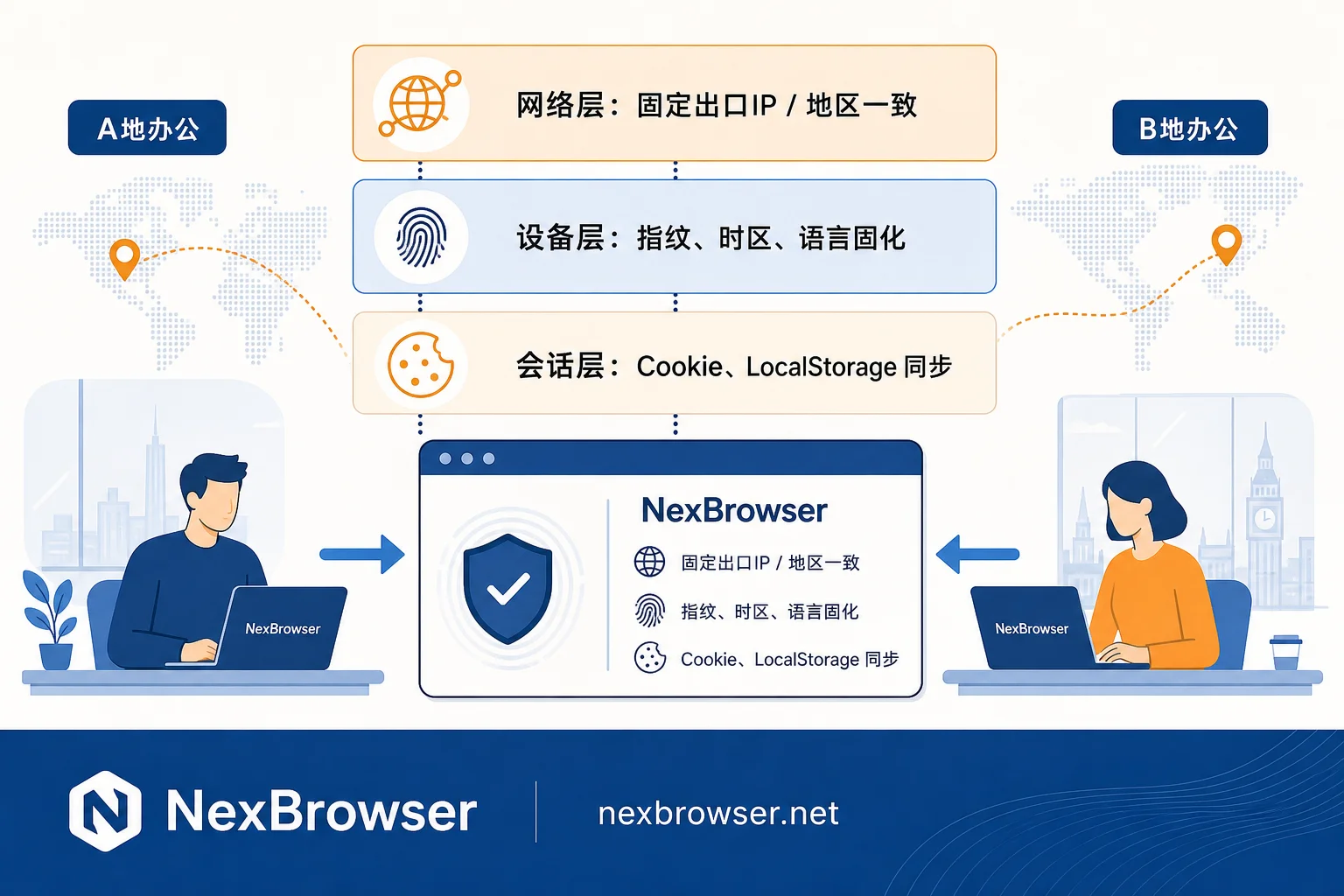
Three-Layer Consistency Checklist: Verify Before Handover
Network Layer
- Assign the environment a dedicated static egress IP. Avoid using rotating dynamic egress for backend operations. For scenario differentiation, refer to the approach of pairing static residential IPs with dynamic proxies and classify by session attributes.
- Ensure egress region is consistent with the account's historical usage regions. Don't switch from US West one day to Europe the next.
- Confirm the proxy is actually working: Check that the IP shown in the browser matches the proxy, and that WebRTC doesn't leak your local address. A common pitfall is binding a proxy but still exposing local IP; see WebRTC and UDP leak troubleshooting guide for diagnosis.
- Also check the historical cleanliness of the egress IP; contaminated IP ranges can render all correct configurations useless. Refer to causes and detection of proxy IP contamination.
Device Layer
- Set timezone, language, and geolocation permissions to match the proxy's region, avoiding logical conflicts like "IP in UK but system time UTC+8."
- Keep User Agent and browser engine version stable. Don't randomize a new fingerprint on every launch. The value of a fingerprint lies in repeatability, not variety.
- Fix parameters like resolution, font list, hardware concurrency, etc., in the environment configuration rather than inheriting from each local machine.
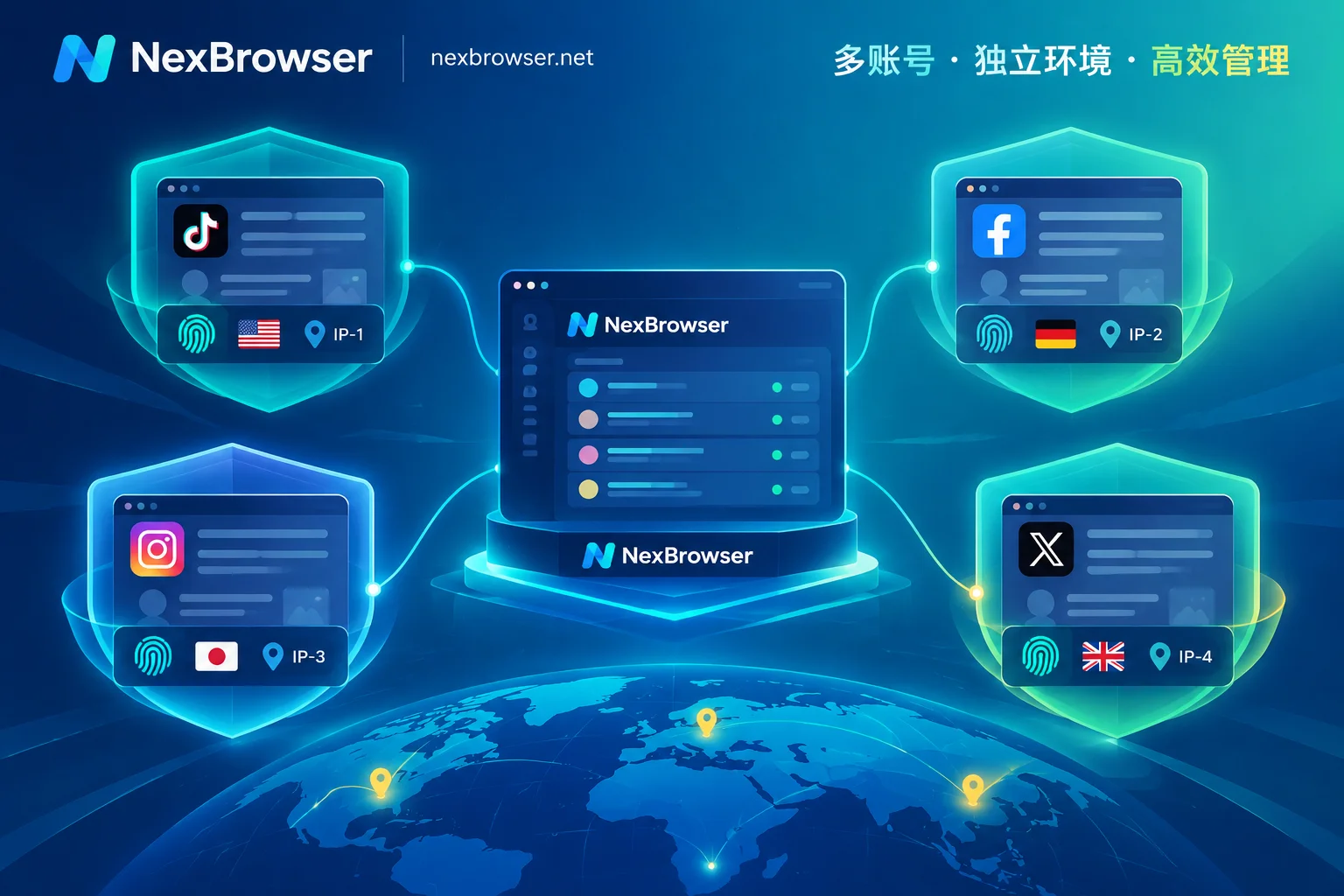
NexBrowser environments are independent browser instances with isolated fingerprints, cookies, and caches. Proxies are bound per environment, so remote members launch the same configuration, not just another window on the same computer.
Session Layer
- Enable save/sync of cookies, LocalStorage, and IndexedDB on close in global or environment settings. If necessary, include bookmarks and extension data in the sync scope (syncable items vary by product; check your settings panel).
- Let login sessions persist naturally, minimizing the number of times you re-enter passwords.
- Use a team-wide password manager for passwords and 2FA. Don't temporarily change the verification phone number or email during handover.
Step-by-Step Handover Process
If the sequence is wrong, syncing can overwrite valid sessions. We recommend sticking to this flow:
- Member A winds down: After completing tasks, don't shut down or kill the process abruptly. Close the environment window normally so cookies and local storage are written back.
- Confirm sync completion: Verify in the environment list that the environment has been uploaded/updated before notifying the next person. This step is often skipped and is the most common cause of the next person getting an outdated session.
- Member B pulls the environment: Before opening, make sure they don't have an old copy of the same environment running.
- Verify before operating: After launching, the first step is to open an IP/timezone/WebRTC check page to confirm egress and timezone are as expected, then open the platform site.
- Observe login state: If the platform's homepage is already logged in, session migration was successful. If prompted to log in again, stop and investigate rather than repeatedly trying passwords.
- Close normally again to write back the latest state, completing the loop.
For accounts with multiple shifts, you can use window sync for bulk verification, and use Local API/WebDriver to create a fixed script that "starts environment -> opens check page -> saves screenshot" to reduce manual oversights. For integration, refer to three ways to connect Puppeteer to a fingerprint browser via wsEndpoint.
Concurrency: The Most Overlooked Risk in Remote Collaboration
If the same environment is opened by two people in different locations at the same time, two issues arise: (1) session write-back on close can overwrite each other—the one who closes last wipes out the other's changes; (2) the platform sees two different egress IPs accessing the same account simultaneously, which looks more anomalous than a simple geo-change.
Controllable practices:
- Explicitly enforce that only one person can open a given environment at a time. Rely on shift schedules, not assumptions.
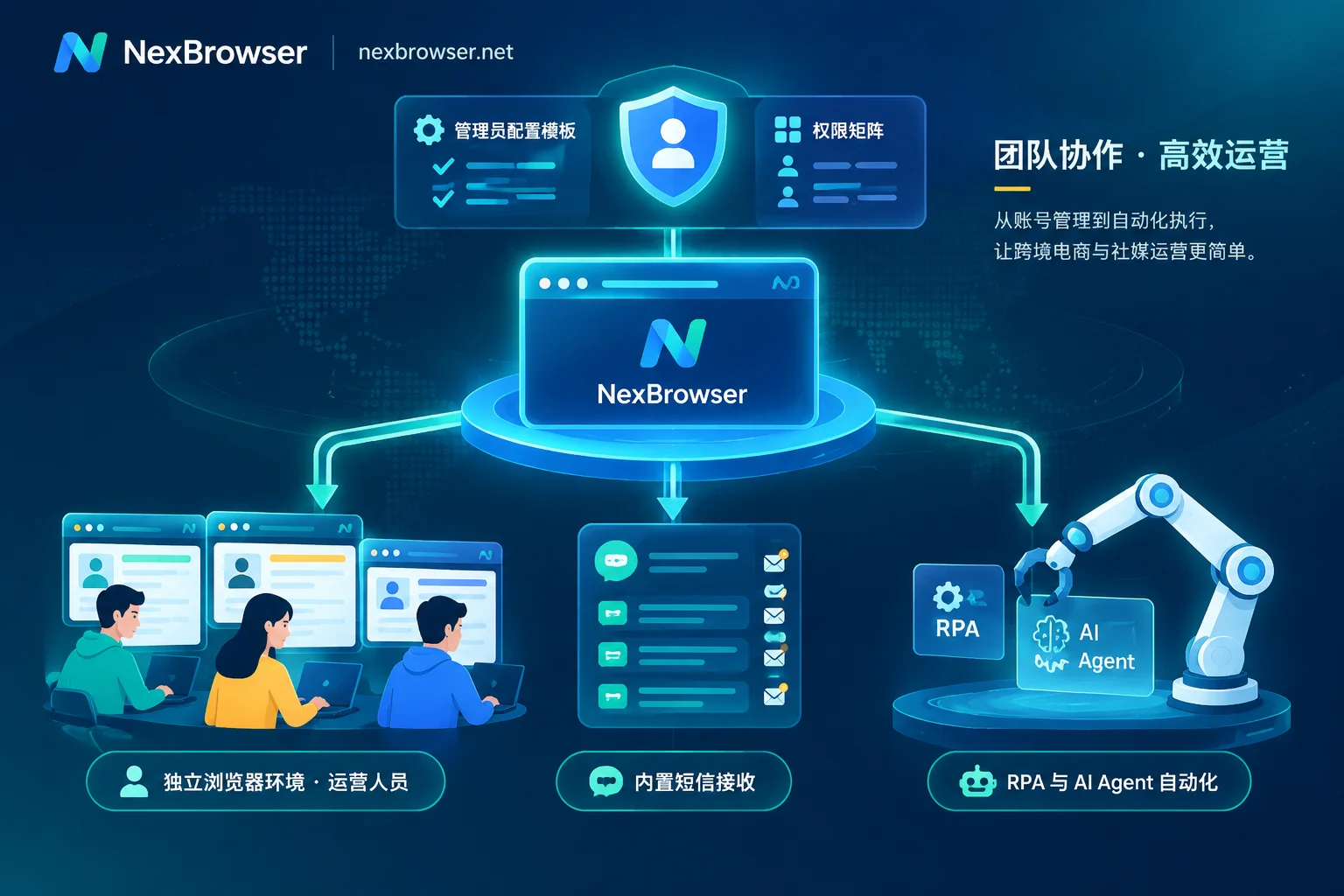
- Use team environment collaboration permissions to grant environment access by person or project. Revoke access on termination or rotation, rather than sharing passwords.
- When issues arise, use operation logs to trace who launched the environment, when, and from which egress. See the three types of records that multi-user log auditing can capture.
Common Anomalies and Troubleshooting
| Symptom | Likely Cause | First Steps |
|---|---|---|
| Re-login required on open | Cookies not synced or overwritten | Check if the previous user closed the environment normally and if sync completed |
| Instant email/SMS verification after login | Egress region change or fingerprint alteration | Check that IP geolocation matches timezone and language |
| Page language/currency automatically switches back to domestic | WebRTC or DNS leaks local info | Disable leak channels and retest |
| Long-stable account suddenly gets frequent verifications | Egress IP reused or contaminated | Switch to a dedicated egress, observe for several days before resuming regular operations |
| Sessions often lost after multiple operations | Concurrent multi-opening | Switch to exclusive shifts and prohibit simultaneous launches |
If the account is already restricted or under review, syncing the configuration can only prevent further deterioration. Recovery requires going through the platform's official appeals process, submitting the required business and identity materials. Don't rely on repeatedly changing environments and trying logins.
Boundaries to Keep in Mind
- Environment sync is meant for stability during legitimate team collaboration on your own accounts. It's not for circumventing platform enforcement or bypassing identity verification.
- Different products have varying syncable data fields, cloud encryption methods, and permission models. Confirm with each product's documentation before migrating. Don't transfer settings habits from one tool to another. For cross-product migration, refer to NexBrowser vs AdsPower feature comparison and migration points.
- Before assigning a new environment to handle an account, run a foundational check covering IP, fingerprint, and leak items. Specific tests to run are outlined in 6 things to test during a fingerprint browser trial.
Remote login itself isn't the problem; platforms care about inconsistency. Fix the three lines—network egress, device fingerprint, and session state—and follow a rigid handover sequence. Most verification interruptions caused by location changes can be prevented in advance.


Comments(0)