 NexBrowser指纹浏览器-官方博客Blog
Teams doing cross-border e-commerce, social media matrices, or data collection have almost all gone through the same stage: the number of accounts in hand grows from three or five to dozens, and every day just logging in, checking in, inspecting backends, downloading reports, and filling out forms for listings takes up most of the operations team's time. At this point, people naturally search for "RPA browsers" or web automation tools, hoping to hand repetitive actions over to machines.
But after actually putting general-purpose desktop RPA or browser automation extensions to use, many teams find they have merely gone from "manual grunt work" to "full-time script fixing": a process that ran fine last night gets completely stuck today because the platform changed a button's class name; or the script runs, but a dozen accounts get flagged as associated and wiped out in one sweep because they share the same underlying local browser characteristics.
In multi-account businesses, judging whether an RPA browser is good cannot rely only on whether it "can simulate clicks." It depends on whether it can simultaneously support underlying environment security and upper-layer task fault tolerance. Below, we start from the three pain points where people most easily stumble and discuss how browser automation should be built today.
Why can't traditional RPA plus an ordinary browser support multi-account businesses?
If you're just doing invoice entry for finance in a single system, installing an automation extension in ordinary Chrome is enough. But in multi-account operations and data collection scenarios, traditional solutions usually hit three walls:
- No environment isolation—automation becomes "batch sacrificial offerings": Multiple tabs or even incognito mode in ordinary browsers share the same underlying hardware fingerprints (Canvas, WebGL, Audio, fonts, etc.). The faster the script runs, the easier it is for the platform to link all accounts together in risk control based on the same device characteristics and misaligned network exits.
- Selectors are too fragile—maintenance costs exceed manual work: Traditional scripts rely heavily on fixed DOM nodes or XPath. Today's web pages are mostly dynamically loaded; a random promotional popup, a temporary verification, or a slight front-end adjustment to page structure can cause the entire batch of tasks to error out and interrupt, and when troubleshooting you may not even know which window got stuck at which step.
- Only a single automation mode—hard to balance big and small tasks: Some tasks repeat at fixed times every day (such as scheduled bill retrieval), suitable for hard-coded rules; some tasks require ad hoc human judgment (such as batch-modifying differentiated promotional prices for different stores); and some tasks involve ever-changing pages, requiring the tool to "understand" the page itself. A single record-and-replay tool can hardly handle all scenarios.
This is also why more and more operations and technical teams are starting to migrate their workbenches to fingerprint browsers with built-in automation capabilities—first use independent containers to set up each account properly, then choose the most convenient automation method based on task characteristics.
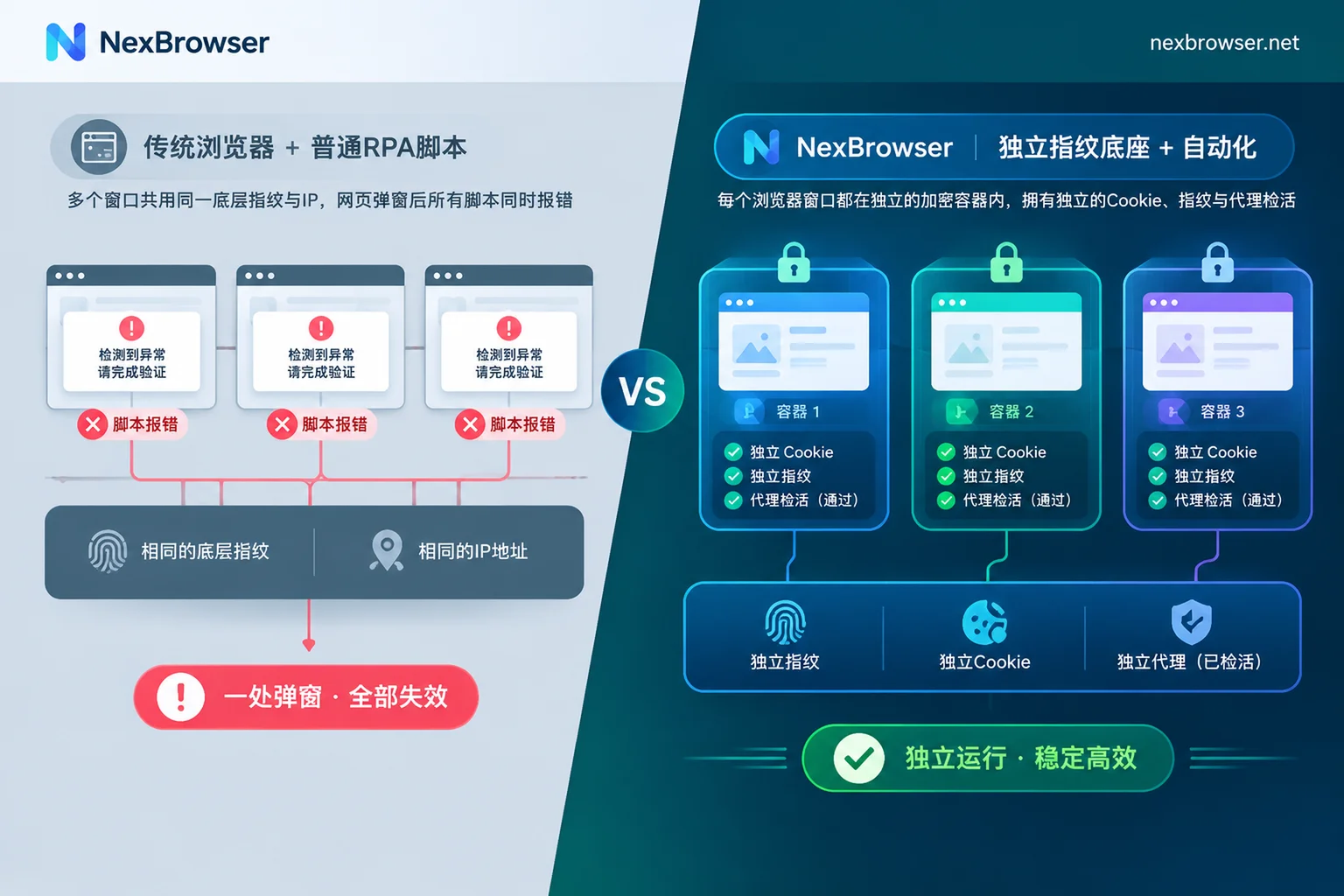
Layer one foundation: before automation runs, lock down the environment and proxy
The prerequisite for any RPA action is that every account being operated looks like it is running on an independent, real physical device.
In NexBrowser multi-account environment management, every browser environment has independent cookies, cache, local storage (including IndexedDB), and a dedicated proxy, and environments do not read each other. You can first debug a standard environment until it works smoothly and save it as a template; when subsequently creating or copying in batches, the system will automatically generate a brand-new, self-consistent set of browser fingerprint parameters for each new environment (covering Canvas, WebGL, hardware, screen, etc.).
Even more important is the self-consistency of the network exit. Many automation scripts lose login sessions or trigger secondary verification because the proxy IP has switched, but the browser's time zone and language remain domestic, or WebRTC exposes the real network (for such issues, you can refer to our previous troubleshooting guide: IP mismatched with browser time zone and language triggers risk control).
NexBrowser's proxy and residential IP management mechanism adds an extra safeguard before starting automation:
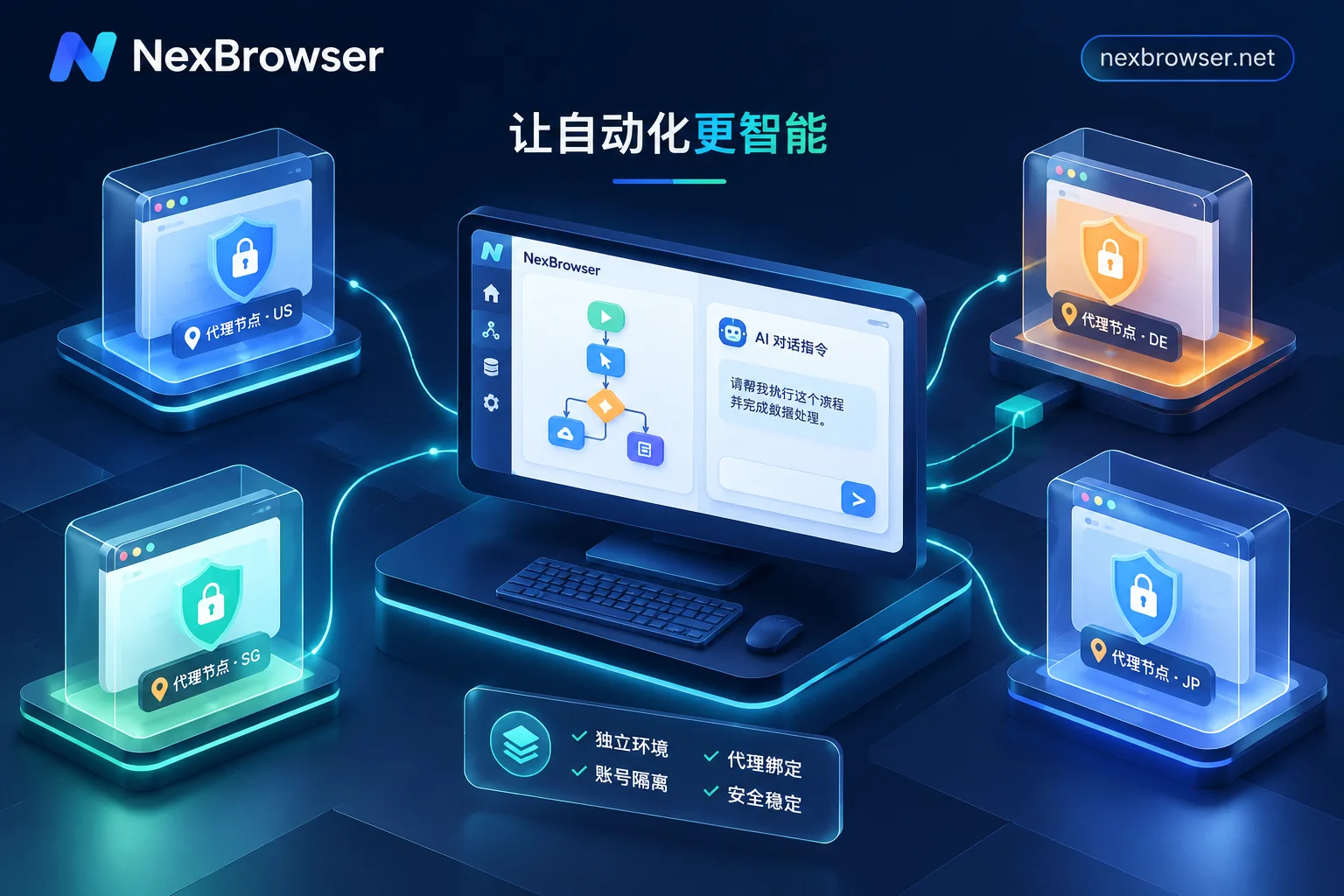
- Proxies are bound directly to individual environments, and the environment's time zone, language, geolocation, and WebRTC policy automatically align with the proxy exit;
- Check connectivity before launch: Before opening an environment each time, the system first detects the connectivity of the proxy exit; if the check fails, the window simply does not start, preventing scripts from misoperating under a bare connection or wrong IP;
- When an environment is closed, the latest cookies and login state are encrypted and synced to the cloud according to the selected scope, so the next time the script wakes up or you log in on another computer, it can continue directly without starting the process from entering the password every time.
If during registration or daily inspections the platform requires binding a phone or sending/receiving SMS verification codes, you don't need to switch out of the browser to dig for a physical SIM card. The environment sidebar has a built-in cloud phone number (NexSMS Number Center), allowing you to get a number on the spot by country/region and target platform, receive SMS, and fill in the verification code (for the specific process, see How to get a number and receive verification codes within a browser environment), keeping the verification step that most easily interrupts the automation chain resolved inside the window.
Layer two execution: four automation methods matched to task complexity
Once the underlying environment is stable, it doesn't mean everything needs a complex script. Depending on whether tasks are "fixed and repetitive," "ad hoc and sudden," or "flexible and ever-changing," NexBrowser offers four automation tools at different depths:
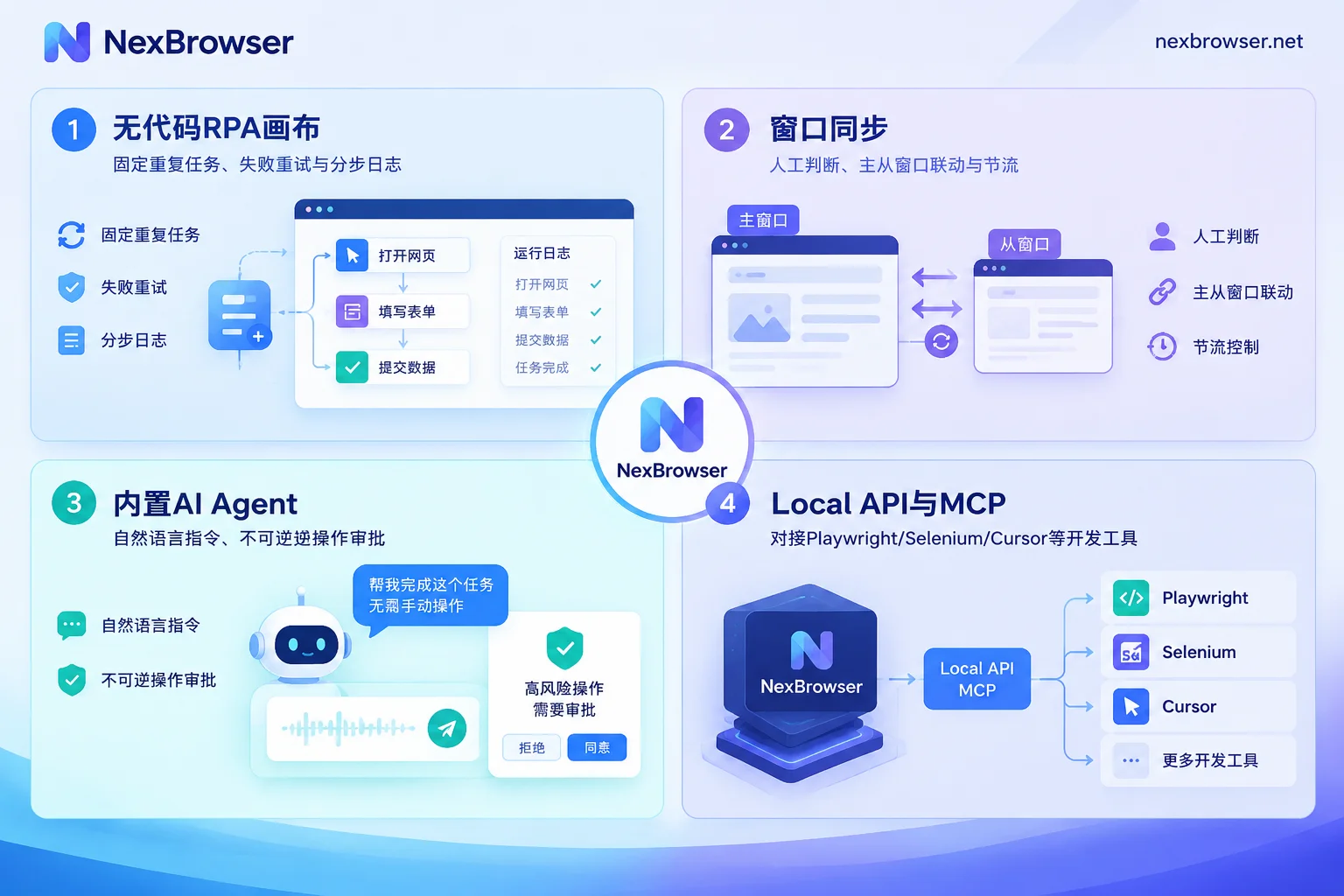
1. Fixed, repetitive rule-based tasks: batch-run with the no-code RPA canvas
Tasks like daily account browsing to warm up accounts, filling out fixed-format forms, and exporting data from fixed backend paths have very clear process steps. For these tasks, the built-in RPA script (Beta) is the most hassle-free.
- Drag-and-drop orchestration: No coding required—drag action nodes on a visual canvas to assemble a process, with support for variables, conditional judgment, loops, and waits;
- Fault tolerance and positioning: For slow page loading, each step can have its own failure retry mechanism; execution logs are recorded per environment and per step, so even if 2 out of 50 windows fail due to network fluctuations, a glance at the logs precisely identifies which environment got stuck at which step, without blind checking from the beginning;
- Multi-environment concurrency and reuse: A script can be bound to a batch of environments for batch execution, and each environment still strictly uses its own cookies, fingerprints, and proxy. Debugged scripts can also be exported and imported for direct reuse within the team.
2. Semi-automatic tasks requiring human monitoring: use window sync instead of writing scripts
Some operations are done only once or twice a week, such as simultaneously posting a trending update across a social media matrix, or applying a set of settings that require manual verification across a dozen sub-accounts on the same platform. Orchestrating and debugging an RPA process for such temporary tasks is not cost-effective.
In this case, you can directly enable window sync: select a master window, and your mouse clicks, keyboard input, page scrolling, and address navigation will sync in real time to the checked slave windows. To prevent mechanically synchronized actions from being too uniform and triggering platform detection, you can individually toggle sync items and set operation intervals and throttling. Participating windows are automatically arranged on the screen, and each slave window still runs on its own independent fingerprint and proxy; if a special prompt pops up in a window, you can pause and handle it manually at any time.
3. Tasks with ever-changing pages or without wanting to configure nodes: wake up the built-in AI Agent
Traditional RPA fears page structure changes the most. If you don't want to study web page elements, or the pages you face often pop up various irregular windows, you can directly use the client's built-in AI Agent (Nex Agent).
You only need to describe the goal in natural language (for example, ask it to open a specified environment, enter a certain backend section to operate the page, fill out a form, and save a screenshot), and the Agent will understand the page and execute on its own, and can even split tasks across multiple windows to advance in parallel. Because the environment's login state is persistently saved, the next run continues directly. For sensitive actions involving funds, deletion, or publishing, you can set it to request human approval before performing irreversible operations; the entire execution process can be reviewed, balancing convenience and safety.
4. Technical teams and heavy customization: seamless takeover via Local API and MCP protocol
If your team has dedicated developers with mature Python crawlers or business systems, or is using the latest AI coding tools, NexBrowser can also step back and serve as your most stable "anti-association browser infrastructure."
Through the client's built-in Local API and MCP (enable OpenAPI in the Windows client and call it with an access key):
- Direct connection with mainstream automation frameworks: Through the local HTTP interface, you can create, open, and close environments with code, bind proxies, and read CDP connection information. Whether it's classic Selenium, Puppeteer, Playwright, WebDriver, or emerging browser-use and Playwright MCP, they can all directly take over fingerprint environments (see OpenAPI interface documentation for details);
- Native support for the MCP protocol: Through NexBrowser MCP Server, you can directly list and open independent environments and manipulate pages with conversational instructions in MCP-compatible clients such as Claude Code, Codex, and Cursor;
- Zero API barrier: Local API interfaces are free and have no call limits—even free-tier users can use them directly.
Layer three governance: when automation runs in a team, how to prevent misoperations and collisions?
When RPA scripts and automation environments are handed over to multiple operators for collaborative management, management loopholes are often more fatal than technical failures: for example, Operator A is manually changing prices in the backend while Operator B, unaware, directly starts an automation script in that environment, causing page conflicts and operations overwriting each other (for the risk of concurrency conflicts, see What happens when multiple people log into the same browser environment at the same time).
At the team collaboration level, NexBrowser uses two mechanisms to cage automation safely:
- Single-environment concurrency lock: The same environment can only be opened by one member at a time. As long as someone (or a task on some machine) is occupying that environment, others cannot squeeze in and overwrite data simultaneously.
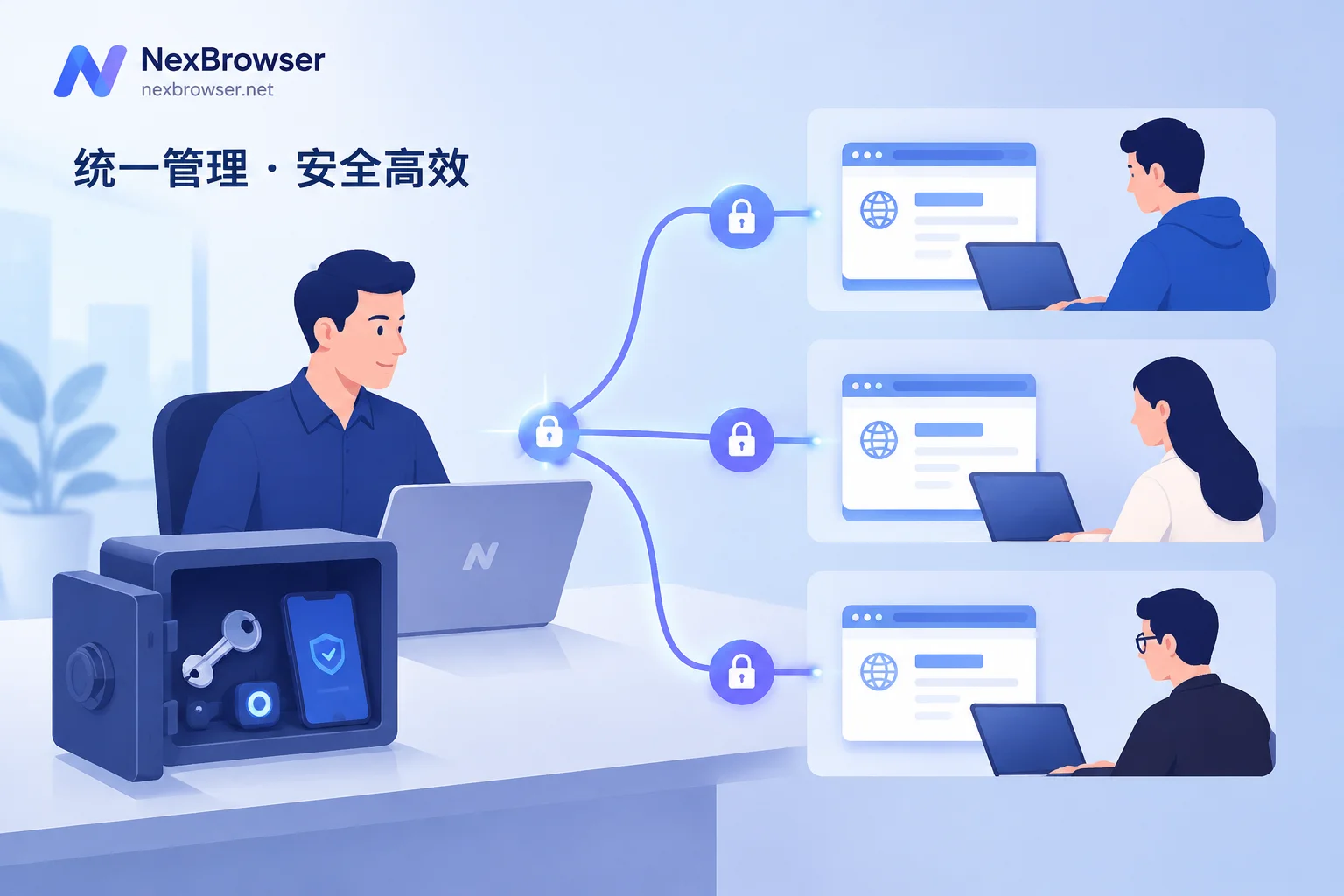
- Password-free sharing and fine-grained permissions: Once platform accounts are bound to environments, login is automatically filled in at launch, and members running automation or inspections daily never come into contact with plaintext passwords (see How to share account passwords securely within a team). Team founders can authorize by group in the role and permission matrix, specifying who can only open windows and run established processes, and who has the right to modify proxies or export scripts; all permission changes and operations are logged and auditable.
How to get your first RPA browser workflow running at low cost?
The biggest pitfall when choosing an RPA browser is to buy an expensive enterprise annual plan right away and then find it doesn't fit your business's web pages. The most reliable approach is to first run a minimal closed-loop test on real business sites:
- Go to the client download page to get the Windows 10/11 (64-bit) installer;
- Use the free tier (fully featured, no crippled features, no credit card required) to create a few test environments, bind proxies, and confirm connectivity;
- First try window sync for daily semi-automatic batch operations, then use the RPA canvas to build your most commonly used fixed inspection flow, or call the Local API / MCP with code you're familiar with, to see whether log troubleshooting and environment stability feel smooth;
- Once the entire automation workflow runs smoothly across a few accounts, scale elastically on the pricing page according to the actual number of windows and team member seats needed.
Leave anti-association isolation to the underlying environment, fixed actions to RPA, complex pages to the AI Agent, and let humans only handle final strategy and approval—this is the right way for multi-account teams to make good use of an RPA browser.


Comments(0)