 NexBrowser指纹浏览器-官方博客Blog
Let's start with the conclusion: rotating proxies can be used with antidetect browsers. Whether they work well together mainly depends on whether the rotation mode matches the task.
- Accounts that need to stay logged in, such as store backends, main social media accounts, and multi-step forms, should configure rotating proxies as Sticky Sessions, so that each environment uses the same egress IP for a period of time. If an account needs to stay logged in stably over the long term, a static residential IP is usually less trouble.
- Tasks that do not require login, such as public page scraping, price monitoring, ad display verification, and checking search results in different regions, are the ones suitable for per-request or short-interval rotation.
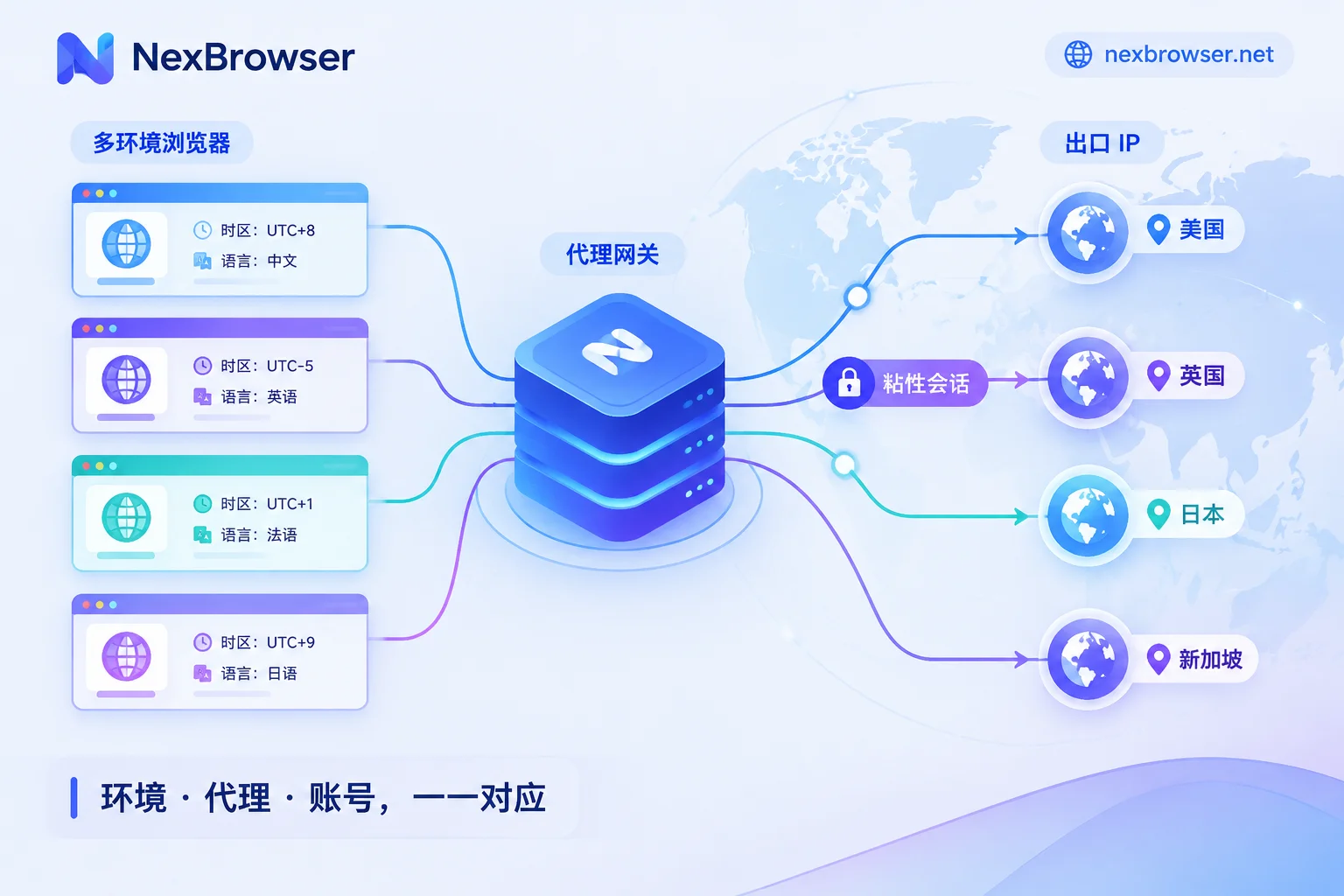
The division of labor is: the antidetect browser manages the local layer, including cookies, cache, local storage, and parameters such as Canvas, WebGL, WebRTC, timezone, and language; the proxy manages the network egress, including IP, ISP, and geolocation. With only an antidetect browser, websites still see your real public IP; with only a proxy, device and browser-level identification is not blocked. So the two layers need to be configured together and made to match each other. The official guide has already covered the basic concepts of fingerprints, so here we only discuss how to configure them.
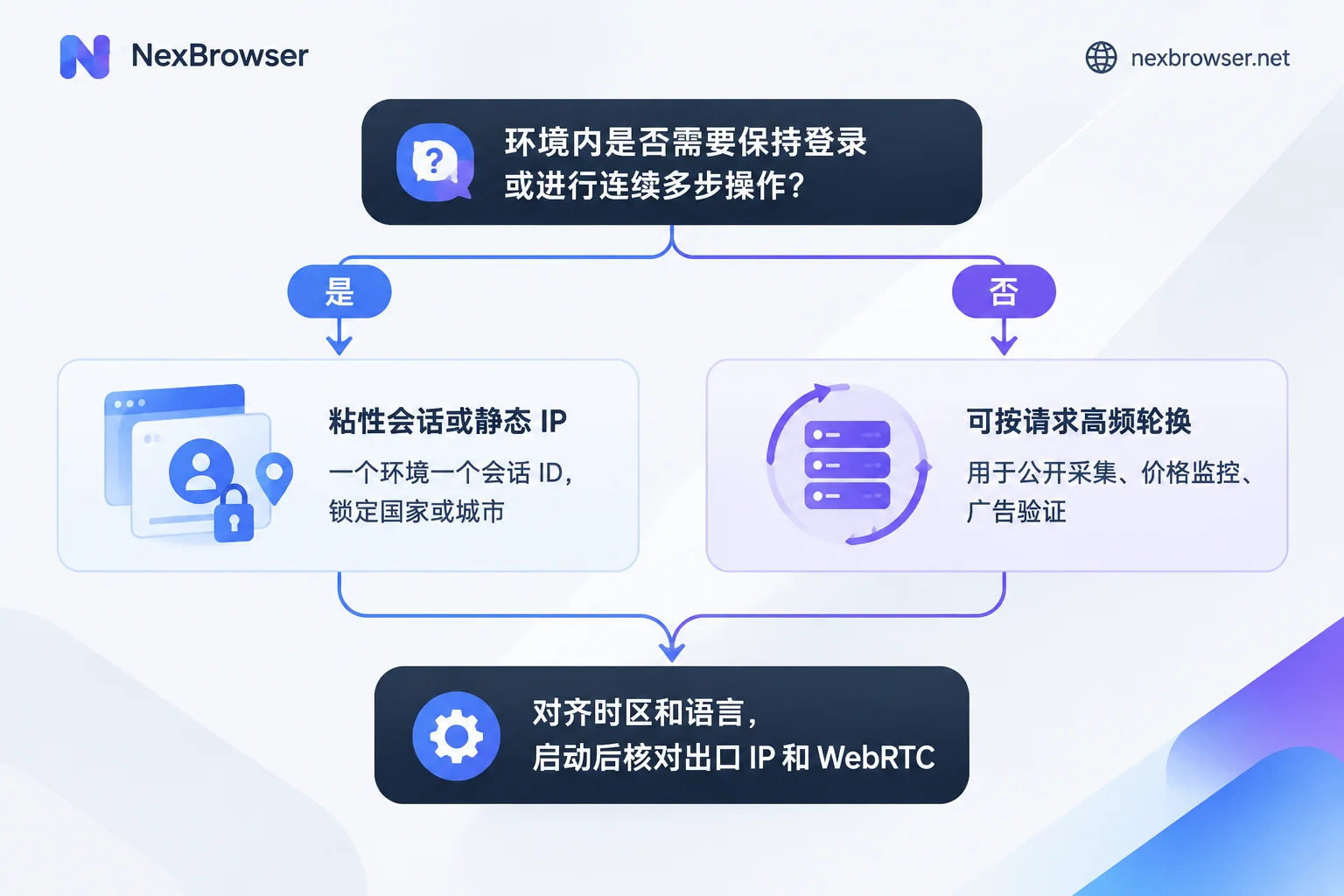
Step 1: First Determine Whether the Task Needs Session Persistence
You can start by asking yourself one question: are the operations in this environment being performed continuously by the same person?
- Log in first, then enter the backend, then change settings or place a test order. This is a continuous operation, and the egress IP should not change during the process.
- Open a batch of public pages and scrape prices or rankings, with no connection between requests. For this type of task, changing the egress does not affect the results.
If the IP jumps frequently within the same logged-in environment, the website may see it as account theft or an abnormal environment. Common signs are repeated CAPTCHAs, being asked to log in again, and in severe cases account restrictions. The exact trigger rules differ by platform, but the combination of "logged-in state plus changing IP on every request" is inherently risky. To understand the relationship between rotation timing and login loss, see Will Dynamic Rotating Proxies Cause Login Loss?.
Step 2: Get the Gateway and Session Parameters from the Proxy Provider
Rotating proxies usually provide only a fixed gateway endpoint (host plus port). There are two common ways to control the rotation mode:
- Add parameters to the username, such as session ID and session duration;
- Use different ports to distinguish rotation mode from sticky mode.
Vendors write this differently. Some use -session-, some use _session-, and some allocate by port. The following is only an example; please refer to the documentation of the proxy provider you use:
主机:gate.example.com
端口:7000
用户名:user123-country-us-session-acc01-sesstime-30
密码:******
There are three key points here:
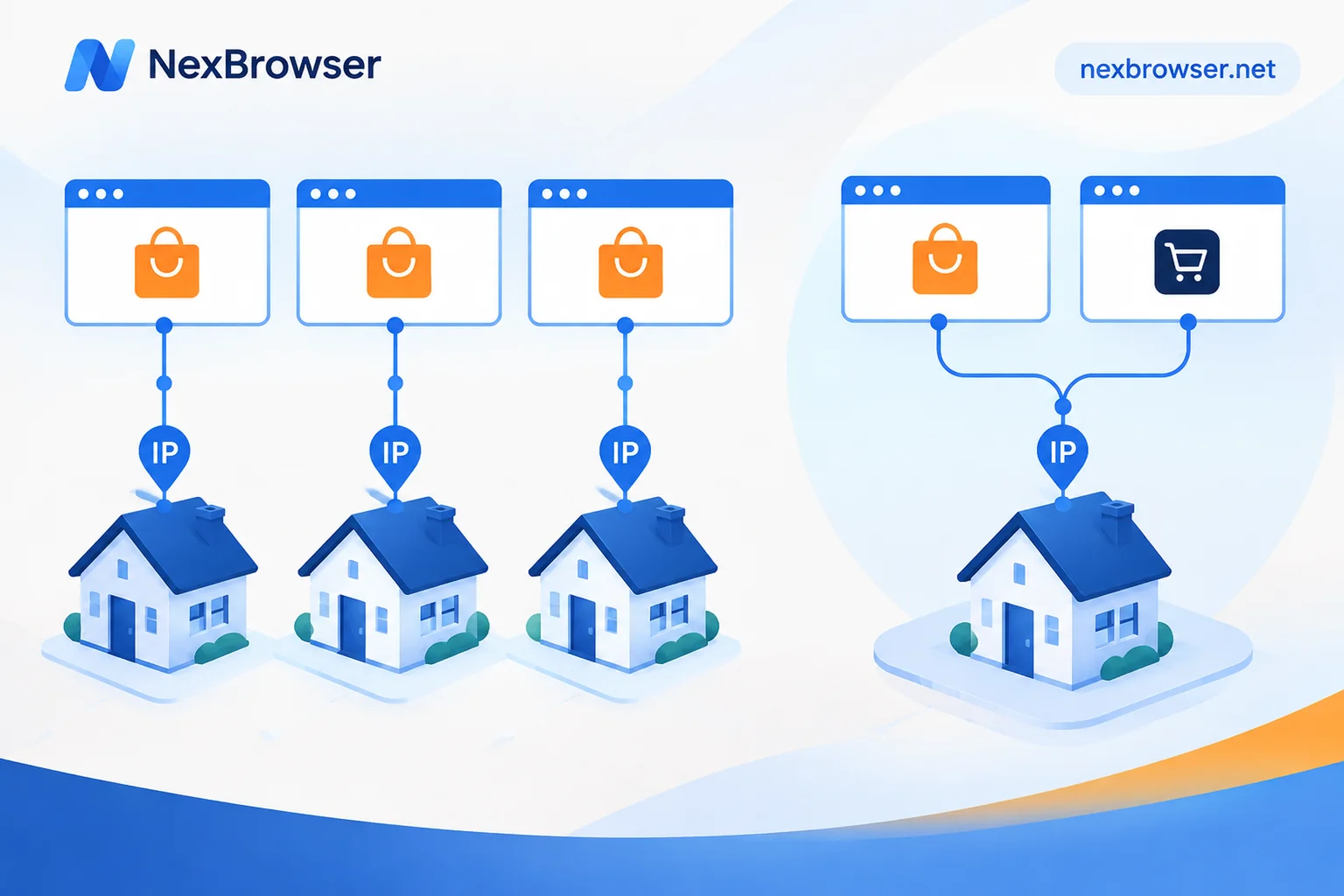
- Use one session ID per environment. If multiple environments are filled with the same session ID, they will likely get the same egress IP, and isolation between environments becomes meaningless.
- The session duration should be longer than a single operation. Common sticky duration options range from 1 to 60 minutes, and some services can keep the session until that IP goes offline. Suppose a backend operation takes 20 minutes, but the sticky duration is set to only 10 minutes; then the IP will switch in the middle of the operation.
- Lock the region to a country, and preferably to a city. See Step 4 for the reason.
Step 3: Fill In the Proxy in the Environment and Test It
When creating or editing an environment in an antidetect browser, choose the corresponding protocol (HTTP, HTTPS, or SOCKS5), and fill in the gateway address, port, and username/password with parameters. Before saving, run a proxy test once and confirm three things:
- The gateway is reachable and latency is within an acceptable range;
- The displayed egress IP is provided by the proxy, not your local IP;
- The IP's location matches the country or city you specified in the username.
In NexBrowser, each environment is bound to a proxy separately, and cookies, cache, and local storage are also isolated by environment. HTTP, HTTPS, and SOCKS5 proxies can all be imported in bulk, and after import you can run a one-click test to see each environment's egress IP and connectivity one by one. If you already use NexIP residential IPs, you can also bind them with one click. For detailed steps, see Bind Proxies and Verify Egress. For the complete setup process for a single environment, see Set Up a Proxy Separately for Each Environment.
Step 4: Keep Timezone, Language, Geolocation, and Egress IP Consistent
This is the step most easily missed. For example, if the egress IP is in the United States but the environment's timezone is Beijing time and the language is Chinese, the website can see that the environment fingerprint and network egress contradict each other.
With rotating proxies, this problem becomes more obvious: once the IP changes, it may switch to another country, while the environment's timezone still remains at the original setting. Whether an antidetect browser can change the timezone in real time with the IP within an already open session depends on each vendor's kernel implementation, and you cannot assume it can. A safer approach is:
- Lock the egress to a fixed country in the proxy parameters, preferably a fixed city;
- Set the environment's timezone, language (Accept-Language), and geolocation according to that region;
- After setup, do not switch the same environment's egress across countries again.
Step 5: Recheck Inside the Environment After Launching It
Passing the proxy test only means the gateway works. After the environment opens, you still need to visit an IP lookup page inside it and confirm:
- The IP and location shown on the page match the test results;
- The WebRTC section does not expose your real IP;
- The timezone, language, and egress region match.
If different sections of the test page show different IPs, first see which section has the problem, then troubleshoot item by item. You can refer to Proxy Is Connected, but the Test Page Shows an Inconsistent IP.
If it is a logged-in environment, it is recommended to check the egress IP again at intervals during the operation to confirm that it really has not changed within the sticky duration. If you find that the IP has changed midway, pause the operation first, check the session duration and session ID settings, and do not continue login or submission-type operations while the IP is unstable.
When High-Frequency Rotation Is Suitable
For tasks without a logged-in state, where each request is unrelated to the others, high-frequency rotation can spread requests across different egresses. It is suitable for these scenarios:
- Scraping data from public web pages;
- Monitoring product prices in multiple regions;
- Checking whether ads display normally in different regions;
- Verifying search result rankings in different regions.
Even for these tasks, it is recommended to fix each environment's fingerprint, timezone, and language according to the egress region, and to comply with the target website's terms of use and access frequency limits. How strict a site's blocking is and whether sessions need to be maintained will affect which type of proxy you choose. For details, see What Proxy Is Suitable for Scraping Tasks?.
Several Common Mistakes
- Using per-request rotation in a logged-in environment. Change it to a sticky session, or switch to a static IP.
- Multiple environments sharing the same session ID. The result is several environments using the same egress. Each environment should use an independent session ID.
- Sticky duration shorter than the task duration. The IP will switch halfway through the task. Set the duration according to the longest single operation and leave some margin.
- Not restricting the proxy pool by country. The egress will jump between different countries, and timezone and language cannot keep up. Lock it to a country or city.
- Only checking the proxy test, not rechecking inside the environment. Problems such as WebRTC leaks can only be seen by opening a test page inside the environment.
It should be noted that the above configuration can only keep each environment's local parameters and egress consistent and stable. It cannot guarantee that accounts will never be associated with one another, nor can it replace the platform's own rules. Use it only to manage and isolate your own accounts.
If you are ready to start binding proxies by environment and verifying egress one by one, you can first download NexBrowser (a Windows client is currently available), create a few environments with the free tier, and go through the process above once.


Comments(0)