 NexBrowser指纹浏览器-官方博客Blog
If you can keep members from knowing the password, don't let them know it. Handle it in one of three ways depending on the account type:
- If the platform itself supports adding members and assigning roles, prefer the platform's built-in features, and have everyone log in with their own identity.
- For internal systems and tools that require entering a password, put them in a team password manager, split vaults by project, and grant access by role.
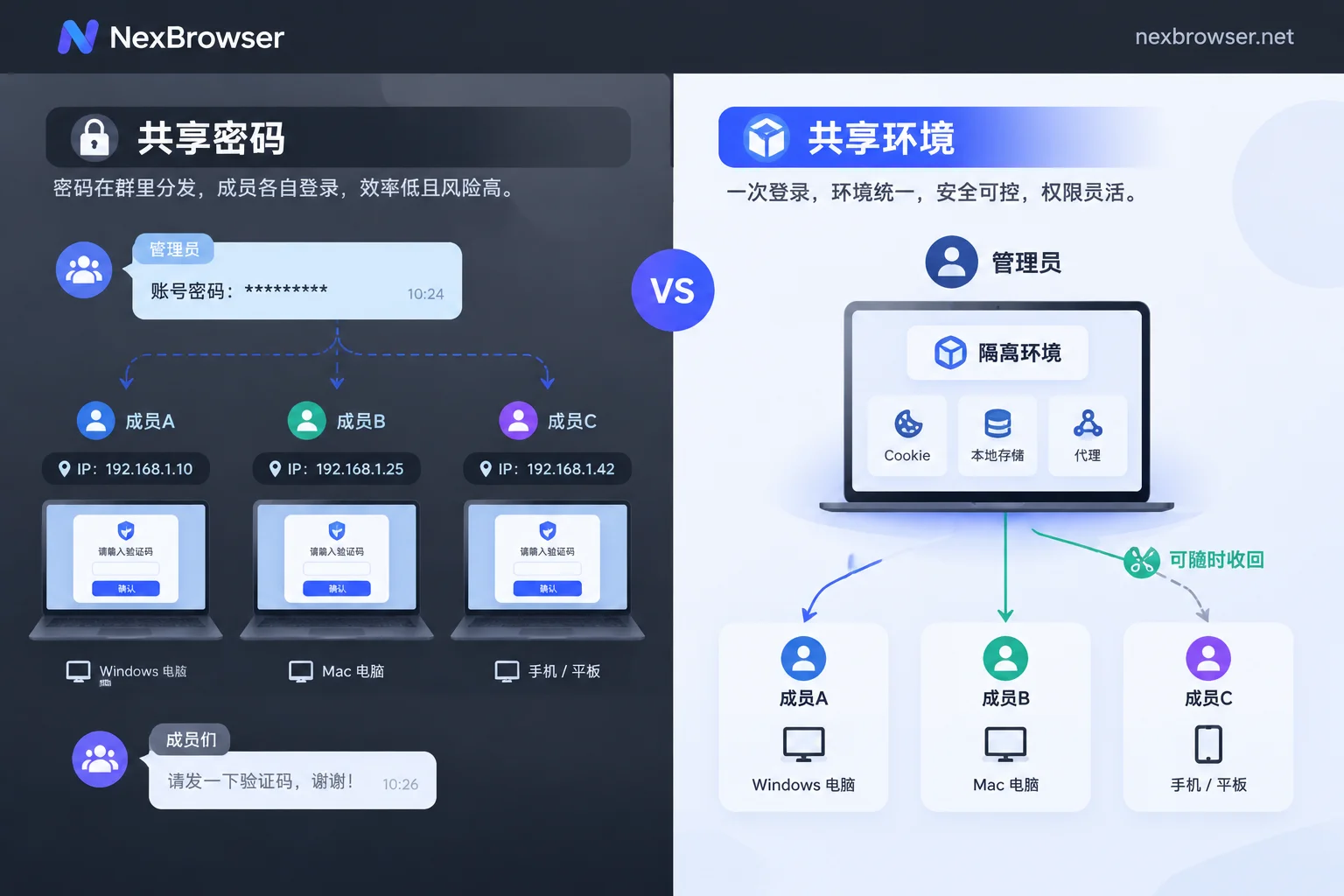
- For e-commerce stores, overseas social media, and ad accounts that rely on browser login state and where one person manages multiple accounts, share an already logged-in isolated environment so members can use it directly without touching passwords.
What all three approaches have in common: passwords and two-factor authentication (2FA) stay with the administrator, and what members get is usage permission that can be revoked at any time.
First, Stop These Practices
Sending passwords in WeChat or Slack, forwarding them by email, putting them in a shared online spreadsheet, or sending screenshots to a group chat are the most common sources of leaks in teams. The problem is not just that someone sees them at that moment:
- Records persist long-term. Chat logs and cloud documents can be searched, screenshotted, and forwarded. If one person's chat account is compromised, all the passwords in it leak together.
- No audit trail. Once a password has been sent out, you cannot clearly say who can still log in now.
- High revocation cost. When someone leaves or an outsourcing engagement ends, they have already memorized the plaintext password, or even saved it on a personal device. You can only change passwords one by one and redistribute them to the people who remain, and it is easy to miss an account.
What Each of the Three Sharing Methods Is Suitable For
Built-in Platform Member Features: Use Them First If Available
Many admin panels and advertising platforms allow you to add members and assign roles. In that case, each person logs in with their own account, permissions are controlled by the platform, and when someone leaves you simply remove them on the platform without sharing passwords. Only when the platform does not support multiple members, or its member features cannot meet your division of labor, should you consider the following two methods.
Team Password Manager: For Systems That Require Entering a Password
For accounts such as internal systems, SaaS tools, and server panels that require entering a password, put them in a team password manager. There are three key points:
- Split vaults by project, department, or client. Do not create one big "all accounts" directory visible to everyone.
- Grant access by role and follow the principle of least privilege. Give people only the accounts their work requires.
- Choose an end-to-end encrypted tool, and confirm that it can revoke a member's access from the backend.
The limitation of this method is that members can still obtain the password, at least at the time of use. So during offboarding handover, it is still advisable to change the passwords of the accounts that person used.
Environment-Level Passwordless Sharing: For E-commerce and Social Media Multi-Accounts
If stores, social media, and ad accounts share only passwords, members will log in on their own computers. When the device fingerprint changes and the IP location keeps jumping, the platform may frequently require SMS or email verification, and in serious cases may flag the login as suspicious and restrict the account. Members then keep asking the administrator in group chat for verification codes, and the codes become a new plaintext leak point.
A more reliable approach is to share the entire browser environment. The cookies, local storage, and proxy configuration in the environment belong together as one set. The administrator first logs in inside the environment, then authorizes the environment to members. When members open it, they are already logged in, still using the same environment configuration, and never touch the password. To revoke access, simply remove the authorization.
Implementation Order
- Inventory account ownership. List each account's registered email, phone number, and whose device the 2FA is bound to. Try to keep this information on company-controlled email addresses, numbers, and devices, not on an employee's personal phone.
- Group them. Create groups by store, project, or client, with one group corresponding to one scope of work.
- Define roles and keep sensitive items off by default. Regular operations staff only need to use the environment. Operations such as deleting environments, modifying proxies, exporting data, and inviting members should not be granted initially; enable them separately only when there is a real need. For specifics on how to split roles, see How to assign sub-account permissions in an antidetect browser.
- Have the administrator complete login before distributing. The administrator logs in to the account, binds the proxy, checks the exit, and confirms the environment is usable before authorizing it to members.
- Keep 2FA with the administrator. Do not photograph authenticators and recovery codes and send them to group chat. When login state expires and re-verification is needed, the administrator handles it inside the environment.
- Revoke access as personnel change. Remove authorization on the day someone leaves or an outsourcing engagement ends. For accounts where that person has seen the plaintext password, change the password and log out sessions on other devices on the platform. For the full handover sequence, see How to hand over accounts after an operations employee leaves.
Several Boundaries of Passwordless Sharing
- It cannot guarantee that verification will never appear again. Platform security policies vary. Some systems have very short session validity periods, or bind sessions to local devices or hardware keys, so even a synchronized login state may be required to re-verify periodically.
- The login state itself is a credential. Although members do not know the password, once they have the environment they can operate the account, so the scope of authorization must also be defined by least privilege. If you are worried that a departed member still has a residual session, changing the password and logging out other sessions is the most direct remedy.
- Do not have multiple people open the same environment at the same time. Data will overwrite each other, and the platform may also see abnormal concurrent operations. For division of labor and scheduling, see What happens when multiple people log into the same browser environment at the same time.
- No configuration means you will not be associated. Environment isolation only solves the problem of mixed local data. For the basic concepts of fingerprints and association, start with the User Guide.
How to Do This Step in NexBrowser
In NexBrowser, each environment has independent cookies, cache, local storage, and proxy. The steps above map as follows:
- Grouping: Create groups for environments by store or project.
- Permission separation: Authorize groups to members by role.
- Passwordless sharing: For an environment where the administrator has logged in, members can use it directly after taking over and cannot see the account password. Environment configuration is encrypted and synchronized via the cloud.
- Revocation: During handover or offboarding, remove that member's authorization in the backend.
Features are not tiered; the free tier is fully featured. As the team grows, what you pay for is window and member capacity. The client currently supports only Windows; the macOS version is still in development, so teams with Mac members need to plan ahead.
Detailed instructions on grouping and authorization are on the Environment Isolation and Grouping page. If you are ready to start building, you can download the client, first create a group and authorize one member, get the process working, and then roll it out to the whole team.


Comments(0)