 NexBrowser指纹浏览器-官方博客Blog
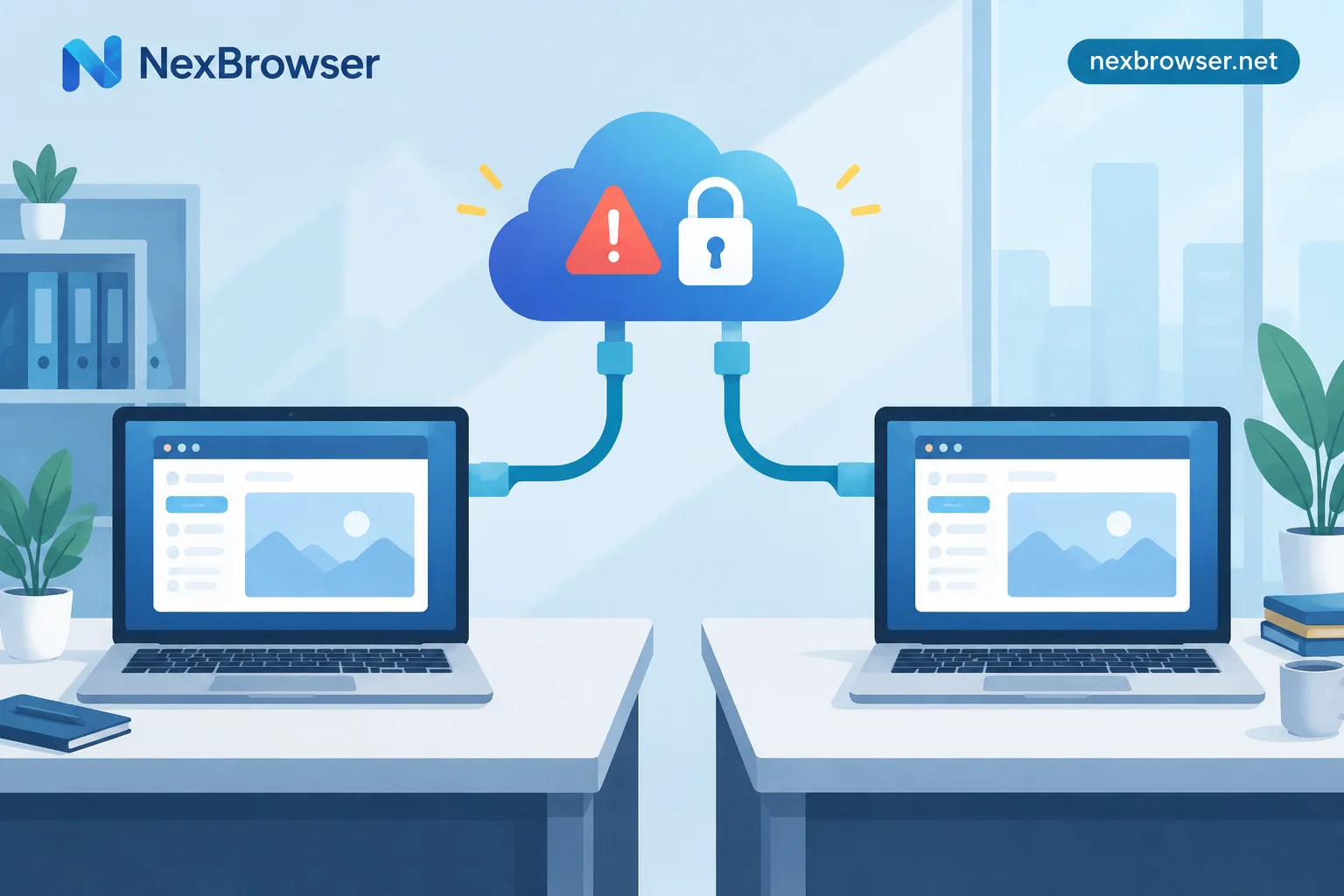
The common scenario is this: a colleague is on their computer with a profile open replying to messages, and you also click to open it. The result is either the software directly warns that the profile is in use, or both sides open it, and later you find you're logged out, recent settings changes are gone, or the platform pops up a verification.
First, the conclusion: when multiple people simultaneously open and log into the same profile, problems occur at two levels: local data overwrites each other, and the platform sees abnormal concurrent sessions for the same account. The same profile should only be used by one person at a time. If you need to take turns, hand off in sequence; if you need to be online simultaneously, split into independent profiles and log into separate accounts.
What Happens When Two People Open the Same Profile Simultaneously
1. Data Overwrites Each Other—the Last Person to Close Wins
A profile contains more than just a set of fingerprint parameters; it also includes cookies, cache, LocalStorage, IndexedDB, and other local data. In tools that support cloud sync, this data is typically encrypted and uploaded when the profile closes or periodically.
When two computers open the same profile simultaneously, both pull the same data from the cloud, then write their own changes without knowing what the other did. The last side to close pushes its data to the cloud, overwriting the results from the side that closed first. Common symptoms include:
- A re-login or two-factor authentication completed on one end is undone; next time you open, you're back to logged out or an old session;
- After one end is kicked offline by the platform, the invalidated cookies overwrite the still-valid ones from the other end;
- Local states like tabs, extension settings, and form drafts revert or become corrupted.
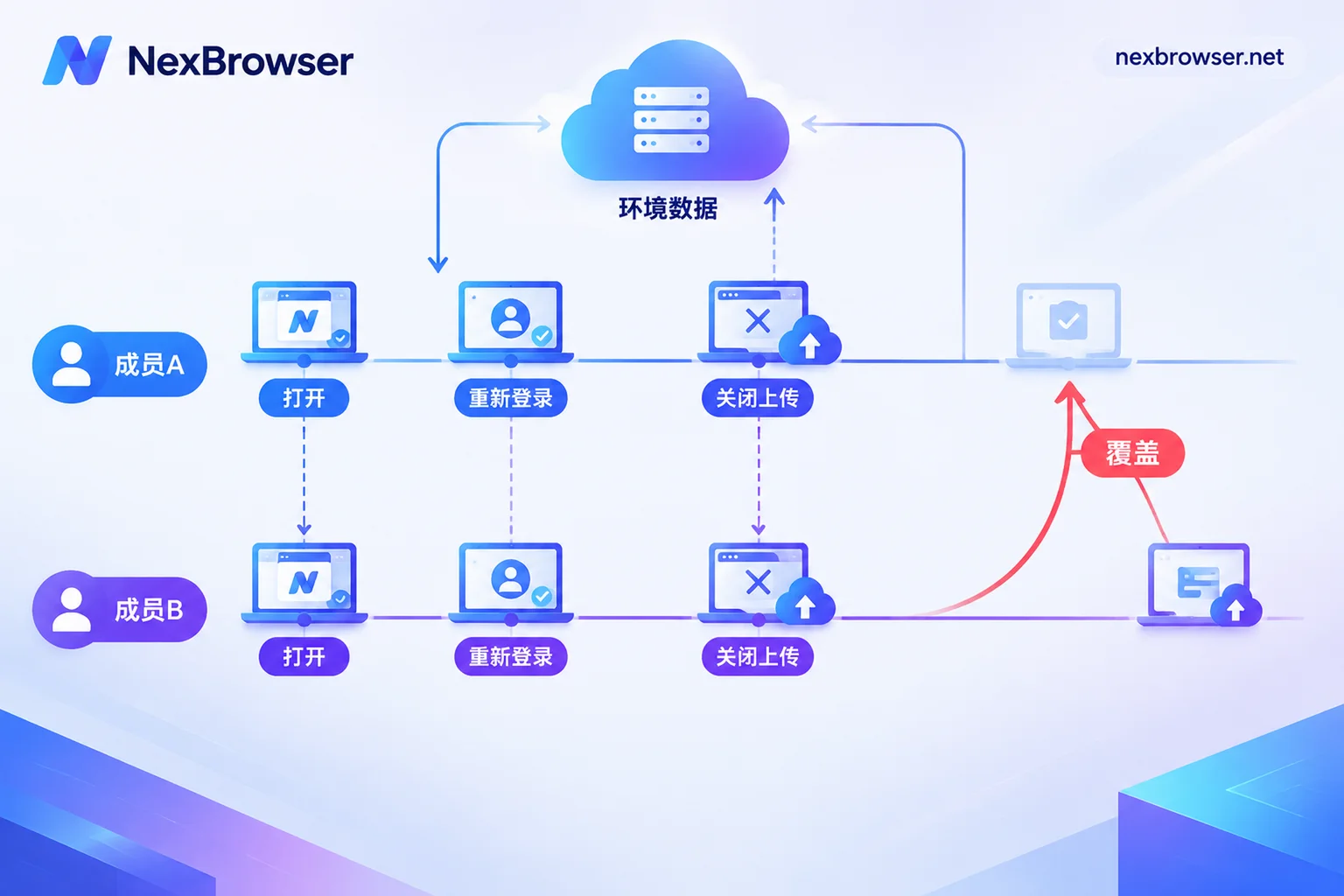
2. The Platform Sees Abnormal Concurrency for the Same Account
From the platform's perspective, this profile on two computers is the same device and the same login session. When both ends operate simultaneously, two situations arise:
- Both ends use the same fixed proxy: The platform sees the same fingerprint and the same exit IP interleaving requests to different pages in a short time—for example, one end editing profile info while the other submits an order. A normal single user wouldn't operate this way.
- One end's proxy fails and falls back to a local network, or the proxy exit changes: The platform sees the same session appearing from two network locations simultaneously, which more closely resembles concurrent logins from different locations.
The consequences vary by platform and change with risk control rule adjustments. Mild cases involve one end being kicked offline or asked to re-login; common cases trigger two-factor authentication; severe cases may result in account restrictions. There is no unified standard across platforms, but this situation brings no benefit to the account.
Why Sometimes the Second Person Can't Open It at All
Many fingerprint browsers add an occupancy lock to profiles by default: after member A opens a profile, its status becomes "in use," and when others click to open, they receive a message like "profile already opened" or "in use." Some tools provide a setting to allow simultaneous opening, with a warning that users bear the risk of cookie overwrites and data corruption.
The specific behavior depends on your tool and team settings. When you see an occupancy warning, don't try to bypass it—first ask who is using it and when they'll be done.
If You've Already Opened It Simultaneously, Follow This Sequence
- First discuss which end's data to keep. Generally keep the end that just completed login, verification, or important operations.
- Have the other end close first. Don't do anything else before closing; wait for its sync to complete.
- Finally, close the end you want to keep. It uploads last, so it becomes the latest version in the cloud.
- Reopen the profile and check. Confirm login status is normal and key settings are still there.
- Verify the proxy exit. Check whether the exit IP matches the proxy bound to the profile, ruling out the possibility that one end connected directly. For methods, see setting up and testing proxies individually for each profile.
- If the platform requires verification, complete it normally in this profile. Don't switch to another browser or device.
Team Collaboration: First Determine Whether You're Taking Turns or Using Simultaneously
Taking Turns with the Same Account: Hand Off in Sequence
Day/night shift changes and customer service rotations fall into this category. The handoff sequence is fixed:
- The previous member closes the profile;
- Wait for cloud sync to complete and the profile status to return to available;
- The next member then opens it.
Step 2 is most easily skipped. If the previous person closes the window and leaves, and the next person opens immediately, they may get old pre-sync data.
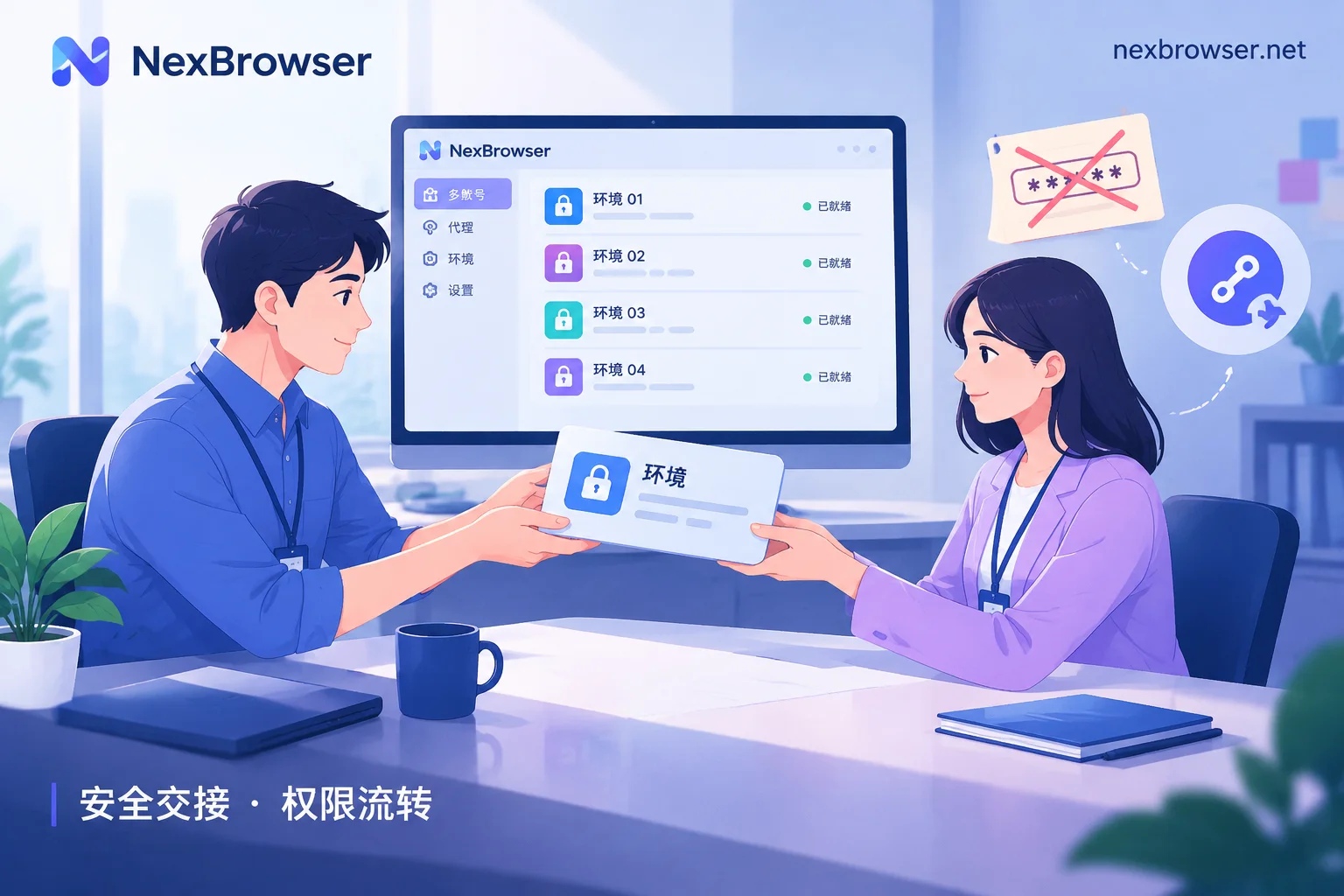
Also, share the profile during handoff—don't send account passwords in group chats or export cookie files to each other. Doing so bypasses permission controls and easily leads to the same account being logged in from multiple places simultaneously.
Need Multiple People Online Simultaneously: Split into Independent Profiles
If the business truly requires several people working simultaneously, assign each person an independent profile with separate fingerprints, cookies, and proxies, and log into separate accounts. If the platform supports sub-accounts or member permissions, prioritize using platform sub-accounts for members; don't have multiple people share the main account.
Note: Logging the same account into several independent profiles and using them simultaneously doesn't solve the problem. The platform still sees the same account concurrent from multiple places—just from one device to several. Splitting profiles solves local data conflicts; account-level division of labor requires sub-accounts or clear responsibility assignment.
One Person Operating Many Profiles Simultaneously: Use Window Sync or Automation
There's another need that isn't really multiple people sharing one profile, but one person performing the same operations across many profiles. This is suitable for window sync or RPA: operate in one master window, and other profiles execute in sync, with each profile still opened in only one place.
How to Do It in NexBrowser
- Sharing and delegation: Admins assign profiles to members by group, then use roles to control which profiles members can view, open, and modify. Members can take over profiles without knowing account passwords. For specific group and role configurations, see how to assign profile permissions in a team fingerprint browser.
- Sequential handoffs: Profile configurations, cookies, and other data are encrypted and synced to the cloud. When switching people, follow the sequence above: close the profile, wait for sync to complete, then the next person opens it. For how to hand off when a member leaves, see how to hand off accounts after an operations employee leaves.
- Simultaneous online: Use templates to duplicate new profiles, then confirm each profile's fingerprint parameters and proxy are individually configured, use one-click proxy detection to verify exit IPs, and finally assign to different members to log into their own accounts.
- Batch operations: Use window sync or RPA. You can also integrate Playwright, Selenium, and other scripts via Local API; Local API is free with unlimited calls.
For explanations of profile isolation, grouping, and team sharing, see multi-account profile management. The client currently supports Windows; macOS version is still in development. The free tier opens all features. You can install from the download page and first create a group to try the handoff process.
One final reminder: Configuring as above can avoid data conflicts and abnormal concurrency from multiple people sharing a profile, but it cannot guarantee the platform will never trigger verification. When the platform requires verification, simply complete it normally in the corresponding profile.


Comments(0)