 NexBrowser指纹浏览器-官方博客Blog
The safer sequence is as follows:
- Inventory accounts before departure, gathering scattered accounts into the company-managed browser environment.
- Transfer security assets, moving 2FA, bound phone numbers, and backup emails under the company's name.
- New person takes over the original environment, opening it directly through authorization with fingerprint and proxy unchanged.
- Revoke permissions on the departure day, withdrawing environment permissions and platform backend membership, then deciding whether to change passwords based on whether the person knows them.
- Review after handover, checking whether account settings have been tampered with.
The core idea is to hand over the runtime environment, not the password book. A common handover method is to give a spreadsheet of account passwords and have the new person log in again on their own computer. This causes three problems:
- Easily triggers verification: The platform sees browser fingerprint (Canvas, WebGL, fonts, etc.) and exit IP change at the same time, possibly triggering SMS verification, facial recognition, or even account restrictions.
- Credentials remain outside: The departing person still has the passwords.
- High cost of changing passwords: Changing passwords platform by platform is time-consuming and easy to miss, and changing passwords may not invalidate all login sessions the person already has.
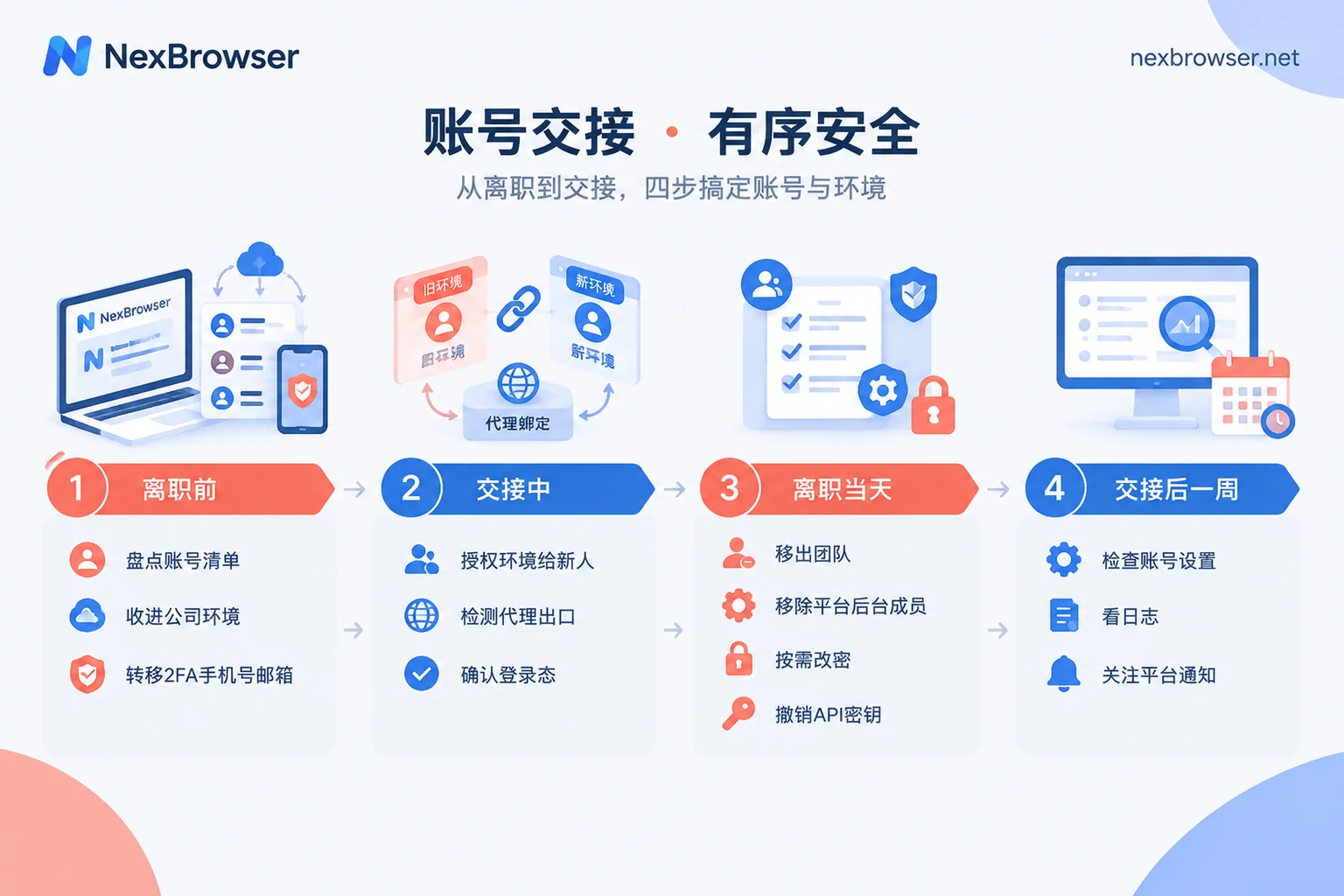
Before Departure: Inventory First, Don't Leave It to the Last Day
Inventory should be done while the departing person is still on the job and can help receive verification codes. For each account, at least clarify the following:
- The account itself: platform, store, homepage or ad account, and login email.
- Where it is logged in: environment in the company team space, the departing person's personal browser, or mobile app.
- What network it uses: whether the proxy bound to the environment is company-purchased or their personal home broadband or personal subscription.
- Security assets: 2FA authenticator, bound phone number, backup email, backup recovery codes.
- Platform backend membership: whether their personal account has been added to the merchant backend or ad management platform as admin or member.
- Other credentials: API keys they created, authorized third-party apps, and account information hardcoded in scripts.
The last two items are most easily missed in the checklist. Browser tools cannot manage these two categories; you must handle them item by item within the platform.
Gather Scattered Accounts into the Company Environment
If the accounts are already in independent environments within the team space, you can skip this step.
If the accounts are logged in on their personal browser or other tools, note this during migration: cookies and proxies can be carried over, but the underlying fingerprint cannot (see Can fingerprint browser environments be migrated when switching software). So migration itself is equivalent to changing devices. This should be done before they leave, and if verification appears, they should handle it on the spot. Don't leave it to the new person to gamble on the day of takeover.
In NexBrowser, each environment has independent cookies, cache, local storage, and proxy, with fingerprint parameters configured separately per environment. Environments can be grouped by store or business line, and configurations are synced encrypted in the cloud. Once accounts are brought in, future personnel changes only require adjusting authorization, no more password handovers. For how to create and group environments, see Environment Isolation and Grouping.
Transfer 2FA, Phone Number, and Backup Email
This step determines who ultimately controls the account. Even if environment permissions have been revoked, as long as 2FA is still on their personal phone, account recovery and security verification will still go through them.
- 2FA secret: Rebind to a company-managed authenticator or password manager, and update backup recovery codes.
- Bound phone number: Change to a number under the company's name.
- Backup email: Change to a corporate email.
When modifying this information, it's recommended to operate within the environment where the account is normally used, not on a different computer. Some platforms add verification after security information changes or temporarily restrict certain operations; refer to each platform's help center for specific rules. So it's best to do this one or two weeks in advance, not crammed into the handover day.
New Person Takes Over: Authorize First, Verify Then Go Live
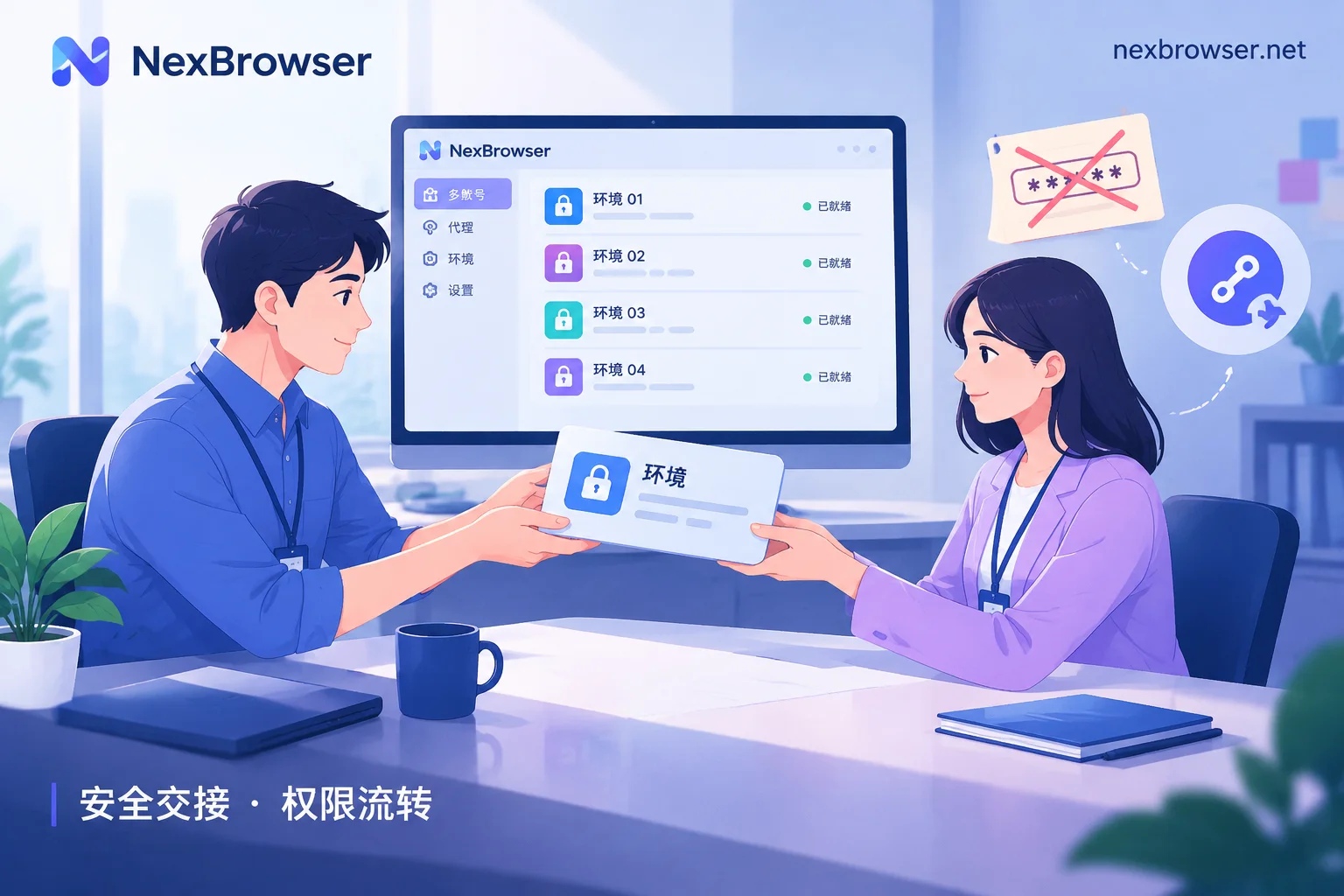
The admin authorizes the corresponding group or environment to the new person, while limiting what the new person can do by role, such as whether they can edit environment configurations or delete environments (see How to allocate environment permissions in team fingerprint browser). NexBrowser supports passwordless sharing, and the new person uses the login state saved in the environment without needing to know the account password.
When the new person opens the environment for the first time, verify in the following order:
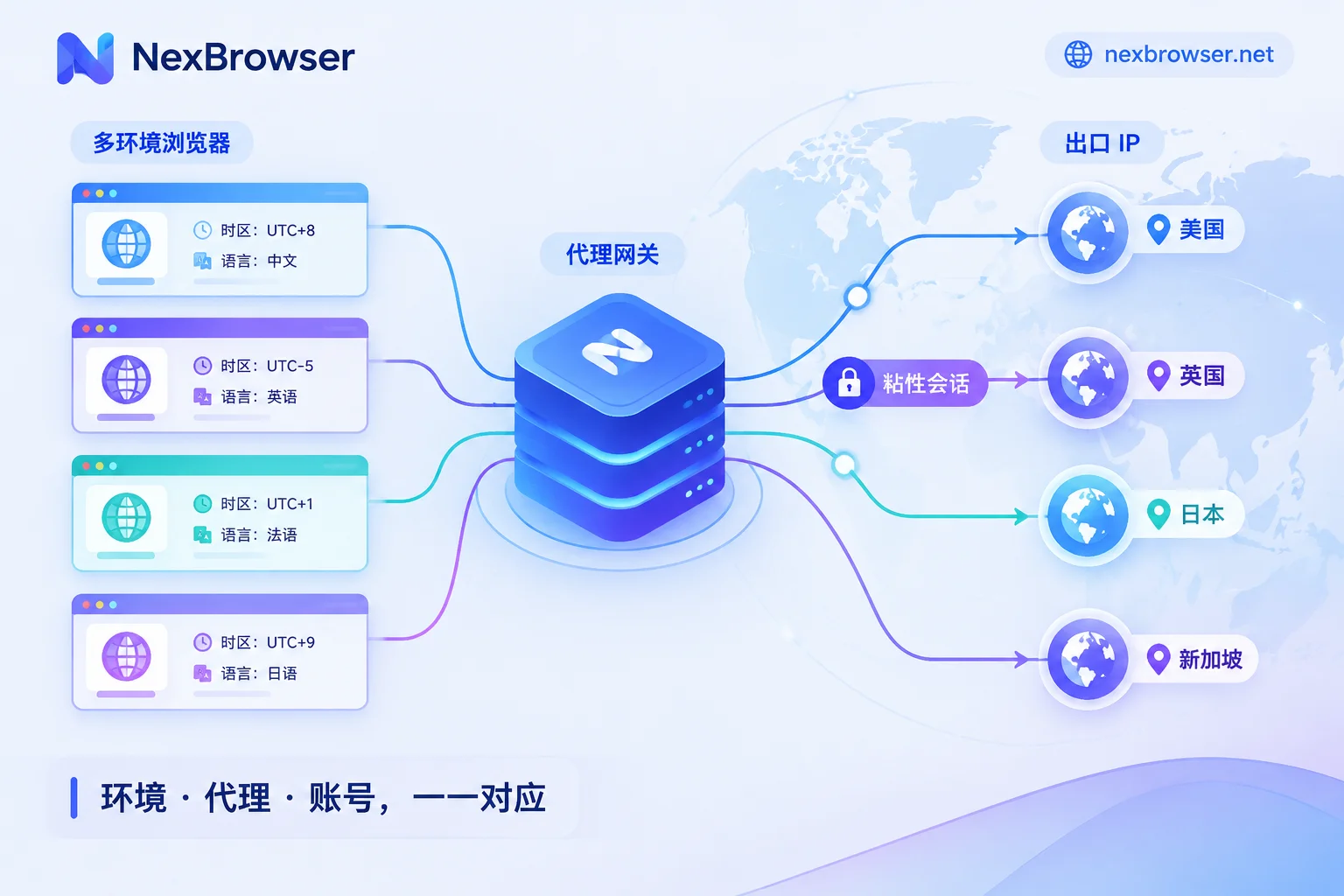
- Test proxy before opening: Confirm the proxy is available and the exit IP and location match the original. If the test result is inconsistent, see Proxy connected but detection page shows inconsistent IP for troubleshooting.
- Confirm login state after opening: Confirm the account is still logged in and the store name and account name match.
- Do not touch environment configuration: Don't casually modify fingerprint parameters or change proxies.
- Only routine operations in the first few days: Don't batch modify profiles, payment information, or security settings yet.
Two situations need special handling:
- Proxy is the departing person's personal one: For example, their own home broadband or personal subscription. After departure, this line likely cannot continue to be used, and needs to be replaced with a company proxy. When switching, try to choose a line in the same region and switch during off-peak hours (see Can an account switch proxies midway).
- New person uses Mac: The NexBrowser client currently only supports Windows; the macOS version is still in development, so arrange a Windows computer for the new person.
Also note that keeping the environment unchanged only reduces changes like switching devices or networks; it cannot guarantee the platform won't trigger verification. If verification does appear, handle it with the phone number and email already transferred to the company name in the previous step.
Departure Day: Revoke Permissions
- Revoke workspace permissions: Remove them from the team or revoke their access to relevant groups. After revoking, actually confirm it, for example, have them open the client in person to see if the relevant environments are invisible and cannot be started. Don't just look at the backend setting showing it's effective.
- Remove platform backend membership: Delete their personal account from the member list of merchant backend and ad management platform. This step can only be done within each platform.
Decide whether to change passwords:
- They only used authorized environments and never had plaintext passwords: You can skip comprehensive password changes and focus on revoking permissions.
- They know the passwords, or passwords appeared in handover documents or chat logs: Should change. Change passwords within the original environment, and confirm this environment is still logged in afterward. Many platforms log out sessions on other devices after a password change, which can kick out any sessions they might have kept, but may also log out colleagues elsewhere; notify relevant colleagues in advance.
- Handle other credentials: Revoke or regenerate API keys they created, cancel third-party apps they authorized, and update hardcoded credentials in scripts.
After Handover: Spend a Week Reviewing
- Check account settings one by one: Login email, phone number, payment information, member list, authorized apps, looking for any changes you don't know about.
- Check operation logs: If your tool or platform provides operation logs and login records, check for abnormal exports, configuration changes, or logins from unfamiliar locations in the period before departure.
- Watch platform notifications: Within a week, pay attention to platform notices, verification requests, and account health status. Handle anomalies as early as possible; don't let problems accumulate.
If your accounts are still scattered in personal browsers, you can start with this step: Download NexBrowser, create environments by store, group them, and add members to the team. The NexBrowser free tier has all features open; paid plans are for window count and member capacity. If your team is large, you can first calculate how many member seats you need.


Comments(0)