 NexBrowser指纹浏览器-官方博客Blog
Writing launch in a script while expecting to use the environment's proxy chain results in running with your local bare IP, nullifying all spoofing. The correct approach is to call puppeteer.connect({ browserWSEndpoint }) to take over the process that has already been started with the configuration, attaching the CDP session directly to the target environment.
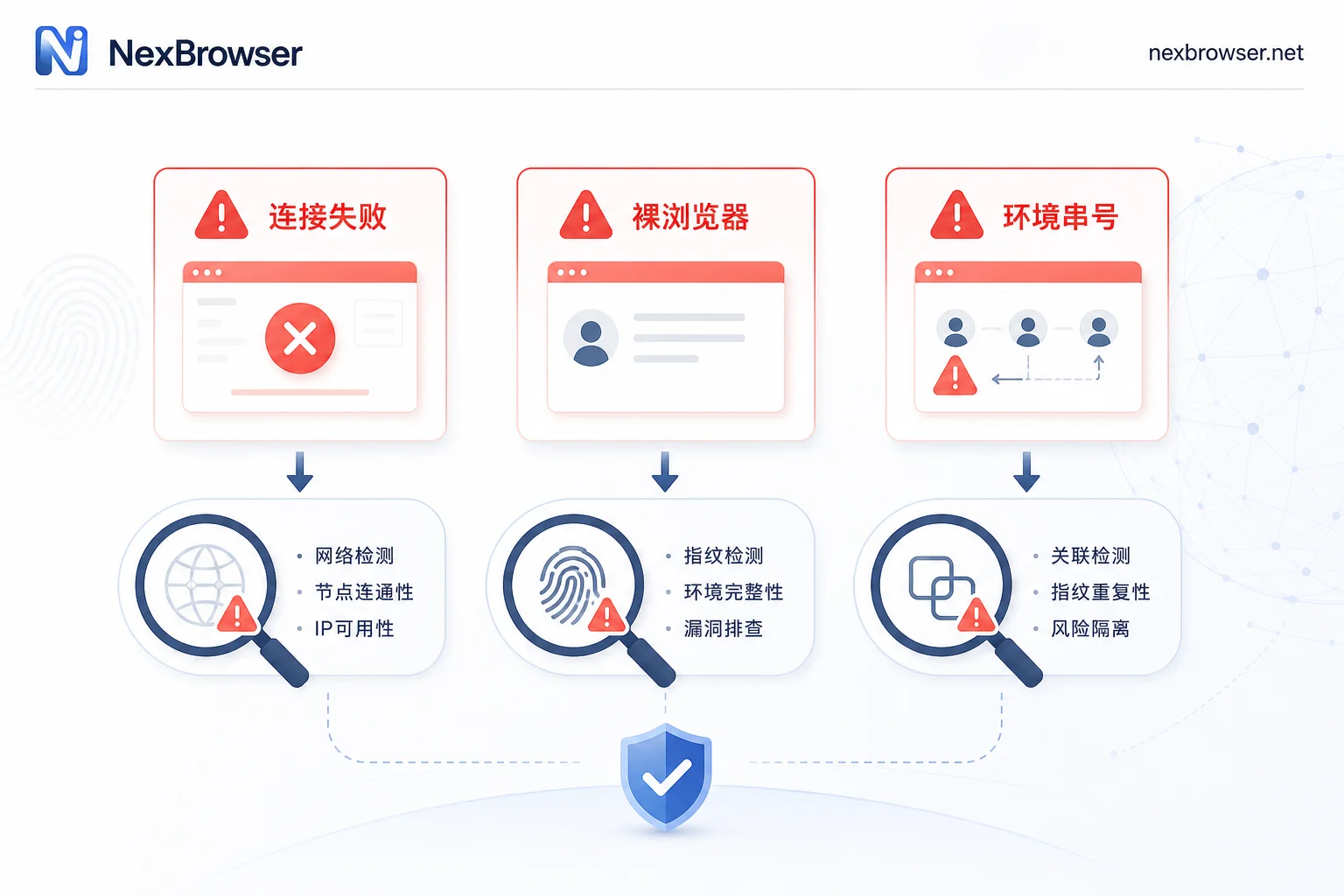
Connection failure, bare browser, cross-talk: How to distinguish three symptom types
When tackling Puppeteer connecting to antidetect browsers, don't rush to modify code; first split the symptoms into three categories. The first type: the connect call directly throws an error or fails during handshake, and the script never reaches the page layer, indicating the endpoint is wrong or debugging wasn't enabled on the environment. The second type: the script runs fine but the page behavior differs from manually opening the environment; the exit address, timezone, or language isn't as expected, often meaning you might not be connected to the intended environment. The third type: when running multiple environments simultaneously, tasks land in the wrong window or sessions pollute each other—a mapping disorder.
These three types have entirely different root causes and cannot be fixed using the same approach. The first diagnostic step is always to check whether the error occurs at the connection stage or the page stage; the second is to determine which environment instance the page context belongs to. Only by separating the symptoms can you avoid going down the wrong path in fetching values.
What differs between the script launching its own browser and taking over an already-running environment
A common pitfall for many teams is treating puppeteer.launch and puppeteer.connect as interchangeable entry points. That's not the case. According to Puppeteer’s official documentation, for an already-running external browser instance, you must use puppeteer.connect({ browserWSEndpoint }) to pass the WebSocket debugging address and establish a CDP session, not call puppeteer.launch() to create a new instance. For a deeper understanding of the differences, refer to Puppeteer integration with antidetect browser for compliant automation.
| Dimension | puppeteer.launch | puppeteer.connect |
|---|---|---|
| Process origin | Script spawns a new browser process | Attaches to an existing target process |
| Kernel configuration | Default Chromium settings | Inherits the environment's loaded fingerprint parameters |
| Network egress | Local machine network stack | Proxy chain bound to the environment |
| Cookie & Cache | Temporary directory or blank | Environment's persistent directory |
| Typical misuse signal | executablePath points to bundled kernel | None |
The process launched by launch uses default Chromium settings and the local network stack—neither the fingerprint parameters, proxy chain, nor cookie/cache directories are from the environment, so no matter how smoothly the script runs, it's just a bare browser. Taking over, on the other hand, attaches a debugging session to a process already started with the environment's configuration. If your script contains launch or an executablePath pointing to a bundled kernel, it's basically this type of issue.
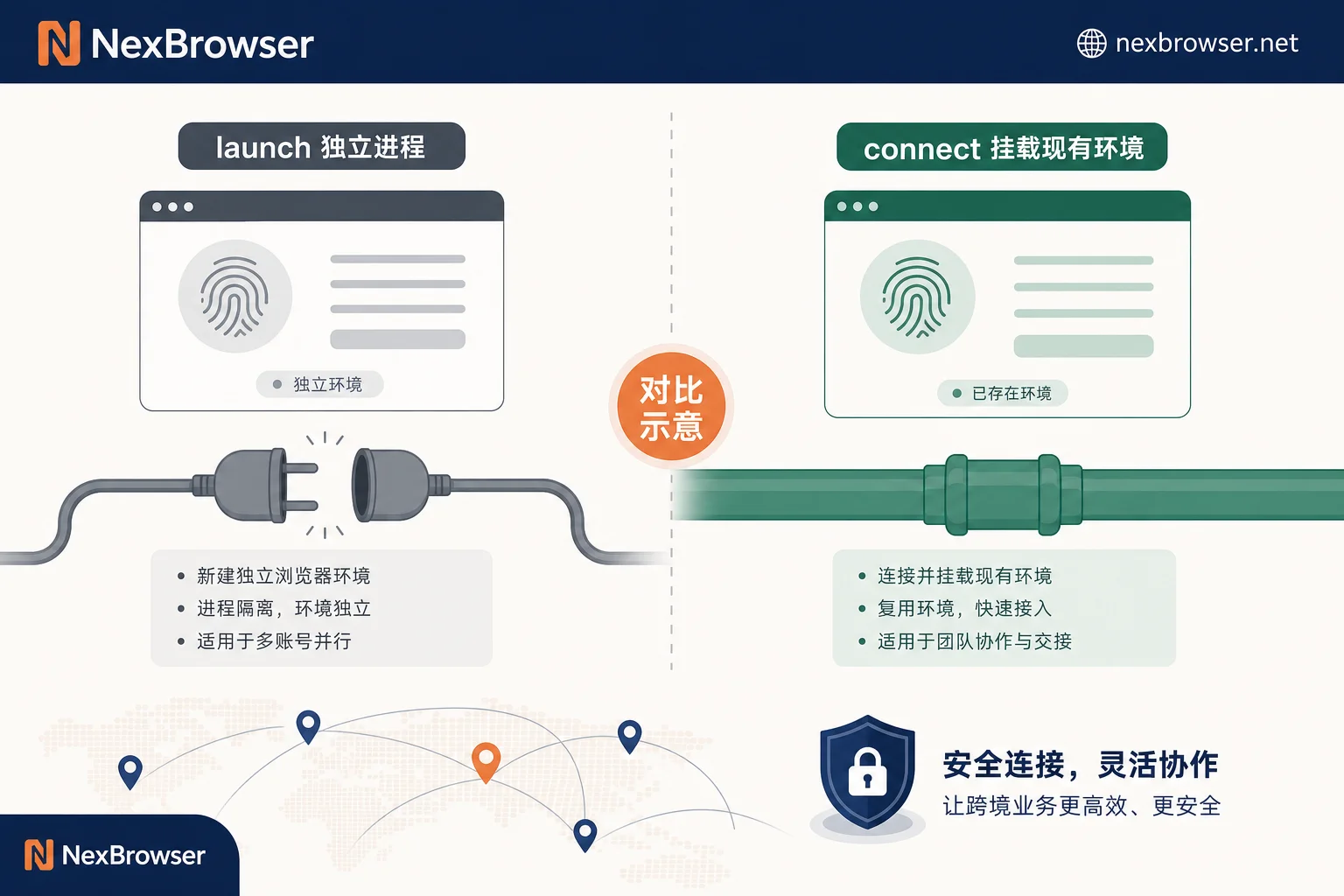
Method 1: Use Local API to start and get the endpoint
The most stable approach is to first start the target environment through the antidetect browser's local interface. The response contains the WebSocket debugging endpoint for that instance, which the script can pass directly to connect. The advantage is that the endpoint maps one-to-one with the environment instance, so there's no need to guess ports; after an environment restart, simply fetch the value again. Note that field names and structures vary by vendor's Local API, so always refer to their specific documentation.
A hard criterion: if you hard-code the endpoint as a constant in the script, connection failure after an environment restart is inevitable. Although dynamic fetching adds an extra API call, it ensures the endpoint always follows the currently active instance.
Method 2: Take over a manually opened environment using the debugging address
The second scenario is when the environment has been manually opened in the client, and the script needs to take over mid-process. In this case, you still need to read the debugging endpoint from the debugging info provided by the client or local API, rather than assuming a fixed address based on experience. When multiple environments run on the same machine simultaneously, endpoints differ, and guessing is almost certain to fail.
Before proceeding, confirm two things: the environment is running, and debugging is enabled. Then confirm that the endpoint you obtained belongs to the target environment, not another window. It's not recommended to disable or tamper with environment security settings to achieve a successful connection, as that would remove the isolation layer.
Method 3: Endpoint mapping and concurrency control when taking over multiple environments in batch
As task scale grows, it's common for technical staff to have Puppeteer control multiple antidetect browser environments at the same time. The approach is to maintain a mapping table from environment ID to debugging endpoint for each environment: start one, record one; when dispatching tasks, fetch the endpoint by ID, and explicitly disconnect (not terminate the process) when done.
The concurrency level is constrained by the machine's CPU, memory, and proxy concurrency limits; the specific threshold varies by machine, so don't copy numbers from others. Endpoint reuse or mapping errors are the direct source of cross-talk in multi-environment setups. When cross-talk occurs, first check whether the environment ID in the task log corresponds to the actual takeover endpoint; if not, the mapping table is polluted.
After kernel follows Chromium iterations, what to check for protocol compatibility
Chromium maintains a fixed release cycle; major versions are released to the stable channel every four weeks (or every two weeks), with weekly refreshes containing security fixes; Chrome 153 was officially rolled out to the Stable channel in late August 2026. Mainstream antidetect browsers are also following the Chromium 151/152/153 kernel upgrades. When the kernel version changes, Puppeteer versions and CDP protocol may mismatch, manifesting as handshake failures or changes in behavior of certain APIs.
An actionable step is to treat kernel upgrades as a trigger: after an upgrade, first run a smoke test script that only opens a page and reads the exit info to validate the takeover, then release the full batch. With NexBrowser, the practice is to use its Local API to start the environment, obtain the debugging endpoint, and hand it to connect for takeover; the script still reuses the environment's bound proxy chain, and the smoke test only needs to confirm that the chain hasn't changed due to the upgrade.
Readings to recheck after successful takeover and long-term signals to monitor
After fixing, verification is essential. In the taken-over page, confirm that the exit address matches the proxy bound to that environment, the timezone and language readings align with the exit ownership, and the page context indeed belongs to the target environment instance. Whether the proxy remains in effect depends on whether the takeover target process was started with a proxy; if you notice the exit IP is your local IP, it's likely the script incorrectly went through the launch branch or connected to another window without a bound proxy. For details, see What to do if the exit IP is still the local IP after binding a proxy.
Long-term signals to monitor include: whether the endpoint is re-fetched after environment restarts, whether the mapping between environment IDs and endpoints remains consistent in concurrent tasks, and whether the smoke test still passes after kernel or Puppeteer version changes. If any of these drift, stop tasks first to investigate, rather than continuing the batch.
It's recommended to fix the following three steps as pre-launch actions: "fetch endpoint via Local API," "verify connect takeover," and "compare proxy exit." For example, using NexBrowser's Local API to start environments with proxy binding ensures every recheck occurs in a truly isolated environment, avoiding interference from local development machines.
FAQ
When connect keeps failing, where to start troubleshooting
First check whether the error occurs at the connection stage or the page stage. For connection-stage failures, prioritize checking whether the environment is running, whether debugging is enabled, and whether the endpoint is taken from the currently live instance. For page-stage anomalies, check whether the takeover target is the correct environment. It's advisable to print the actual endpoint string used for each failure to compare.
What's the real difference between having the script start the browser and taking over an already-running environment
The difference lies in process ownership and configuration inheritance. launch starts a new Chromium with default settings, without the environment's fingerprint parameters or proxy chain; connect attaches the CDP session to a process already started with the environment's configuration. The judgment is simple: if your script includes launch or an executablePath pointing to a bundled kernel, it's likely a misuse.
Where should the debugging endpoint be obtained from, and can it be hard-coded for reuse
The endpoint should be dynamically read from Local API responses or client debugging info; it cannot be hard-coded. Environments may change ports or instance IDs every restart, so a hard-coded constant will inevitably fail after a restart. When running multiple environments in parallel, ensure the endpoint corresponds one-to-one with the environment ID to avoid cross-talk.
After takeover, does the proxy originally bound to the environment still take effect
As long as the connect target is indeed the process started with the proxy, the proxy chain will remain in effect because traffic still routes through the environment's own network stack. If you notice the exit IP is your local IP, it's likely the script mistakenly went through the launch branch or connected to another window without a bound proxy.


Comments(0)