 NexBrowser指纹浏览器-官方博客Blog
Let's start with how much you can save, then how to do it.
OpenAI offers multi-currency billing on the web, and the supported currencies include the Philippine peso (PHP). The Philippine Pro 20x tier is priced at about ₱9,990/month, which converts to roughly $160 at current exchange rates—about $40 less than the $200 USD price, or around 300 RMB; over a year, the difference is three to four thousand RMB. The Plus tier in the Philippines is about ₱999–₱1,100/month, roughly $16–18, also below $20.
Two numbers you should confirm yourself on the checkout page—don't just copy someone else's screenshot:
- Exchange rate. The peso price is fixed; the USD equivalent fluctuates with the exchange rate. The same ₱9,990 might convert to $158 this month and $165 next month.
- Tax. The Philippines imposes 12% VAT on foreign digital services. Whether the listed price includes tax or adds it at checkout depends on the \"Total\" shown on the checkout page—if it's added, ₱9,990 becomes about ₱11,189, and the savings shrink noticeably after conversion. Decide whether to order after seeing the total; it's easier than disputing later.
The currency shown at checkout is determined by the environment
To get the peso price on the web, the browser environment must present a coherent set of Philippine characteristics—IP, timezone, and language—not just a proxy running on your local machine. OpenAI and payment gateways look at the combination of client IP, timezone, language, and browser fingerprint. Drift or contradictions among these most often result not in a ban, but in the price not switching or repeated payment page failures.
So the order is: first make the environment clean, then check the price, and only then discuss payment methods.
Four steps to get a working Philippine environment
Step 1: Create a separate environment; don't reuse an existing window.
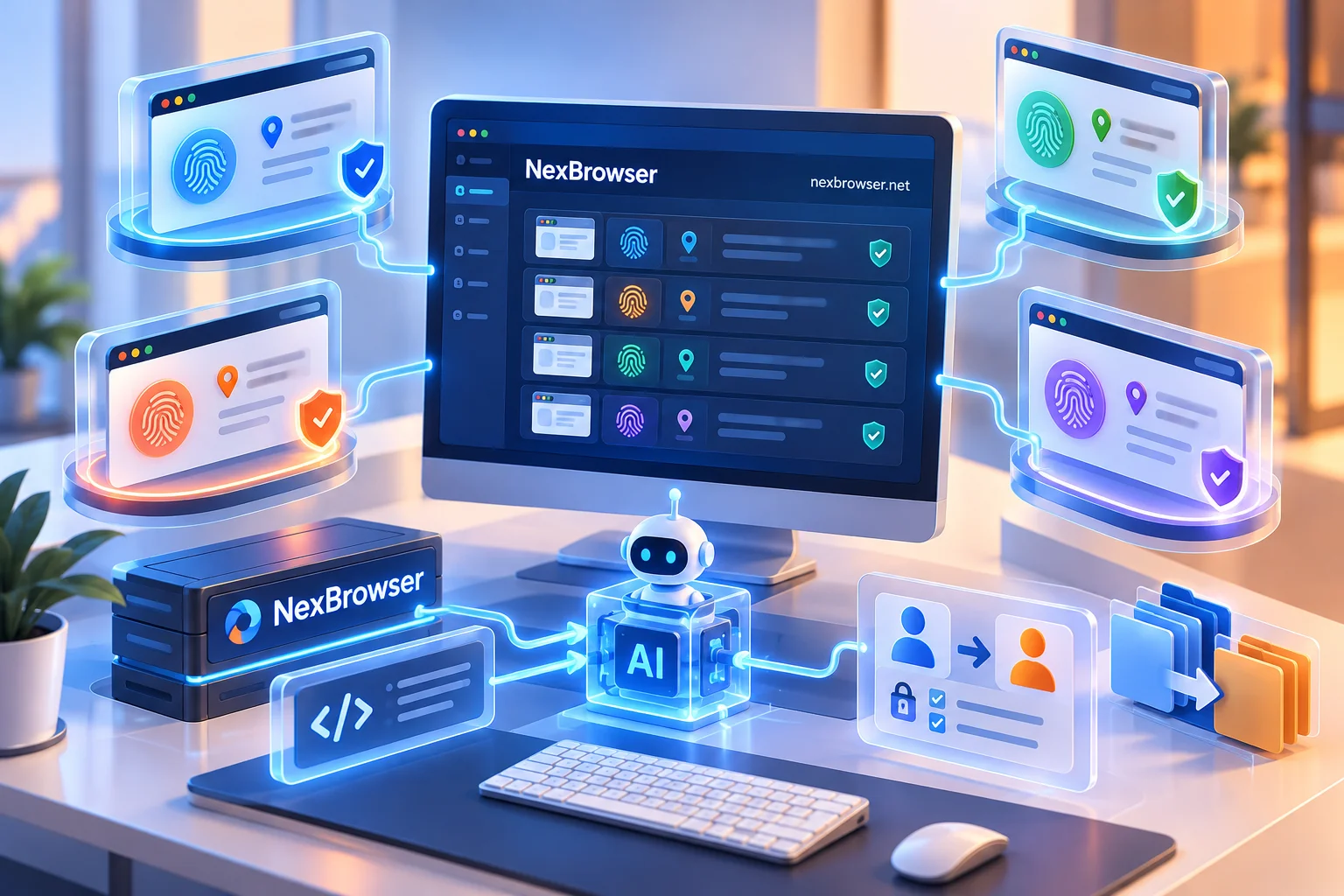
In NexBrowser, create a new environment and group it separately from your daily account environments. Each environment has independent cookies, cache, local storage, and proxy. Fingerprint parameters are configured per environment and kept consistent, so the profile used for the subscription won't be contaminated by historical data from other accounts. The details of this step and the checkpoints for first-time setup are covered in the official guide; if needed, see Download and install to first environment running.
Step 2: Bind a dedicated Philippine exit to this environment.
Proxies are bound per environment, not globally. You can bind a NexIP Philippine residential IP with one click, or import your own HTTP/HTTPS/SOCKS5 proxy and run batch checks. For instructions, see Binding a proxy to each environment: from entry to verifying the exit; the feature location is in Bind proxy per environment and verify exit.
When choosing a line, note two things: first, use a local Philippine residential exit—datacenter IPs are more likely to be blocked during payment. Second, try to keep the same exit throughout the subscription period; if the IP's country changes between the first payment and renewal, billing-side checks become more sensitive.
Step 3: Perform three-layer verification before opening the window.
Exit location, timezone, and language should all point to the same region. For the order and specific checks, see After binding a proxy, how to confirm exit location, timezone, and language are consistent. In particular, check whether WebRTC is leaking your local IP—this is most easily overlooked. The symptom is that the page appears to be on a Philippine IP but the price still shows USD. For troubleshooting, see After binding a proxy, the exit IP is still your local IP—what to do. If the proxy's one-click check fails, follow Troubleshooting order for failed checks first; don't rush to open the window and log in.

Step 4: Log in to the account in this environment and check the currency on the subscription page.
If you see ₱ instead of $, localized billing is active. If you still see USD, go back to Step 3 to check consistency, and then see whether the account's billing region is still set to an old value. One caveat: whether the billing currency of an existing subscription changes with the environment, and to what extent the billing region can be changed, depends on the options actually shown in your account and OpenAI's help center at the time. Don't assume that \"changing the IP will automatically switch it.\"
Payment methods: where cards commonly get stuck
The web checkout goes through Stripe, which is sensitive to the match between card issuer country and IP. Cards from non-Philippine issuers may be declined even in a clean environment—this is a payment-side rule, not a problem with your environment setup. In practice, two common alternatives: use a virtual card that supports PHP charges with a matching billing address, or go through the Philippine App Store / Google Play for in-app purchase—mobile payments are priced in local currency by the app store, requiring an account for that region and a payment method or gift card available there.
Whichever route you take, clarify a few things before swiping: whether the card supports cross-border subscription charges, whether the billing address matches the card's registered details, and whether the checkout total includes an additional 12% VAT. After one or two declines, don't retry too frequently with different cards; multiple failures in the same environment in a short time is itself a risk signal.
Another point that's easy to overlook: the $40 saved must be offset by proxy costs, virtual card fees, and exchange losses. For Pro 20x, it's still worthwhile; for Plus, the difference is only $2–4, so calculate whether the hassle of setting up an environment is worth it.
Stability matters more than the one-time savings
After a successful subscription, don't mess with this environment: don't temporarily switch to another country's exit, and don't use the same environment to log into other accounts. Configurations can be encrypted and synced to the cloud; restoring the same environment and proxy bindings after logging in on a new machine is less error-prone than reconfiguring from scratch—for cross-device consistency, see Logging in to cross-border accounts from a different location to prevent risk control: three-layer consistency for environment sync.
Two final boundary notes. This approach is for using localized pricing on your own account under compliant conditions; it is not for forging identity information, bypassing platform verification, or any operation explicitly prohibited by the platform. No environment or proxy configuration guarantees you won't be risk-controlled. Prices and available payment methods also change with OpenAI and local tax rules; before ordering, rely on what your account's checkout page shows.
If you're ready to get started, install the client and create your first environment: Download NexBrowser (currently available for Windows; macOS in development). The free tier has all features unlocked and doesn't expire; paid plans are for window and member capacity. You don't need to pay to set up a Philippine environment and get the process working.


Comments(0)