 NexBrowser指纹浏览器-官方博客Blog
To restore fingerprint browser environments after switching computers, the correct approach is to use the client's encrypted cloud sync: on the old computer, confirm sync items are enabled, properly close windows and wait for data upload to complete; on the new computer, install the same client, log into the same account, and the environment list, group structure, fingerprint parameters, and bound proxies will be automatically retrieved; before opening environments, test the proxy, and after startup, verify the exit IP. No need to touch local cache directories throughout the process.
Many people's first reaction when switching computers is to find the software's data folder and copy it over entirely. This approach basically doesn't work: the client's locally generated cache and configuration files are usually encrypted with device-specific features, and cross-device overwriting can lead to data corruption or environments failing to load. Migration must rely on the service provider's cloud sync mechanism. Copying directories not only fails to recover login states but may also corrupt otherwise normal data.
Below is the chronological order of what to do.
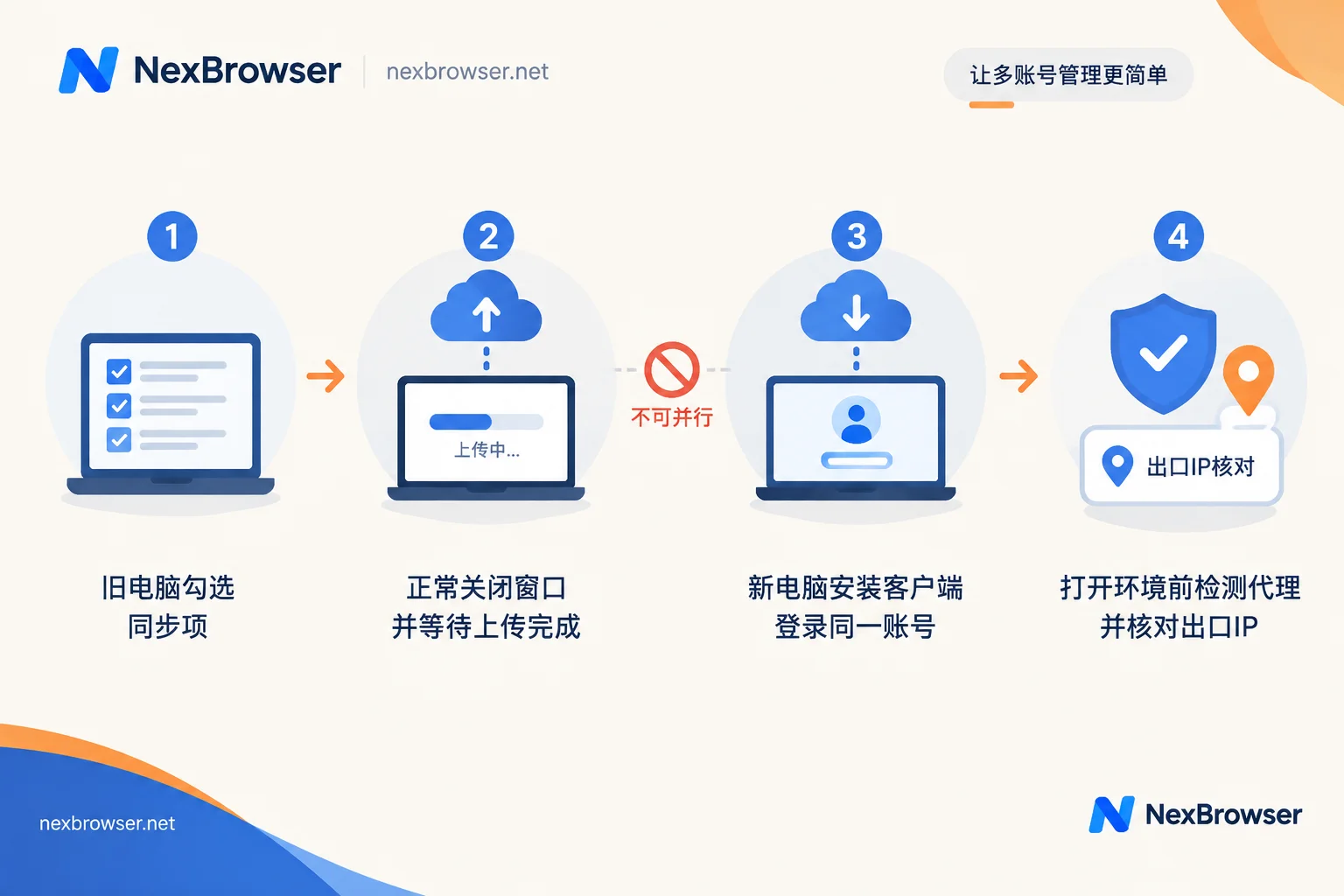
1. While Still on the Old Computer, Complete These Three Things
Confirm sync items are enabled. The location and granularity of sync switches vary across clients—some are in global settings, others allow per-environment selection. Common items include cookies, LocalStorage, IndexedDB, bookmarks, and extension data. The most common pitfall here is syncing only fingerprint parameters and proxy configurations without checking session data, resulting in environments that open on the new computer but require re-login and re-verification for every account. Reviewing the checklist before switching is far easier than fixing it afterward.
Exit properly, don't force-kill processes. Close the browser window using the close button in the top-right corner, allowing the client to fully encrypt and upload this login session and configuration to the cloud. Killing the process in Task Manager, pulling the power, or shutting down directly may prevent the latest session data from uploading.
Go through each environment and prepare verification methods. For environments with important login states, open each one and close it properly to ensure the cloud has the latest cookies. Also, have each account's two-factor backup codes and bound phone number or email ready—triggering two-factor verification after switching computers is highly likely, as explained later.
2. Restoration Steps on the New Computer
- Download and install the same client from the official website, preferably the latest version.
- Log into the same account and wait for the environment list to finish loading.
- Environments, group structures, fingerprint parameters, and bound proxy information will return with the account; when opening corresponding environments, cloud-encrypted cookies and local storage are automatically decrypted and loaded, usually maintaining login-free status.
If you're using NexBrowser: currently the client is available for Windows (macOS version in development; if your new machine is a Mac, you'll need a separate Windows environment). After installing from the official download page, log into the same account. Configurations sync via encrypted cloud, and environment grouping and proxy bindings are restored together. For the complete process from scratch on a new machine, refer to Fingerprint Browser Download and Setup to First Environment: Five Steps and Three Verifications.
By the way, a distinction: Switching computers and switching tools are two different things. Switching computers means syncing the same account across two devices, with data moved via cloud; switching from another fingerprint browser involves exporting/importing environment data and parameter comparisons—a completely different path. See NexBrowser vs AdsPower Feature Comparison and Migration Guide.
3. Before Opening Environments, Verify Proxies First
Switching computers often means switching network exits, which is the most common issue after restoration. The recommended order is:
Test first, then open environments. Run a connectivity test in the proxy list and fix any failures first. Some proxies authorize by IP whitelist; if the new computer's local IP isn't whitelisted, the test fails immediately—such issues require adding the IP in the proxy provider's backend, not the client. For troubleshooting connectivity failures, see How to Troubleshoot Proxy Detection Failures After Import.
Verify exit after startup. Open an environment to access an IP detection page and confirm the exit IP, location, and environment's configured time zone and language match. If it shows your new computer's local IP, the proxy likely isn't working or WebRTC is using a direct channel. For troubleshooting, see What to Do When Exit IP Is Still Local IP After Binding Proxy; for how to verify location, time zone, and language in three layers, see Three-Layer Verification Order.
In NexBrowser, this step is done in the environment's proxy configuration: you can bind NexIP residential IPs with one click, or import your own HTTP/HTTPS/SOCKS5 proxies and batch test them. For details, see Binding Proxy and Verifying Exit. Note that exit IPs are provided by the proxy service; the browser only binds per environment and initiates detection.
4. These Situations After Restoration Are Normal
Being asked for two-factor or manual verification. Even with complete cookies and consistent fingerprint parameters, platforms with stricter risk controls like Google and Discord may still trigger 2FA or manual verification when detecting network path or hardware environment changes. This is a normal risk control response—follow the prompts and use backup codes or bound verification methods. Do not repeatedly switch IPs and retry when verification is triggered; that only makes the environment look more anomalous.
Some extensions missing. Extensions installed through the client's app center generally load automatically with the environment; manually loaded offline CRX extensions usually need to be reinstalled and reconfigured on the new computer. Before switching, note down such extensions and their settings.
One more point to clarify: sync restoration ensures consistency of configuration and session data, but no configuration guarantees accounts won't be associated. No matter how cleanly environments are isolated, account behavior, content, and relationships are still judged by the platform.
5. Two Actions That Will Actually Lose Data
- Force-starting the same environment on the new machine before old machine data finishes uploading. The new machine may push blank or outdated data to the cloud, overwriting the latest session still uploading from the old machine. The order on switching day must be: old machine closed and upload confirmed, then open on new machine.
- Opening the same environment on two computers simultaneously. Both ends generate session data and conflict during upload, with unpredictable results. This is especially important in team scenarios: before handing off an environment to a colleague, confirm your side is closed; when the colleague takes over, don't have the same environment open on another machine.
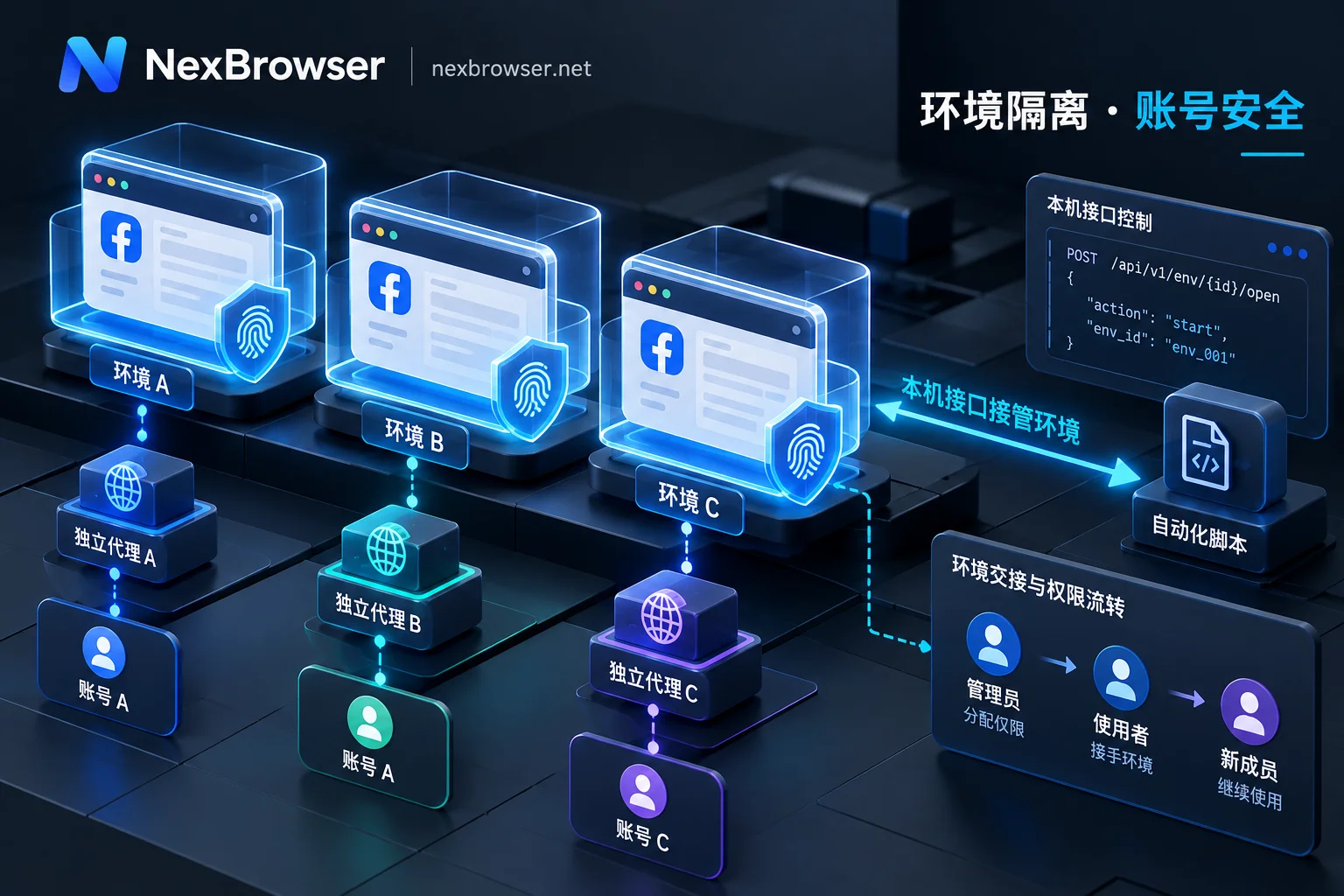
Team handoffs actually don't require sharing account passwords. With role-based permissions and passwordless sharing, members log into the client with their own accounts and get the authorized environments. What's handed off is usage rights, not credentials, making revocation clean afterward.
6. If Environments Don't Return or Data Is Incomplete, Check in This Order
- Are you logged into the same account? In team editions, it's easy to accidentally log into your personal account.
- Are permissions and groups correct? With role-based permissions, members can't see unauthorized groups—that doesn't mean data is lost.
- Was the sync switch checked on the old machine? Without session data checked, only fingerprints and proxy configurations return; accounts need re-login.
- Was the old machine properly exited or force-killed last time? The latter loses the last session segment.
- If all above are normal but data is still missing, contact the service provider's support to confirm the cloud's last sync time for that environment. Don't manually copy local directories.
One last frequently asked question: Can you export an offline backup package to migrate without internet or across accounts? This varies by product strategy. Whether NexBrowser offers manual export of local snapshots should be confirmed with the official website and support at the time; this article makes no assumptions. What is certain: directly moving local cache folders is not a viable alternative.
If you're planning to switch computers, the order is simple: on the old machine, check sync items, properly close each environment, confirm upload completion; on the new machine, install the client, log into the same account, test proxies before opening environments, verify exit IP and time zone/language, then log into business platforms.


Comments(0)