 NexBrowser指纹浏览器-官方博客Blog
In daily cross-border operations and AI creation, many teams find that their paid ChatGPT subscription suddenly becomes "slow-witted": despite selecting a high-tier model, the AI gives brief answers within seconds, fails to read uploaded tables and images, or even refuses deep thinking. This phenomenon, where there is no visible error on the frontend but the output quality significantly drops, is known in the industry as "ChatGPT degradation" (silent model downgrade).
The core of ChatGPT degradation lies in OpenAI's dynamic risk control review mechanism set up in the backend to counter malicious crawlers, abusive requests, and high-risk network environments. When the system determines that the access environment is abnormal, it silently routes the underlying model calls to a lower-compute version.
1. Why is ChatGPT "Secretly Downgraded"? Risk Control Logic Explained
When receiving user conversation requests, the platform's risk control system evaluates from two dimensions: network identity and device environment:
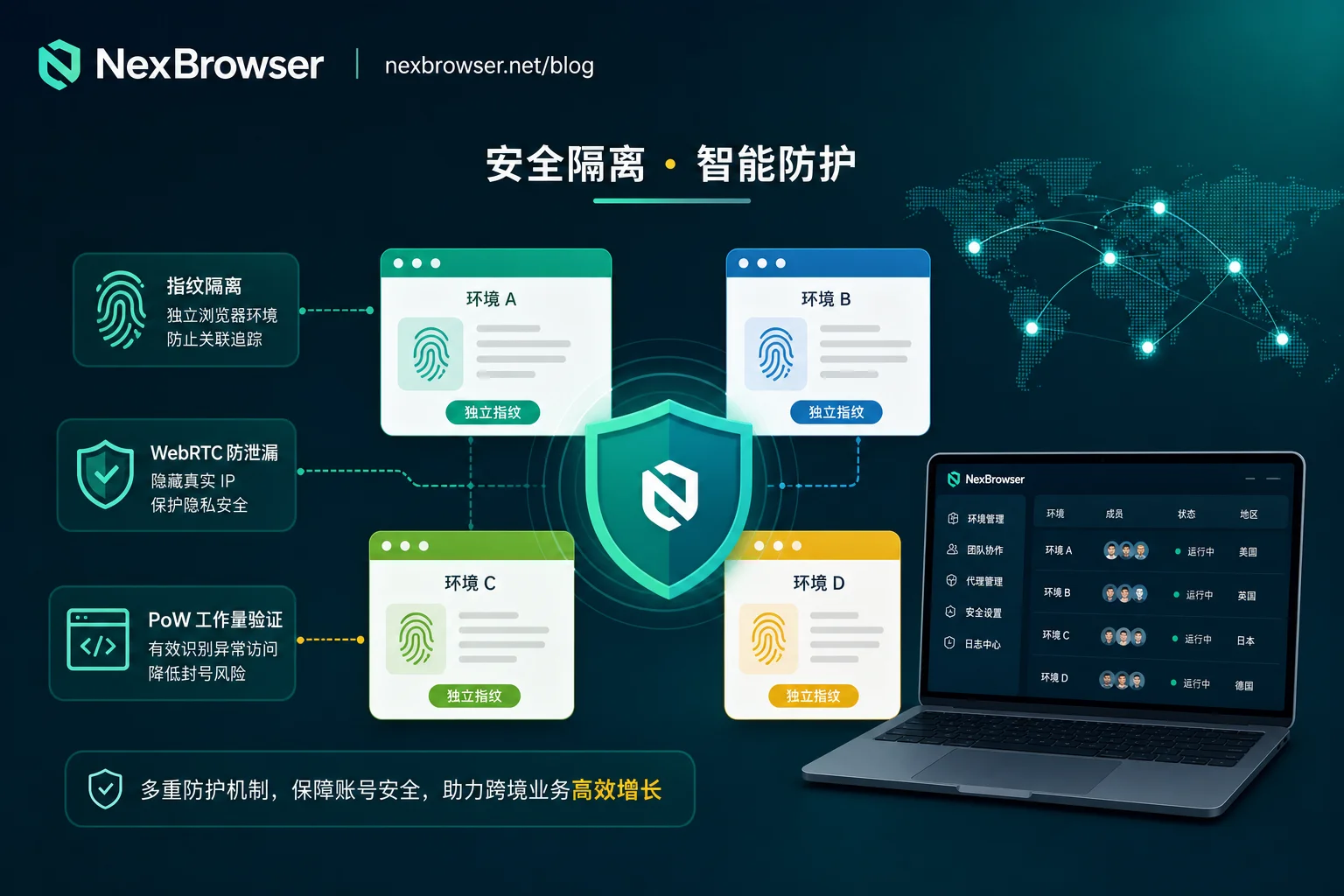
- IP Address Contamination and Shared Node Risk: Using shared airport nodes or data center IPs can lead to a large number of high-frequency requests under the same IP segment. OpenAI marks such IPs as high-risk, triggering protective throttling.
- Proof of Work (PoW) Verification: OpenAI introduces PoW difficulty checks on the web frontend. When the IP risk level rises, the system may lower difficulty targets or restrict advanced tools (such as code interpreter, web search) access.
- Browser Fingerprint and Environment Exposure: WebRTC leaks the real local IP, Canvas/WebGL hardware signature conflicts, and frequent changes in browser environment parameters all raise suspicion about the account's true identity.
According to 36Kr, OpenAI's official documentation also confirms that when high-risk access traffic or phase compute quota overuse is detected, the frontend may retain the original model label, but the backend may silently switch to a lower-compute version [36kr.com/p/2847192847921281].
2. How to Determine if Your ChatGPT Account Has Been Downgraded?
To confirm whether the current session is silently downgraded, you can self-check using the following three intuitive methods:
| Check Dimension | Normal State Performance | Degraded State Performance |
|---|---|---|
| Tool Availability Test | Input Summarize your tool in a markdown table returns full feature list | Only returns 1-2 basic tools, unable to call drawing/code interpreter even |
| Multimodal Parsing Capability | Can extract text from images and analyze Excel tables normally | Prompts "cannot process this image" or fails to read attachments |
| Frontend PoW Difficulty Value | In F12 developer tools, PoW difficulty of chat-requirements is greater than or equal to 4-digit hexadecimal | PoW difficulty too low (e.g., less than or equal to 000032), indicating IP is in a high-risk zone |
3. Three Key Steps to Completely Solve ChatGPT Degradation
To restore ChatGPT's full reasoning capability, the core is to build a compliant, stable, and clean access environment:
Step 1: Switch to Exclusive Static Residential Proxy
Avoid using public nodes or data center proxies to access AI tools. It is recommended to use exclusive static residential IPs (Residential IP) to ensure the IP's geolocation matches the account registration location, reducing the network risk score.
Step 2: Completely Block WebRTC Leaks and Fingerprint Conflicts
Traditional browsers can leak the real LAN or public IP via WebRTC when using a proxy, causing the system to detect the proxy environment. You need to enable WebRTC replacement or completely disable the protocol in browser settings [adspower.net/blog/chatgpt-degradation-causes-and-adspower-solution].
Step 3: Establish an Independent Environment Sandbox Isolation
Avoid frequently logging in and switching between multiple AI accounts or cross-border platform accounts in the same standard Chrome window. Cookie residue and hardware fingerprint cross-association are common causes of triggering risk control review [torres-ai.com/chatgpt-degrade-solution].
4. Combining NexBrowser to Build a High-Cleanliness AI Operations Environment
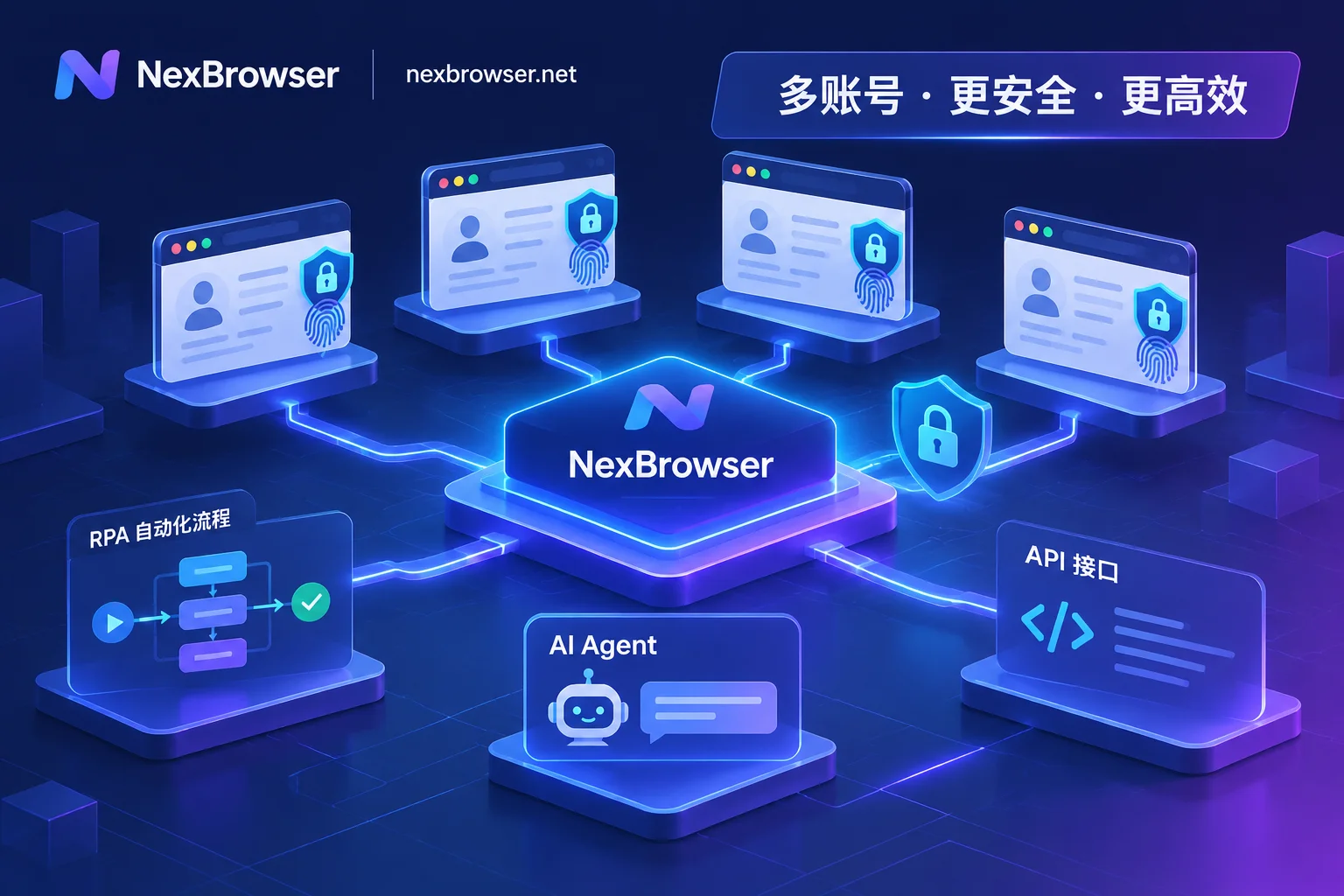
For team collaboration and multi-account operations, using the NexBrowser anti-detection fingerprint browser can create a pristine isolated environment for each ChatGPT account, effectively avoiding risk control downgrades:
- Kernel-Level Fingerprint Spoofing and Chrome Environment Simulation: NexBrowser deeply reconstructs Canvas, WebGL, AudioContext, User-Agent, and other fingerprint parameters at the bottom layer, making the generated browser environment appear as a real independent hardware device.
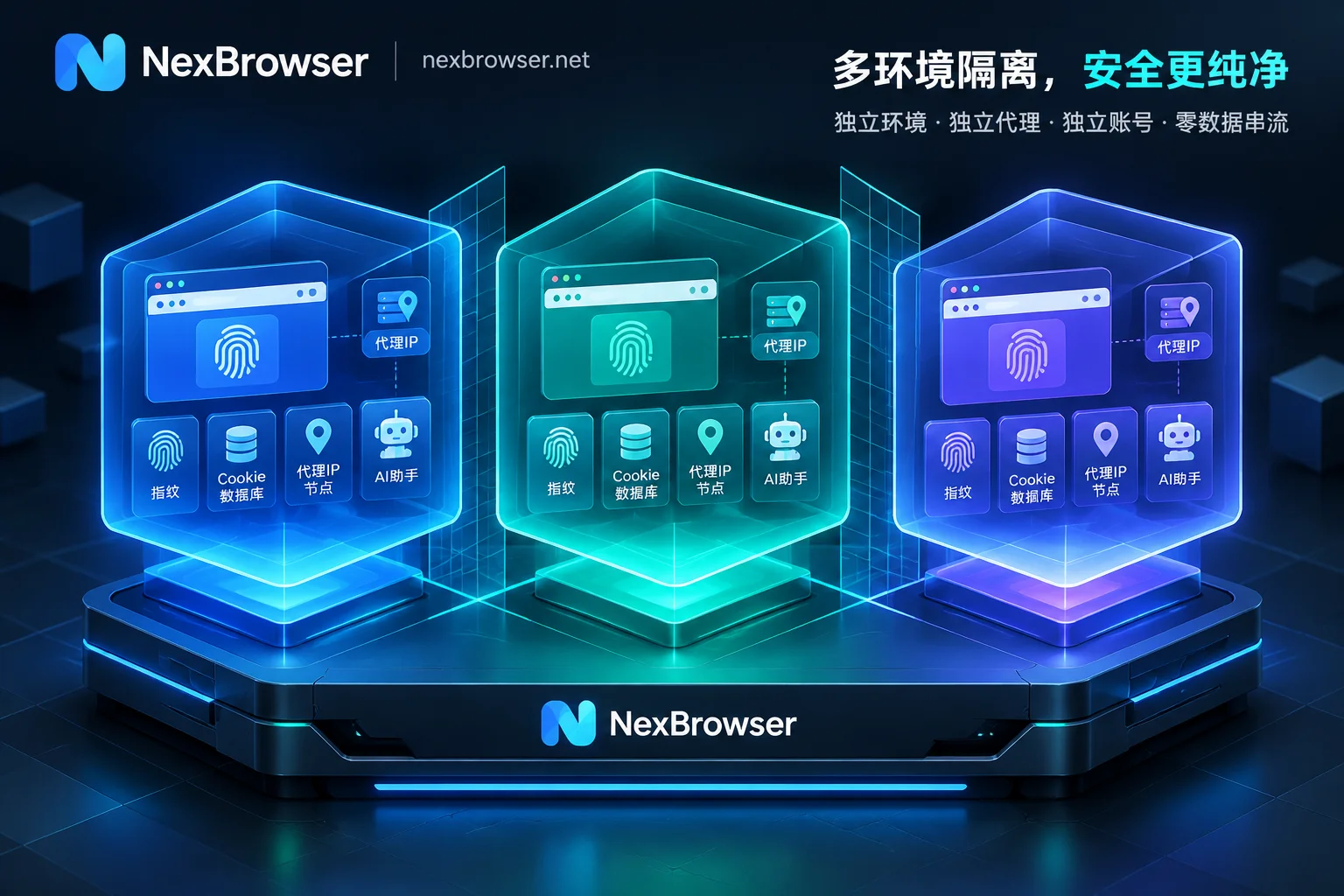
- Precise Proxy Binding and WebRTC Security Isolation: In NexBrowser, configure separate HTTP/HTTPS/SOCKS5 static proxies for different environments and enable WebRTC auto-masking to ensure the real IP never leaks.
- Multi-Account Independent Cookie Isolation and Team Collaboration: Through NexBrowser's independent environment isolation mechanism, operations teams can safely manage sessions and collaborate, avoiding account association downgrades caused by environment confusion.
5. Long-Term Maintenance Recommendations and Common Misconceptions
- Clear Historical Cache: After adjusting the proxy environment, clear the corresponding environment's cookies and local cache before re-logging into ChatGPT.
- Avoid Frequent Cross-Region Switching: Do not change proxy nodes arbitrarily during a session; keep the node geolocation consistent.
- Combine with Local API and Automation Frameworks: For batch tasks, it is recommended to use compliant APIs and environment isolation tools in conjunction to ensure stable business operations.


Comments(0)