 NexBrowser指纹浏览器-官方博客Blog
When testing a fingerprint browser environment, the focus is not on whether a detection website gives a perfect score, but on three things:
- Does the network layer leak? Whether the real LAN IP or local public IP bypasses the proxy through WebRTC or DNS.
- Do parameters across layers match? Whether the proxy exit, HTTP headers, JavaScript APIs, GPU rendering, timezone, and language all describe the same device and the same region.
- Are there spoofing traces? If parameters like Canvas and Audio are crudely randomized, they may themselves be identified as tampering.
In practice, you can use three public tools separately: BrowserLeaks to check underlying data item by item, Pixelscan to quickly see overall consistency, and CreepJS to find logical contradictions between APIs. Cross-checking results from all three is more reliable than staring at a single score.
One prerequisite to clarify first: the risk control models of business platforms are not public, and passing all public detection tools does not mean the platform will definitely not flag associations or trigger risk control. Detection can help you find configuration errors and obvious leaks, but it cannot guarantee account safety. For basic fingerprint concepts and whether multiple profiles will be associated, you can first read the official guide; this article will not elaborate on that.
Before Detection, Do These Three Steps
- Test in the environment you want to check. Different environments have different fingerprint parameters and proxies, so results from environment A cannot represent environment B.
- Confirm the proxy is connected first. If the proxy itself cannot connect, the later exit checks are meaningless.
- The detection environment should match actual usage. If the environment is usually taken over by a script, test it again while the script is in control; results may differ between manual launch and script connection.
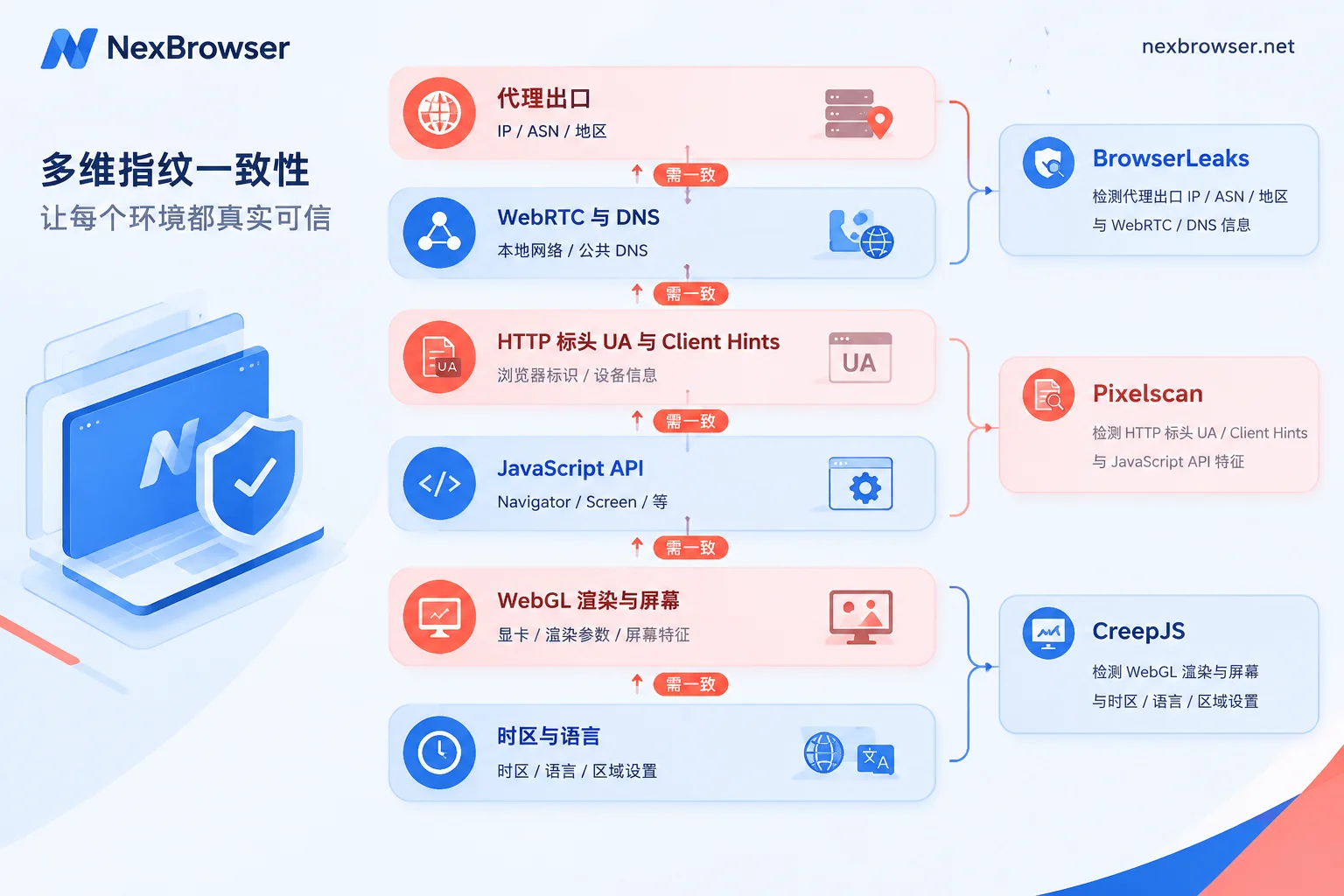
Check by Layer: What to Check and What Normal Results Look Like
| Detection Layer | Where to Check | Normal Result | Common Issues |
|---|---|---|---|
| Exit IP / ASN / Region | BrowserLeaks IP page, Pixelscan | Matches the country and ISP of the bound proxy | Shows local broadband or another proxy node |
| WebRTC | BrowserLeaks WebRTC page | No local LAN IP or real public IP visible | List contains 192.168.x.x or local ISP IP |
| DNS | BrowserLeaks DNS page | DNS servers match the proxy region | Local ISP DNS appears |
| UA and Client Hints | Pixelscan, CreepJS | User-Agent, userAgentData, and platform are consistent | UA says Mac, but Sec-CH-UA-Platform says Windows |
| WebGL / Screen | BrowserLeaks WebGL page, CreepJS | GPU information matches the declared OS, resolution is reasonable | Mac environment exposes DirectX/ANGLE, or SwiftShader, llvmpipe appears |
| Timezone / Language | Pixelscan, CreepJS | Timezone, offset, and language match the exit IP region | IP is in the US, but timezone is UTC+8 and language is Chinese |
| Canvas / Audio | CreepJS, Pixelscan | No tampering or noise warnings | Tampering / Noise detected warnings |
Below is a layer-by-layer explanation of how to judge.
1. Network Exit: First Rule Out Real IP Leakage
Check this layer first, because once there is a problem here, it does not matter how accurately the later parameters are configured.
- Exit IP: Confirm that the IP, ASN (ISP), and geolocation all match the proxy bound to this environment.
- WebRTC: WebRTC obtains local addresses through STUN requests. If the detection page shows your LAN address or home broadband public IP, it means real network information has bypassed the proxy and leaked.
- DNS: If DNS requests do not go through the proxy, the detection page will show the local ISP's DNS servers.
2. UA and Client Hints: Changing Only Half Is Most Problematic
Modern Chromium browsers not only provide the traditional User-Agent string but also expose browser information through User-Agent Client Hints, including the Sec-CH-UA, Sec-CH-UA-Platform, and Sec-CH-UA-Model headers, as well as navigator.userAgentData in JS. If you only change the UA string while the other two remain original, you get a combination rarely seen on real devices.
How to check: Compare the UA displayed on the detection page, navigator.platform, and the platform field in Client Hints together. The operating system and browser version should all be consistent.
3. Rendering and Platform: GPU Information Must Match the Declared OS
WebGL's unmasked vendor and renderer expose the real graphics stack. If the environment claims to be macOS or mobile, but the rendering information shows Windows DirectX/ANGLE, native Linux drivers, or virtual machine/software renderers like SwiftShader or llvmpipe, that is an obvious contradiction.
Also check screen resolution, window.devicePixelRatio, and color depth. The combination of these values should correspond to a real device, such as a common laptop resolution with a reasonable pixel ratio.
4. Timezone and Language: All Four Must Align
Check whether the following items all match the region of the exit IP:
- The timezone name returned by
Intl.DateTimeFormat().resolvedOptions().timeZone - The offset returned by
new Date().getTimezoneOffset() navigator.languages- Accept-Language in request headers
The most common mistake is: the IP is in the US, but the timezone and language still follow the local Chinese system settings.
5. Canvas and Audio: Adding Noise Is Not Necessarily Better
Some solutions add random noise to 2D Canvas or Web Audio output to change the hash value. If the random algorithm is crude, repeated reading or drawing standard graphics may produce mathematical anomalies, which CreepJS and Pixelscan can directly identify, warning of tampering or noise.
When you see such warnings, it is not advisable to continue increasing the randomization intensity. Keeping the hardware's native rendering output, or using parameter templates based on real devices, is usually more credible.
6. Under Script Takeover: Check One More Automation Indicator
If the environment is taken over by tools like Selenium, Puppeteer, or Playwright, check the value of navigator.webdriver while under takeover, and see whether the detection page warns of CDP connection or automation-related variables. This item is to confirm that the takeover method matches your expectations. Whether the platform allows automated operations is subject to the platform's own terms. For takeover methods, refer to Puppeteer / Playwright Takeover of Fingerprint Browser Environment.
After Finding Issues, Fix in This Order
- Fix the network layer first. For WebRTC or DNS leaks, or incorrect exit IP, first change the proxy or adjust proxy settings, then retest.
- Then fix platform consistency. Adjust UA, Client Hints, WebGL, and screen parameters as a whole for the same operating system; do not piece together items from different platforms.
- Then align the region. Timezone and language should follow the exit IP.
- Finally, look at noise. If there are tampering warnings, reduce or disable randomization and switch to natural parameter combinations.
After each layer is fixed, retest with the three tools above. If you change many items at once, it is hard to tell which one caused a problem.
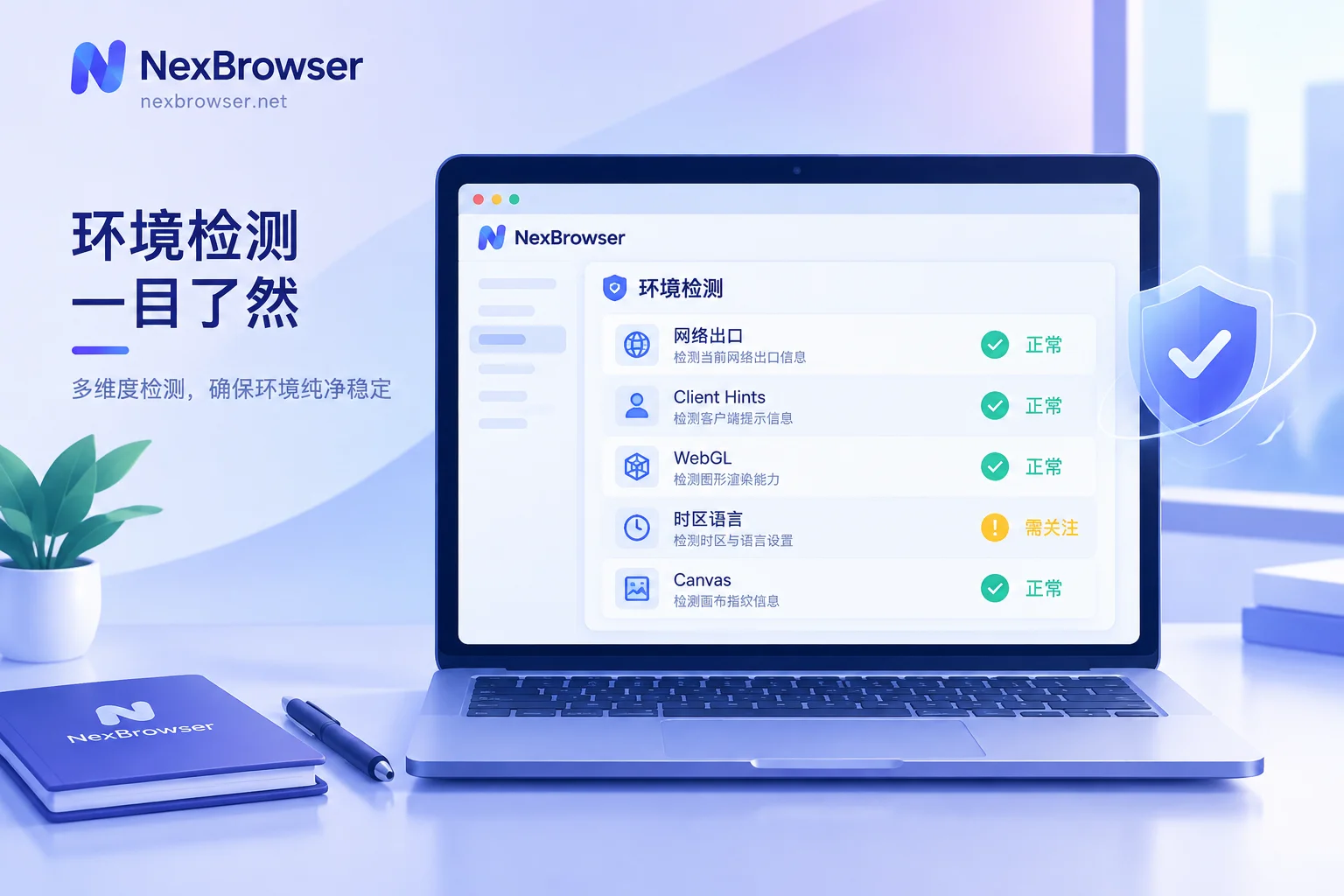
In NexBrowser, each environment has independent cookies, cache, local storage, and proxy; fingerprint parameters are also configured separately per environment and kept self-consistent. Steps 1 and 3 can be done like this: import an HTTP/HTTPS/SOCKS5 proxy or bind a residential IP in the environment's proxy settings, then use one-click detection to verify the exit country, timezone, and connection status; start business only after confirming there are no issues. For details, see Bind Proxy and Verify Exit. Once an environment is tuned, you can save it as a template and duplicate it; the duplicate new environment must also be tested separately. For how to do that, refer to How to Save Browser Environments as Templates and Duplicate in Bulk.
What Detection Tools Cannot Cover
Public detection pages can only see static data at a certain moment. They cannot fully assess the following types of situations:
- Behavioral characteristics: mouse trajectories, keystroke rhythm, scrolling speed, etc.
- Network behavior flow: TLS session reuse, connection latency jitter, etc.
- Platforms' own scoring methods: the risk control weights of platforms like Google, Meta, and Amazon are not public; a green light from a detection tool is not the same as the platform's judgment.
Therefore, detection serves to rule out configuration errors and obvious leaks, but it cannot be a guarantee of account safety. Accounts themselves should also be used within the scope permitted by platform rules. If you want to systematically test across different scenarios, continue reading Testing Whether Your Fingerprint Browser Is Really Effective.
Ready to run this set of checks on your own environment? You can first download NexBrowser (currently a Windows client is available; the macOS version is still in development). All features are available in the free tier, so you can directly create environments, bind proxies, and run detection.


Comments(0)