 NexBrowser指纹浏览器-官方博客Blog
Direct answer: An anti-detect browser mainly consumes RAM, and it only consumes resources for windows that are currently open at the same time; a standard 16GB RAM Windows 10/11 (64-bit) computer can stably run 6-10 windows simultaneously, 8GB RAM should be kept to within 2-4 windows, and 32GB RAM can support 15-25 or more concurrent windows.
When many people first prepare to use an anti-detect browser, their two biggest worries are "I only have an ordinary office laptop—will managing forty or fifty accounts freeze it completely?" and "why do my fans spin like crazy or the browser crash after I open only five or six windows?" In fact, as long as you separate "total number of profiles" from "number of concurrent windows," an ordinary computer can smoothly manage dozens or even hundreds of accounts.
1. Why does an anti-detect browser consume more RAM than a regular browser?
In regular Chrome, 10 open tabs share the same browser main process, the same cache, and the same underlying environment; but in an anti-detect browser, to keep accounts from being linked to each other, each open window is essentially an independently launched Chromium kernel instance.
Each running window separately spins up:
- An independent renderer process and GPU/Canvas context: to maintain its own isolated hardware fingerprint behavior;
- Independent Cookie, local storage, and IndexedDB mounts: to ensure login states and sessions cannot read each other;
- Independent network forwarding and extension runtime space: to carry the per-profile proxy exit and extensions.
Because "multiple complete kernels run at the same time," a single active window typically consumes 350MB-900MB of RAM (depending on page complexity). If you open 10 ad dashboards or video streaming pages simultaneously, the browser alone will eat 6GB-9GB of RAM.
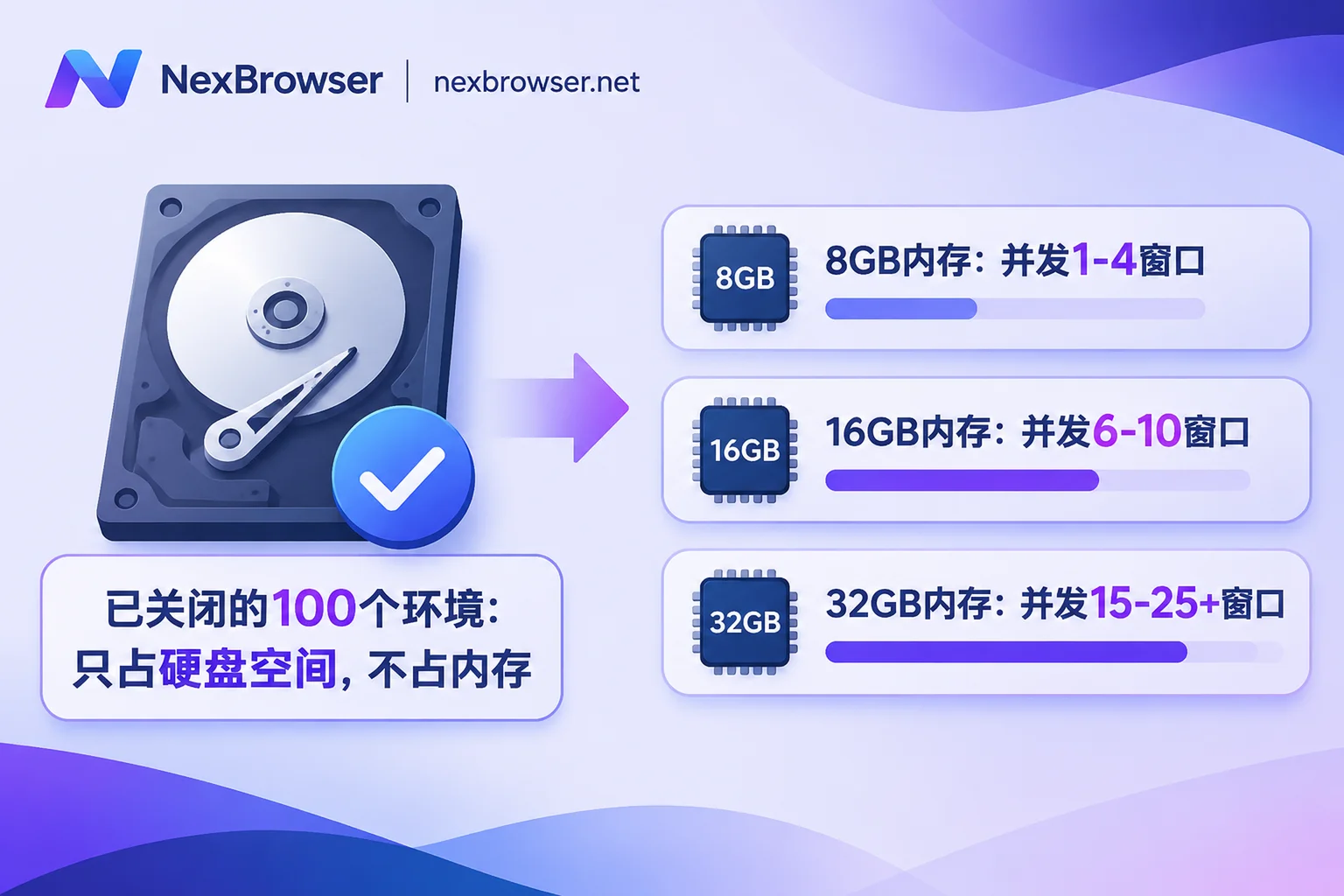
2. How many windows can 8G / 16G / 32G computers open simultaneously?
First, remember one hard rule: the operating system itself takes 3GB-4GB of RAM. The remaining available memory is the budget you can allocate to multiple windows. Based on daily e-commerce dashboards, social media feeds, and lightweight web operations, here are realistic concurrency references for different configurations:
| Computer configuration (Windows 10/11 64-bit) | Recommended stable concurrent windows | Suitable business scenarios | Bottlenecks to watch |
|---|---|---|---|
| 4 cores / 8GB RAM | 1-4 | Beginner account testing, rotating a small number of personal accounts | Very narrow memory headroom; cannot simultaneously run WeChat/video editors or heavy video pages |
| 6-8 cores / 16GB RAM | 6-10 | Individual cross-border sellers, daily account warming and window sync for small social media matrices | Around 10 windows, control the number of tabs per window and reserve enough disk space |
| 8+ cores / 32GB RAM | 15-25+ | High-frequency window sync, centralized multi-store product listing, running multiple local scripts | Beyond 15 concurrent windows, not only RAM matters—CPU multi-core scheduling and proxy bandwidth also become tight |
Two most easily overlooked hardware thresholds
- Never force it on a 32-bit system or an old Win7 machine: A 32-bit system has a memory addressing limit of only about 4GB, which simply cannot support multi-opening workflows. Mainstream workbenches (such as the NexBrowser client) currently support Windows 10 / 11 (64-bit) and do not support Windows 7 or 32-bit systems; if your team uses macOS, note that the macOS client is still in development, so it is currently recommended to deploy on 64-bit Windows machines.
- "Saving 100 profiles" does not equal "opening 100 windows simultaneously": Many beginners mistakenly believe that having many accounts means they must buy a top-spec workstation. In reality, profiles that are not started only take up disk space (storing Cookies and cache files) and consume no RAM or CPU. A 16GB computer can fully create and maintain 80-100 independent profiles long-term, as long as you open 6-8 at a time in batches.
3. Why does it lag, freeze, or crash after opening only a few windows?
In practice, many people confuse "web pages spinning" with "computer freezing," and blindly adding RAM does not help. When you encounter lag, troubleshoot in the following 5 steps, from outside to inside:
1. First distinguish "proxy lag" from "computer lag"
If clicking the browser app itself and switching windows is smooth, but pages load extremely slowly or report errors, this is usually not insufficient hardware but high proxy link latency or packet loss.
- Solution: Test connectivity and latency before starting. For example, in NexBrowser, you can import single or batch HTTP/HTTPS/SOCKS5 proxies and then run a one-click test; before a profile starts, the proxy exit is also verified, and startup is blocked if the test fails, avoiding opening a bunch of dead-link windows that waste RAM (for more network isolation details, see Proxy and Residential IP Guide).
2. Too many "heavy tabs" and extensions left in a single window
A window with 1 login page versus a window with 8 backend reports and 4 extensions can consume 3 times the RAM. In particular, pages involving video decoding such as YouTube or TikTok web, or ad management dashboards that constantly refresh data, can easily push a single window past 1GB.
3. Disk space is nearly full and virtual memory cannot write
When physical RAM approaches 90%, Windows moves some data to virtual memory (page file) on the disk. If your C drive or the SSD holding browser cache has only a few GB left, the system will experience full-screen freezes or simultaneous browser crashes. For multi-opening machines, always reserve 30GB or more of available SSD space.
4. Background "bloatware" and other Chromium apps compete for resources
When you have dozens of regular Chrome tabs, VS Code, Feishu/DingTalk, cloud drive sync, or video conferencing apps open, several hidden Chromium instances are already running. Closing unnecessary background apps often immediately frees up room for 2-3 more concurrent windows.
5. Too many concurrent windows with no operation throttling
During window sync or automation scripts, if 12 windows refresh pages and render charts at the same millisecond, CPU instantly spikes to 100%, and even 32GB RAM will lag like a slideshow.

4. Without buying a high-spec computer, how can you make multi-opening smooth through workflow?
Compared with spending money to stack 64GB of RAM, changing how you schedule windows is often far more cost-effective. Combined with the NexBrowser workbench mechanism, you can maximize single-machine efficiency with these 4 low-cost approaches:
1. Use "group tags + batch start/stop" instead of leaving windows running long-term
In NexBrowser, you can tag profiles by platform, store, or owner, then batch create, batch bind proxies, and batch start/stop (see Multi-Account Profile Isolation). Rather than leaving 24 windows running in the background eating RAM all morning, split them into 3 groups of 8 and batch-start each group: when the first group is done, batch-close it immediately to free RAM, then launch the second group.
2. Enable operation intervals and throttling during "window sync"
For batch operations that require human judgment (such as batch login verification or synced setting adjustments), using Window Sync with 1 master window driving a few slave windows is much faster than switching accounts one by one. The key is to turn on operation interval and throttling, so clicks, input, and navigation in slave windows are staggered, and enable auto-arrange windows at the same time. This prevents instantaneous CPU spikes and reduces misoperations.
3. Hand fixed workflows to RPA or Local API queue scheduling
If you have 50 accounts that need scheduled daily check-ins, data collection, or status reporting, never open them all manually at once.
- Business operators can use NexBrowser's built-in RPA scripts (currently Beta) to orchestrate conditional logic and failure retries on a no-code canvas, bind a batch of profiles, and execute by queue;
- Developers can directly enable the client's Local API (together with CDP to control Playwright, Puppeteer, or Selenium) and write a concurrency pool control script: keep only 5 profiles online at a time, close one when it finishes, then start the next (for specific interface mechanisms and concurrency scheduling ideas, see this API Runtime and Concurrency Scheduling Guide).
4. Teams can distribute load across multiple ordinary computers via "cloud encrypted sync"
If one person really hits a single-machine bottleneck watching 50 accounts simultaneously, there is no need to build an expensive server. When a profile is closed, NexBrowser encrypts and syncs Cookies and local storage to the cloud according to the selected scope, and restores them after logging in on another machine (passwords stored in the window remain only on the local machine and are not migrated with sync). In team collaboration mode, the founder distributes profiles in different groups to members without passwords based on roles and permission matrices, and only one member can open the same profile at a time. In this way, 3 operators each using an ordinary 16GB computer can steadily handle the workload of hundreds of profiles without worrying that multiple people opening the same profile will overwrite each other's data (for the device-switching process, see the Cross-Device Migration Guide).
5. Test your real concurrency limit before going live
Different websites consume computer resources very differently—running 10 static dashboards is not the same as running 10 high-load ad dashboards. If you are still unsure how many windows your current computer can handle concurrently, the safest approach is not to blindly buy a high-spec solution but to test once with real profiles:
- Install the Windows 10/11 (64-bit) client from the NexBrowser Download Page (if you want to understand the underlying isolation principles first, read What Is a Fingerprint Browser);
- Create several test profiles through the Free Version Entry (NexBrowser features are not tiered; the free tier offers full functionality with no credit card required—for specific window and member quotas, refer to the official campaign page);
- After binding proxies, open 3 windows and load the actual business pages you normally operate, while opening Windows Task Manager to observe RAM and CPU usage; add 2 windows each time until RAM usage approaches 75%-80%—that number is your computer's safest, lag-free "golden concurrency line."
Once you understand your machine's concurrency limit, whether you later add window and member capacity as needed through the Pricing Plans, or use window sync, RPA, and API batch scheduling, you will no longer face the awkward situation of "buying more accounts while the computer gets slower and slower." If you need details on window sync operations, you can also read Three Safeguards Against Misoperations in Window Sync.