 NexBrowser指纹浏览器-官方博客Blog
Don't rush to log in after binding the proxy. First, run a verification in three layers: network exit → leak surface → browser runtime. A few minutes will catch most obvious contradictions.
Do this:
- In this environment's own window, open ipinfo.io or browserleaks.com/ip and check if the exit IP, country/city, ASN, and ISP type match your purchased proxy.
- On the same tools, run WebRTC and DNS leak tests to ensure no second IP appears.
- Open browserleaks.com/javascript (or press F12 and type in the console), read
Intl.DateTimeFormat().resolvedOptions().timeZone,new Date().getTimezoneOffset(),navigator.language, andnavigator.languagesto see if they point to the same region.
If a layer mismatches, fix that layer first, then restart the environment and re-run from step one—don't skip layers, because lower-layer symptoms often stem from higher-layer misconfigurations.
Why Layer-by-Layer Verification Matters
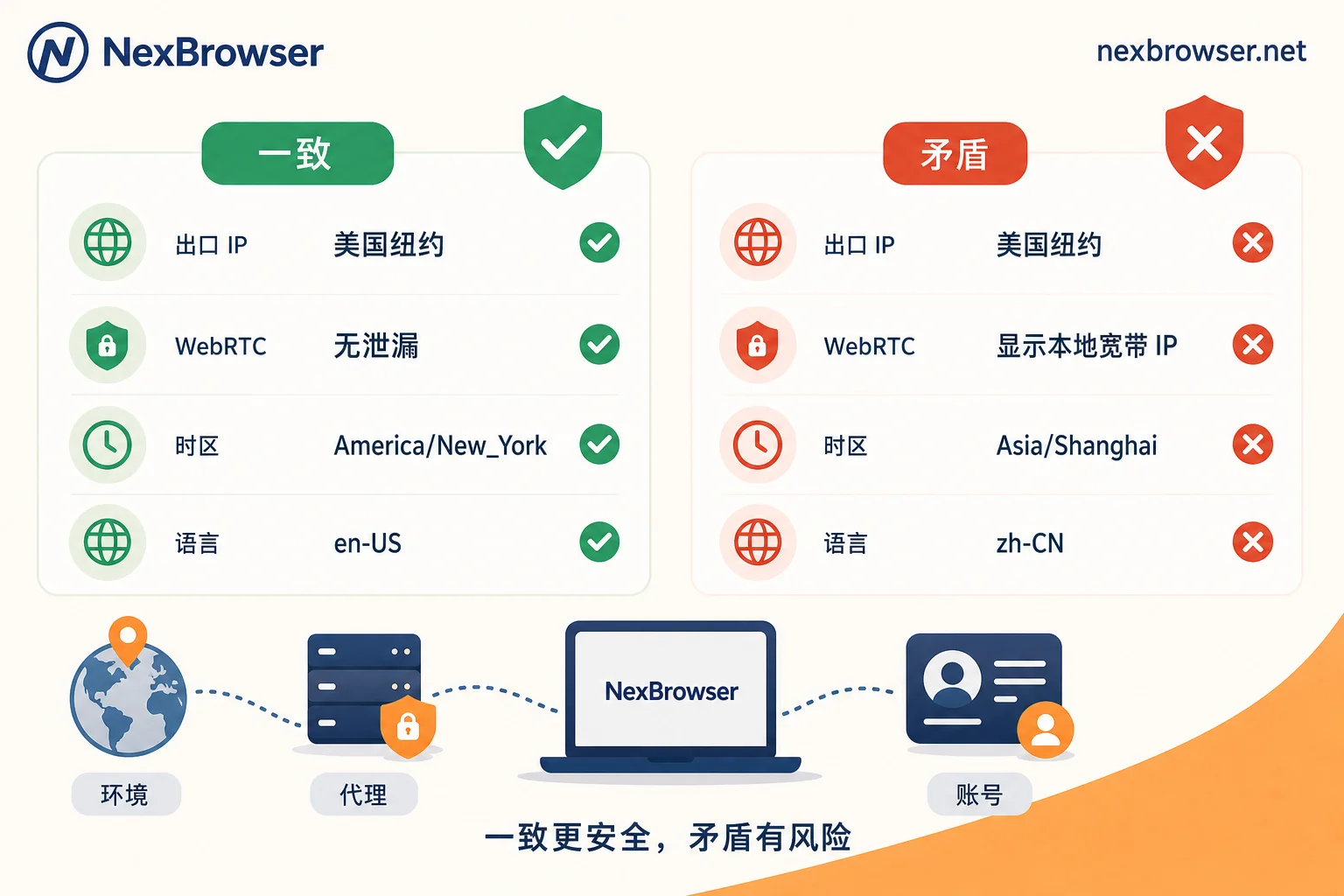
A proxy does only one thing: forwards traffic at the network transport layer. It doesn't change the OS timezone or browser language. Site risk controls usually cross-check: one side is the exit IP and its GeoIP/ISP/DNS location seen by the server; the other side is timezone, language, and WebRTC candidate addresses read by front-end JavaScript. If the two point to different regions, it forms a clear mismatch signal—like "US residential IP + Asia/Shanghai timezone + zh-CN as only language." So just confirming "IP changed" isn't enough.
Layer 1: Is the Exit IP Actually the Proxy's?
In the environment window, visit an IP check tool and focus on four fields:
- IP itself: If it shows your home broadband's public IP, traffic isn't going through the proxy—go back and check proxy protocol, port, and credentials.
- Country/City: Should match the region you purchased. Different IP databases vary in city accuracy; country match with a city off by 100-200 km is acceptable, but cross-country is not.
- ASN and ISP type: If you paid for residential IP but see a datacenter ASN, that's a mismatch worth replacing.
- Connectivity: If timeouts or frequent drops occur, fix stability before worrying about consistency.
For binding and entry steps, see How to bind a proxy to each environment in a fingerprint browser: from entry to verifying exit.
Layer 2: WebRTC and DNS Can Bypass the Proxy
This layer is most often overlooked. Many proxies only forward regular HTTP/HTTPS, while WebRTC STUN/ICE probing uses UDP—if not properly isolated or disabled, the browser may leak your real public IP, even LAN addresses. Result: proxy IP displays correctly on the page, but WebRTC shows your home IP.
DNS works similarly: if resolution still uses the host machine's local DNS, tools will see the resolver in China while the exit IP is abroad—a geographic conflict. Run a DNS leak test to confirm the resolver and exit IP are in the same region.
If you find real IP leaks, troubleshooting path: Exit IP still your local IP after binding proxy? WebRTC and UDP channel troubleshooting guide.
Layer 3: How to Determine Timezone "Matches"
Sites read timezone via two APIs:
Intl.DateTimeFormat().resolvedOptions().timeZonereturns the timezone name, e.g.,America/New_York.new Date().getTimezoneOffset()returns minute offset from UTC. Note the sign is reversed: East 8 returns-480, UTC-5 returns300.
Check two things. First, timezone name should fall within the exit city's timezone: New York exit with America/New_York, London with Europe/London. Second, offset must match current DST status: US Eastern DST is UTC-4 (returns 240), standard time UTC-5 (returns 300). If the system timezone database is correct, it switches automatically; hardcoding offsets can cause errors during season changes. So set the timezone name, not a fixed offset.
Layer 4: Language Consistency in Three Places
Risk controls check the Accept-Language header, navigator.language and navigator.languages in JS, and formatting results from Intl. These come from different configuration points; it's common to change one but forget others, visible on detection pages.
Choose language based on target audience and IP region: for US IP running English sites, primary language en-US is more natural; for multilingual markets, having one or two alternatives in navigator.languages is normal. Avoid exposing only a language severely mismatched with exit IP, e.g., US residential IP with sole zh-CN.
Real-world exception: overseas Chinese or expats using Chinese systems exist, so language mismatch alone isn't a guaranteed risk. However, platforms don't publish tolerance thresholds, which vary by business line. Safest: configure to match target region, don't bet on platform leniency.
How to Implement in NexBrowser
NexBrowser binds proxies per environment: HTTP/HTTPS/SOCKS5 support batch import, and you can one-click bind NexIP's residential IPs. After import, use built-in detection to verify connectivity and exit—confirm layer 1. Fingerprint parameters are configured per environment and kept self-consistent; enabling auto-match timezone and language by IP aligns them at environment startup, saving manual entry.
Auto-match doesn't replace verification. After launch, still run BrowserLeaks in the window, checking exit IP, WebRTC, timezone, and language together before logging in. Feature docs for binding proxy and verifying exit: here.
Note: Exit IP is provided by NexIP; the local environment only handles binding and fingerprint alignment; no configuration guarantees non-association.
When to Re-verify
No need daily, but re-run under these conditions:
- Changed proxy provider or plan.
- Dynamic proxies with rotating IPs—confirm once per session is safer. For static vs. dynamic scenario mix, see Static residential IP vs. dynamic proxy in fingerprint browsers.
- Static residential IP renewed and got a new IP.
- Restored config from cloud sync after changing devices.
- Environment idle for a long time then reactivated.
- Before/after DST changes if you manually set offsets.
If verification passes but accounts still associate, the issue likely lies elsewhere. Follow Account association after browser environment isolation? Troubleshoot in four layers to examine cookies, cache, and usage habits.



Comments(0)